Need help?
Do you have a question about the Hisense GoClick HT005E and is the answer not in the manual?
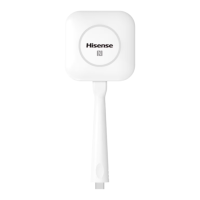
The Hisense GoClick is a wireless USB screen sharing solution designed for use with Hisense Commercial Displays, including interactive digital boards (IDB) and digital signage (DS) displays. This device facilitates the projection and sharing of content from laptops and mobile devices onto larger screens, enhancing collaboration and presentation capabilities in commercial environments. The GoClick is available in models HT002, HT002A, and HT005E.
The primary function of the GoClick is to enable seamless wireless screen sharing. Users can connect the GoClick to their laptop or mobile device and, with a simple button press, project their screen onto a compatible Hisense display. This eliminates the need for cables and complex setup procedures, streamlining presentations and collaborative work. The device supports both Windows and MacOS laptops, as well as Android mobile devices via Near Field Communication (NFC).
*   **Power On:** Ensure the IDB is powered on.
*   **Network Setup (HT002/HT002A/HT005E):** For HT002 and HT002A, enable the hotspot via Settings -> Network. This step is skipped for HT005E.
*   **App Launch (HT002/HT002A/HT005E):** For HT002 and HT002A, open the HisenseShare App from the Home screen. This step is skipped for HT005E.
*   **Connect GoClick to Display:** Plug the GoClick into a USB port of the IDB or DS display.
*   **Pairing Process:** The LED ring on the GoClick will start blinking, indicating the pairing process has begun. This process typically takes around 10 seconds.
*   **Pairing Completion:** Once pairing is complete, the LED ring will stop blinking and become static white. A notification will appear on the IDB or DS screen confirming successful pairing.
*   **Unplug:** Unplug the GoClick from the USB port of the display.
*   *Note:* Display pairing is only required once per display unless it is subsequently paired with another display.
*   **Power On:** Power on the laptop.
*   **Network Connection (HT002/HT002A/HT005E):** For HT002 and HT002A, search for and connect the laptop to the IDB's hotspot network. This step is skipped for HT005E.
*   **Connect GoClick to Laptop:** Plug the GoClick into a USB port on the laptop. Depending on the laptop's USB port type, a converter (not standard Hisense product) might be required for HT005E.
*   **LED Ring Blinking:** The LED ring on the GoClick will start blinking upon successful connection, indicating it's ready for the HisenseShare application to be launched.
*   **First-time Connection:**
    *   **Windows OS:** Autoplay will initiate from a new drive. Double-click the HisenseShare application to start it. The LED ring will flash until the executable is started.
    *   **MacOS:** A CD-ROM drive will appear. Open it and launch the application.
*   **Subsequent Connections (Application Executed Before):**
    *   **Windows OS:** The HisenseShare application will start automatically. The LED ring will flash and then become static white when ready to share.
    *   **MacOS:** The HisenseShare application will start automatically. The LED ring will flash and then become static white when ready to share.
*   **Share Screen:** Once the LED ring is static white, click the button on the GoClick to share the laptop's screen onto the IDB's screen.
*   **Power On:** Power on the Android mobile device.
*   **Enable NFC:** Ensure the NFC function is enabled on the device.
*   **Install HisenseShare App:** Go to the 'Play Store', search for, and install the HisenseShare app.
*   **NFC Communication:** Move the mobile device close to the NFC tag on the GoClick (within 4cm).
*   **App Launch:** The HisenseShare app will open automatically once NFC communication is established.
*   **Share Screen:** The mobile device's screen can then be shared onto the IDB's screen through the HisenseShare app.
If experiencing issues connecting a Mac laptop with GoClick:
tccutil reset All and press enter. This command helps clean up cache data that might interfere with the connection.https://www.hisense-b2b.com/en/downloadssvc@hisense-b2b.cohttps://www.hisense-b2b.com/en/sales@hisense-b2b.com General
| Brand | Hisense |
|---|---|
| Model | GoClick HT005E |
| Category | Remote Control |
| Language | English |

 To Next Page