4
Connecting Devices to your TV
DVD Player/Recorder
Video
Camera
EXTERNAL DEVICES
Set-top box
Satellite Receiver
Satellite
antenna
cable
VCR
White(L) White(L)
Red(R) Red(R)
Audio Cable
Component Cable
Component
R
L
P
R
P
B
Y
Red(P
R
/C
R
)
Red(P
R
/C
R
)
Blue(P
B
/C
B
) Blue(P
B
/C
B
)
Green(Y)
Green(Y)
HDMI
HDMI
EXTERNAL DEVICES
DVD
Set-top Box
HDMI Cable
NOTES
• Because the HDMI connector provides video and audio signals, it is not necessary to connect an audio cable.
• The HDMI cable will not supplied with the product.
• We strongly recommend to use HDMI Cable with 2 cores as shown in the figure.
NOTE
One AV device can be connected to the TV using a component video or composite video cable.
TV JACK
TV JACK
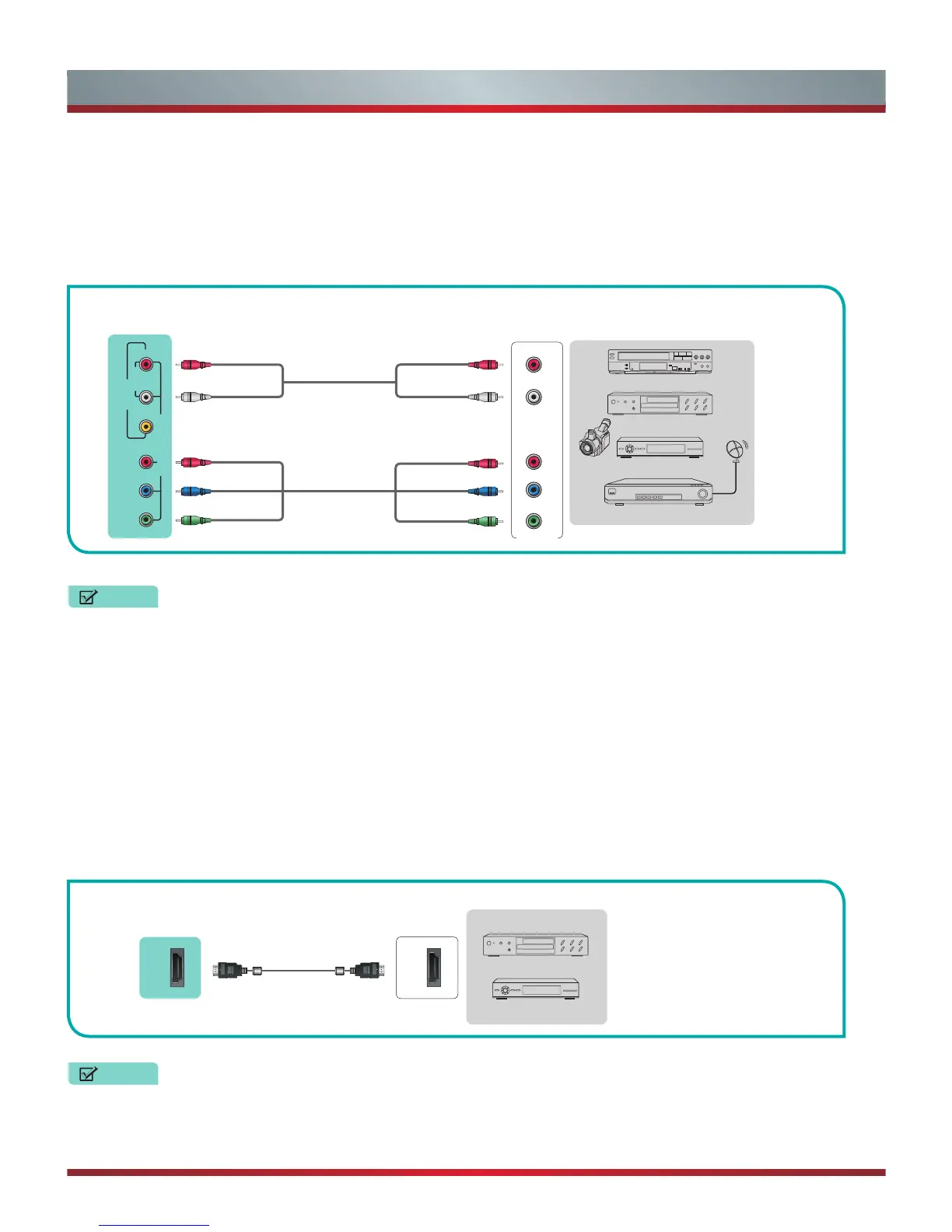
Connecting an AV device with a component video cable (red/blue/green)
To connect an AV device with a component cable (which is red/blue/green):
1. Use a component video cable (not provided) to connect the component output jacks of the external device to the YP
B
P
R
jacks
for the TV. Use an audio cable to connect the component audio jacks of the external device to the TV AUDIO (L/R) jacks.
2. Plug the connected devices into the YP
B
P
R
and L/R ports on the TV before switching it on.
3. Using your remote, press the [INPUT] button and select COMPONENT as the input source.
Figure 3. AV device with a component video cable
Connecting an AV device with an HDMI cable
This type of connection supports digital connections between HDMI-enabled AV devices such as a Personal Video Recorder (PVR),
DVD, Blu-Ray, AV receiver and digital devices. In addition, some devices (such as a PVR or DVD player) require an HDMI signal to
be set to Output in the settings of the device.
Please refer to the User Manual that came with your device for step-by-step instructions.
To connect an AV device with an HDMI cable:
1. Use an HDMI cable to connect the [HDMI] output port of the AV device to the [HDMI] jack of the TV.
2. Plug the connected devices into the power socket.
3. Using your remote, press the [INPUT] button and select the corresponding HDMI input.
Figure 4. AV device with an HDMI cable
(not included)
(not included)
L R
AV IN
VIDEO AUDIO
Y P
B
P
R
COMPONENT IN



 To Next Page