5
Getting Started
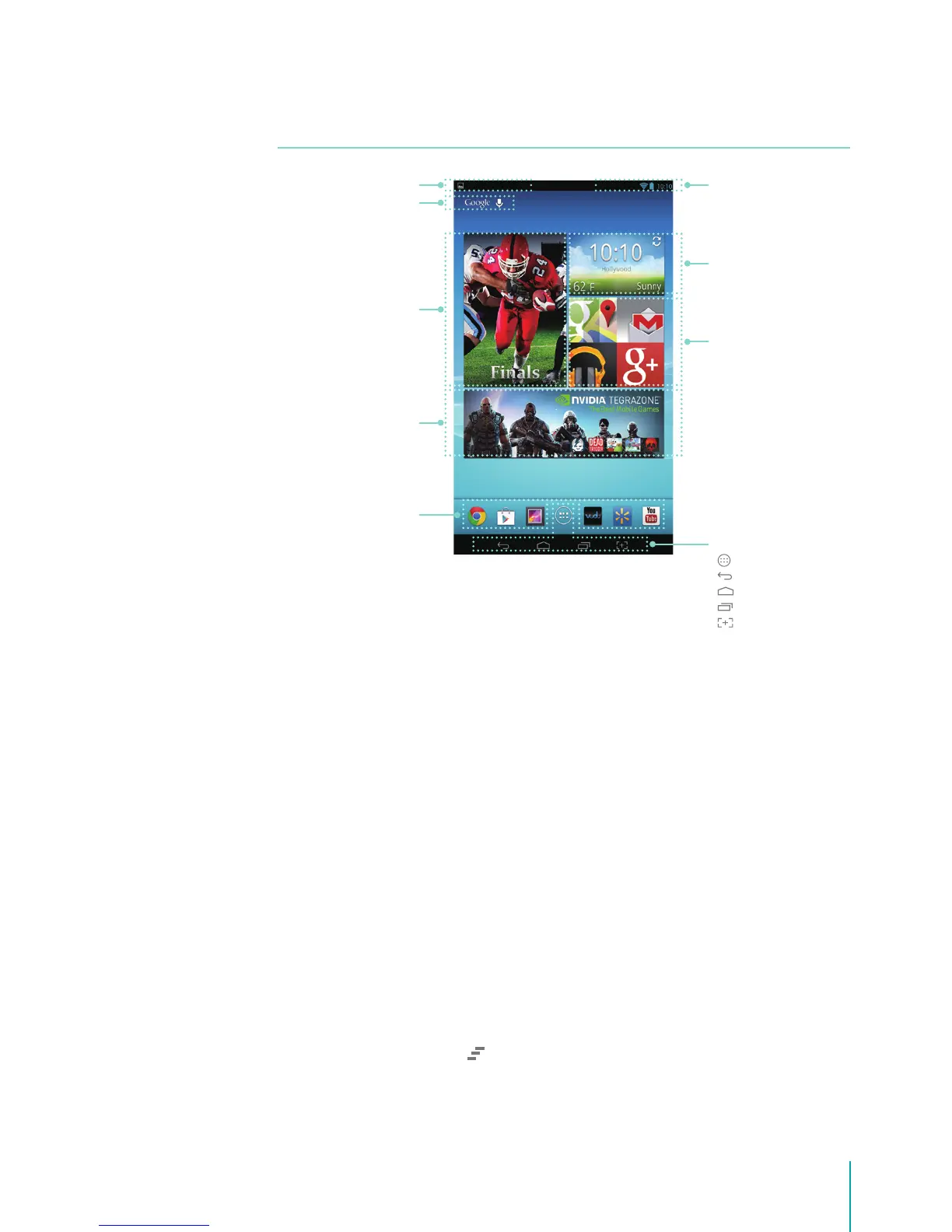
Home Screen
To move between Home screens, slide left or right.
Weather & Time
This widget shows the city’s weather and the current time. You can tap the clock to open it. You can
also tap the space besides the clock to open a weather panel, then select the city name.
Notication & Status Bar
At the top of the screen, you’ll see indicators that inform you about the status of your Sero 7. You can
open the Notication Tray or the Quick settings by pressing the Notication or Status bar and dragging
it down.
Notication Tray
Notications can come from the system, a game, an application such as E-mail, or the music player.
Certain notications can be expanded to show more information, such as email previews or calendar
events.
To open the related app, tap the notication icon on the left of Notication Tray. Some notications
also allow you to take specific actions by tapping icons within the notification. For example, Music
notication allow you to pause/play or play the previous/next music.
When you’re nished with a notication, just slide it away to the left or right. If you want to dismiss all
notications, tap the Dismiss icon
at the top of the notication.
Weather & Time
Status Bar
App Recommendation
Navigation Buttons
All Apps
Back
Home
Recent Apps
Screenshots
Notication Bar
Google Search
VUDU Movie
Recommendation
NVIDIA TegraZone
Game Recommendation
App Icons


 To Next Page