FIRNET Controller 1.0
Digital Clock Source
• Synchronizing Analog Circuits
You can chose between two operating modes when
addressing the FIRNET via the analog inputs. The
controller may be synchronized to its internal clock
or an external clock routed in via the AES/EBU
input.
Synchronizing several FIRNET controllers to an ex-
ternal clock ensures individual FIRNET controllers’
audio signals remain coherent. This is particularly
important for speaker confi gurations with coherent
throw patterns such as line arrays.
To select the clock source, fi rst press the ADMIN
key to access the Admin menu. Use the
RS
keys
to select the menu option Input Options (press the
S
key once) and press the ENTER key.
Now use the
RS
keys to select the submenu opti-
on Dig. Clk Sync (press
R
once) and the
QP
keys
to set the FIRNET to Internal or AES/EBU. Then
press the ENTER key to assign the selected clock.
The FIRNET’s display shows the selected source.
7.4.5.3 Utilities: Delay, Temperature,
Display Contrast, Controller
Name
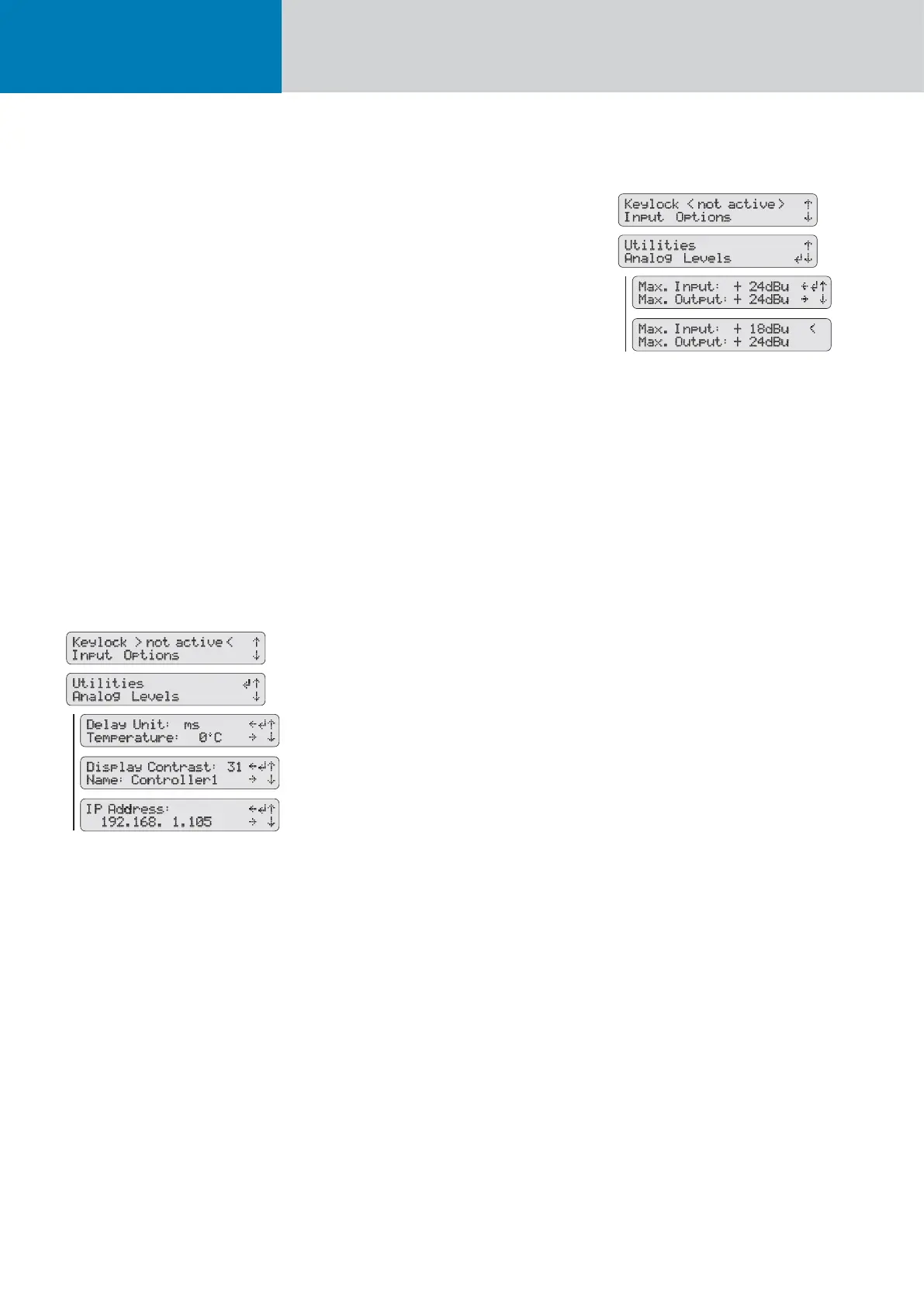
Selecting a Unit of Measure for Delay Readings
The FIRNET indicates delay settings in millise-
conds (ms), meters (m), feet (ft), or samples (SA).
To select a unit of measure for the delay display
reading, fi rst press the ADMIN key to access the
Admin menu. Use the
RS
keys to select the menu
option Utilities (press
R
or
S
twice) and press
the ENTER key. Now use the
RS
keys to select the
submenu option Delay Unit, if not already selected,
and the
QP
keys to select the desired unit for the
delay display reading. Then press the ENTER key to
assign the selected unit of measure.
To calculate the delay reading for meters (m) and
feet (ft), the FIRNET fi rst computes the millise-
conds (ms) value based on the speed of sound,
which depends on temperature. You must enter the
surrounding temperature to the FIRNET to ensure
this value is converted correctly. To do this, fi rst
press the ADMIN key to access the Admin menu.
Use the
RS
keys to select the menu option Uti-
lities (press
R
or
S
twice) and press the ENTER
key. Now use the
RS
keys to select the submenu
option Temperature (press the
S
key once) and the
QP
keys to set the current ambient temperature
in °C. Then press the ENTER key to assign this tem-
perature to the equation the FIRNET uses to convert
the unit of measure for the delay display reading.
Adjusting the LCD’s Contrast
To adjust the LCD’s contrast to the given lighting
conditions, fi rst press the ADMIN key to access the
Admin menu. Use the
RS
keys to select the menu
option Utilities (press
R
twice or
S
) and press
the ENTER key. Now use the
RS
keys to select
the submenu option Display Contrast and the
QP
keys to select the desired display contrast within
a range of 0 to 31. Then press the ENTER key to
assign the contrast setting.
Selecting the Controller Name
To create an orderly, logical PA setup, you want
to establish a clear link between a FIRNET and a
speaker or group of speakers. To this end, you can
give a controller a meaningful name such as PA
Left. To change a controller name, fi rst press the
ADMIN key to access the Admin menu. Use the
RS
keys to select the menu option Utilities (press
R
or
S
twice) and press the ENTER key. Now use
the
RS
keys to select the submenu option Contr.
Name (press arrow up twice). Use the
QP
keys
to change each letter of the indicated controller
name. Press ENTER to go to the next letter in the
controller name. Once you have entered the desired
controller name, press the ENTER key for about
two seconds until a < symbol appears next to the
controller name to assign this name.
Changing the IP Address
The FIRNET ships with a default IP address that
reads 192.168.1.100. To change the IP address, fi rst
press the ADMIN key to access the Admin menu.
Use the
RS
keys to select the menu option
Utilities (press
R
or
S
twice) and press the
ENTER key. Now use the
RS
keys to select the
submenu option IP Address (press
R
once). Use
the
QP
keys to change each digit of the indicated
IP address. Press ENTER to go to the next digit in
the IP address. Once you have entered the desired
IP address, press the ENTER key for about two
seconds until a < symbol appears next to the IP
address. To assign the new IP address, you must
power the FIRNET down by severing its connection
to the mains supply. The FIRNET will boot with the
new IP address the next time you power it up.
7.4.5.4 Analog Levels
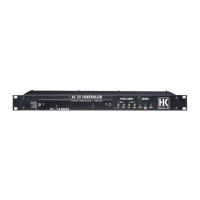
Adjusting the Maximum Input Level (AD)
When addressing the FIRNET via the analog audio
inputs, you can adjust input sensitivity in four
steps (6 dBu, 12 dBu, 18 dBu, 24 dBu) to match the
FIRNET controller’s input to the connected audio
device’s analog output. To set the maximum level
for the AD converter, fi rst press the ADMIN key to
access the Admin menu. Use the
RS
keys to se-
lect the menu option Analog Levels (press
R
once)
and press the ENTER key. Now use the
RS
keys
to select the submenu option Max. Input and the
QP
keys to set the desired maximum level for the
AD converter. Then press the ENTER key to assign
the selected maximum level. Ensure the input level
you have selected in this menu matches as closely
as possibly the connected audio device’s maximum
output level.
Note: When driving HK AUDIO speakers with
a combination of FIRNET controller and LAB
FP10000Q power amps, set the maximum output
level (Max. Output) to 18 dBu. The FIRNET’s limiter
cannot effectively attenuate signals when set to
other dBu levels, so connected speakers may be
damaged or destroyed.


 To Next Page