
 Need help?
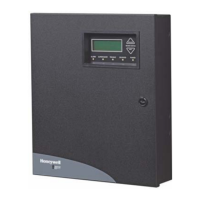
Do you have a question about the Honeywell GALAXY 16103 and is the answer not in the manual?
Defines users, their access levels, and control methods using PINs, prox tags, or keyfobs.
Explains system division into separate areas for independent control by different users.
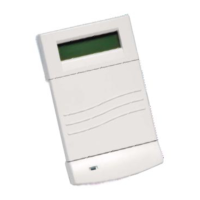
Details the types of keypads and their function keys for system interaction.
Describes proximity tags and cards used for system setting and unsetting with readers.
Explains the use of portable keyfobs for remote system control.
Instructions for setting the entire alarm system when all zones are secure.
How to set the system partially or at night, leaving specific detectors inactive.
Describes the process of overriding system faults to allow setting.
Procedures for cancelling setting routines and unsetting the alarm system.
Managing alarm conditions, alert messages, and fault notifications.
Setting and unsetting specific system groups or all groups.
How to access and navigate the system's menu structure.
Details functions related to setting, like omitting zones and timed sets.
Functions for viewing zone status, system version, and event logs.
Performing system tests and configuring time, date, and user settings.
Managing user access rights, mobile numbers for SMS alerts, and remote access.
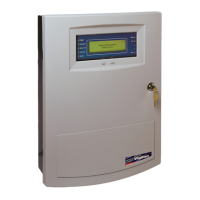
The Honeywell Galaxy 2-44 is a programmable alarm control panel designed to provide secure and reliable intruder detection for homes or businesses. This system is highly customizable by an installer to suit individual lifestyles or working practices, ensuring optimal protection and ease of use. Should requirements change, the installer can reconfigure the system to maintain effective security.
For the alarm system to be most effective, it must be used correctly. Users are advised to read the instructions carefully to maximize the system's benefits and prevent false alarms. It is crucial to remember that the alarm system only protects against intruders when it is appropriately set (Full Set, Part Set, or Night Set).
WARNING: The alarm system components contain no user-serviceable parts. All servicing should be performed by qualified alarm service engineers.
Each individual using the system is designated as a 'User' and possesses a unique identity, which can be a PIN code, a proximity (prox) tag, a wireless keyfob, or a combination of these. Different users can be granted varying levels of access to the alarm system's functions, which are configured in the user programming section.
The control panel can be operated in three ways:
While all these methods allow for daily setting and unsetting of the system, a keypad is necessary to reset the system after an alarm or fault condition. The keypad also provides access to the menu structure for additional functions such as viewing the event log, programming user codes, and temporarily omitting zones.
For larger systems, the alarm can be divided into separate areas or 'Groups' that can be set and unset independently by different users. Group operation must be configured by an installer. The Galaxy 2-44 supports up to three independently controllable groups. If your system uses group operation, refer to the specific notes on Groups throughout the manual.
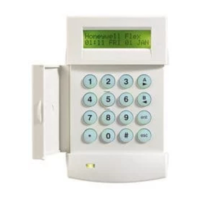
Two types of keypads are available, both functioning similarly. The number buttons are used for entering PIN codes and changing options. The function keys on the side have specific uses:
The default user PIN code is 1234. It is highly recommended to change this code to something easily memorable but difficult for an intruder to guess.
Prox tags/cards contain a microchip with a unique serial number. These devices are read by holding them in front of a prox reader, typically built into keypads and identified by a prox symbol. Prox tags/cards allow users to set and unset the system only.
Keyfobs are portable controllers that can be attached to a key ring. They enable setting and unsetting the system with a single button press and can be programmed for additional functions. Operating via radio, they can be used anywhere within range of the installed radio receiver on the premises. Labels are provided to indicate button functions.
To set the system, ensure all doors are closed and windows are secure. The system cannot be set if a previous alarm has not been reset. To set the entire system:
The exit timer will begin with a constant tone. Exit through the designated route and close the door. After the exit timer expires, there will be a 5-second settle period, followed by two beeps confirming successful setting. If a rapid beeping sound occurs, the system cannot set due to open zones, and the keypad will display which zones are open. The setting procedure can be canceled at any time during the exit period by pressing the esc key on the keypad, the [OFF] button on the keyfob, or by placing the tag back in front of the prox symbol.
Part and Night setting are similar to Full setting but omit certain detectors as configured by your installer. The installer can also program the system for silent setting, where no exit timer tones are given. To Part or Night set:
A 30-second exit timer will begin. Exit the protected area via the agreed route. A double beep confirms setting completion.
Normally, the system will not permit setting if any fault is present until it is rectified. However, depending on your system's setup and user access level, it may be possible to override a fault and proceed with setting. If faults are present when attempting to set via the keypad, a display like "Fault Override 03 Event(s)>" will appear. Use the cursor keys to scroll through faults. If overriding is possible, "ENT to Continue>" will be shown. Pressing ent will override the fault for one set period, allowing the system to set. This process repeats for each fault if multiple faults exist.
Full, Part, and Night setting routines can be canceled before the system sets by pressing the esc key on the keypad used to initiate the routine. To cancel setting from another keypad, type your user PIN code and press A> or ent.
To unset the system, enter the protected area via the agreed route. A timed entry period will begin with a pulsed tone.
Canceling an alarm is similar to unsetting. However, if a wireless keyfob or prox tag was used, alarms must be viewed on a keypad by entering a user code and following on-screen instructions. Only specific users can reset the system after an alarm, as informed by your installer.
If a fault occurs while the system is unset, an "Alert!" message will appear on the keypad with an intermittent beep. Go to the nearest keypad, type your PIN code, and press ent. The display will show what happened. Use A> and B< to scroll through messages. If the condition has cleared, pressing ent or esc will reset the fault. A fault cannot be reset if it hasn't cleared or been viewed by a user. If you cannot clear the fault, contact your installer.
The alarm system can be divided into separate 'Groups' that can be set and unset independently. Users can be granted access to specific groups or all groups. Individual users can also choose to set/unset all assigned groups or select specific ones.
Users with access to multiple Groups but no group choice should follow the standard setting/unsetting procedures.
To access other system functions, users enter menu mode by typing their PIN code and pressing ent. The first menu item will display after showing system status for 5 seconds. Users can navigate using scroll keys, ent, and esc, or jump to a specific item by typing its number. Not all users can access all functions; this depends on their 'user type' set in menu 42.
This function temporarily disables a detection zone (e.g., for a dog left in the house). Zone omits last for one set period and automatically switch off when the system is unset. Upon entering, the first omittable zone is displayed. Use A> and B< to select zones. Press # to omit a zone; "Omitted" will appear. Select other zones as needed. Press ent to set with omitted zones, or esc to exit and save for later setting.
This option initiates the timed full setting routine, identical to typing a PIN code and pressing A>.
This initiates the timed Part Set routine as described earlier.
This initiates the timed Night Set routine as described earlier.
This option enables Chime mode for one or more zones. When enabled, internal sounders beep twice each time a detector on that zone is activated. Useful for indicating customer entry in a shop.
This displays the status of each detection zone. Upon entering, the first system zone is shown with its address and function, toggling with current status (open, closed). If groups are enabled, the group will also be shown. The bottom row displays the zone description. Use A> and B< to view other zones. Press # for additional diagnostic information, useful for fault finding with the alarm company.
This displays the system event log, vital for tracing events during a break-in or fault. The most recent event is shown upon entry, displaying event time, date, source, and type. B< scrolls backward, A> scrolls forward. Holding scroll keys (Mk7 keypad only) jumps by one day. Press # for additional event information. If groups are enabled, you can select which groups to view before entering the log.
This displays the system's software version number.
This option prints system settings if a printer is connected. If not, it has no effect. Selecting this option opens a sub-menu of four choices:
This menu allows manual testing of zones, with two sub-options:
ent to start the test or esc to abort. During the test, any detector activation causes internal sounders to beep twice, and the zone number/description appears on the keypad. Use scroll keys to view multiple active zones.
NOTE: For wireless movement detectors, ensure they are undisturbed for 3 minutes before activating the walk test to prevent sleep mode during repeated activations. Press esc to end the walk test. All walk-tested zones are recorded in the event log.This tests the external bell and strobe. Two sub-options allow selection between bell and strobe. Select a device and press ent to view its current status (on/off). Press ent again to toggle its status. Press esc to end the test.
This sets the system time and date. Two sub-options: A=Time and B=Date. Press A or B to set the new value directly. Time is entered in 24-hour format, and date in 6-digit format (DD/MM/YY).
The system supports up to 24 users (user 24 is the default master user). Each user can have a PIN code, wireless keyfob, and/or prox tag, and an access type dictating their permissions. Menu 42 allows users to change their PIN, and Master users to add/remove users and manage access rights. Upon entering menu 42, the "1=Users" sub-menu is displayed, showing the first user (normal users only see their own programming).
Use A> and B< to select the user to edit. Press ent to view options for that user, starting with PIN. A> and B< move between options. Press ent to modify the displayed option. Most users only access PIN; Master users access other functions. Programmable options:
ent.ent. To program a new tag, clear current serial number, press 1 and A> simultaneously, then present the new tag to the prox symbol. The new serial number appears. Press ent to save.When enabled, the duress function sends a panic signal to the monitoring station each time the user PIN, fob, or tag is used. Duress codes should only be used in life-threatening emergencies.
This alters the SMS text messaging feature. The system can send event messages to up to 3 mobile phones. Event types can be individually selected for each number. This menu has 3 sub-menus, one for each mobile phone. Selecting a mobile (1 to 3) and pressing ent reveals two sub-options:
ent.This initiates a remote service call by the installation company. The remote servicing function allows the Galaxy alarm system to be remotely monitored and reprogrammed over the phone line (via modem or GSM) to a computer at the installer's premises. Use only when required by your installation company.
This authorizes access for an installation or service engineer. An engineer's special access code is enabled when a user accesses this menu and enables level 3 (installer) access by pressing 1 followed by ent. The engineer then has 5 minutes to enter their code.
 General
| Model | GALAXY 16103 |
|---|---|
| Manufacturer | Honeywell |
| Product Type | Control Panel |
| User Codes | 32 |
| Users | 32 users |
| Communication | PSTN |
| Battery Backup | 12V 7Ah |


 To Next Page