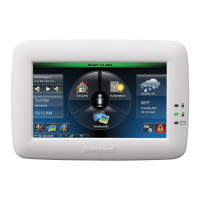
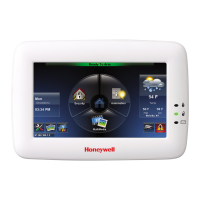
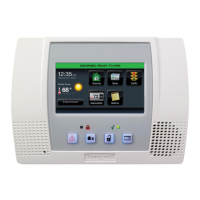
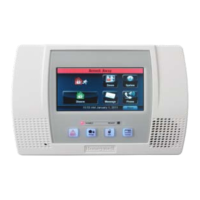
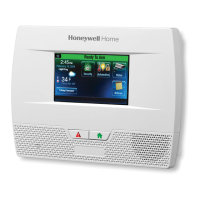
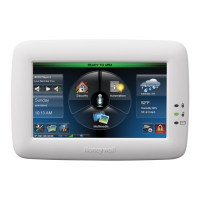
Tuxedo Touch Wi-Fi
™
Series ADDENDUM - New Features
ADDENDUM TO: Tuxedo Touch™ Wi-Fi
®
Installation Guide & User Guide (800-16571V2 & 800-16573V2 dated
8/15) found on https://mywebtech.honeywell.com/.
REVISION:
This addendum applies to firmware version 5.3.4.0 and higher.
Additional Features: Models TUXWIFIS, and TUXWIFIW
Z-WAVE IMPROVEMENTS:
• Supports up to 20 thermostats for use with Total Connect Remote Services.
• Supports improved status updates for Z-Wave binary and dimming devices (lights) as explained below.
Some binary or dimming lights will send a status update when the device is manually operated. However, the
Tuxedo does not auto refresh and the change in the status of the light is not displayed. Manually refreshing is
required to show the updated status by pressing Automation > Refresh.
DENON HEOS™ AUDIO SUPPORT
Tuxedo Touch Wi-Fi (herein referred to as Tuxedo) now integrates with Denon HEOS Wi-Fi audio devices. Compatible Denon
HEOS™ models are: HEOS 1, HEOS 3, HEOS 5, HEOS 7 speakers; the HEOS AMP, HEOS link, and other devices.
BASIC FEATURES
• Denon speaker discovery with 32 speakers in WIFI or LAN
network.
• Play/Pause/Volume control of individual speakers and Groups from
the “Now Playing” page and “Audio widget” on the home page.
• Play/Pause/Volume control triggering through the use of scenes.
• Browsing both local and online music sources
with control through the “Audio Player” page.
• Automatic reconnection when loss of network
occurs.
• Audio On/Off feature provided.
INTRODUCTION TO THE AUDIO INTERFACE
AUDIO WIDGET ON THE HOME SCREEN


 To Next Page

 General