69-2814EFS—07 13
Initiating occupancy mode: business use
This feature keeps temperature at an
energy-saving level until you touch Press
to start occupancy. When you arrive, touch
the button to maintain a comfortable
temperature while the room is occupied.
Touch the p or q buttons to set the
temperature or the Hold Until time. The
temperature is maintained until the
time you set. Temperature returns to
an energy-saving level after the timer
expires, or the “Occupied” period ends.
Press to start
occupancy
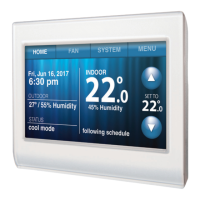
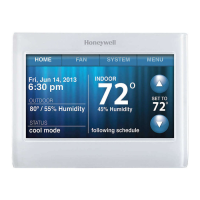
Customizing screen color
You can customize your thermostat
display to match your décor.
1 Touch Menu.
2 Touch Color Themes.
3 Select the name of a color to
use a predefined background, or
select Custom to define you own
background color and text.
• If you select a color name, the
screen shows an example on the
left. Touch Done to accept that
selection.
• If you touch Custom, the screen
gives you instructions. Touch Next
to step through the choices; touch
Done when you are satisfied with
your changes.
Color Themes
Done
Next
MENU


 To Next Page
 Loading...