69-2814EFS—07 14
Setting preferences
Preference menu options let you
select how the thermostat displays
information or responds to certain
situations.
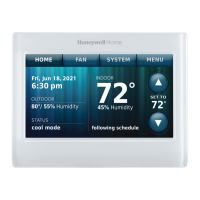
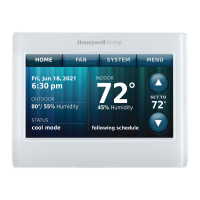
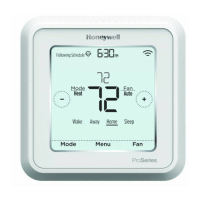
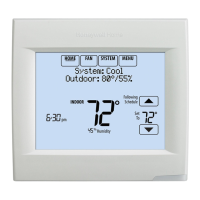
1 Touch MENU and select Preferences.
2 Select an option and follow prompts:
• Reminders
• Utility Schedule Options
• Backlight
• Smart Response Technology
• Advanced Preferences
• Restore Default Schedule
3 Touch Done to save your settings.
Touch Cancel to ignore changes.
MENU
Preferences
Cleaning the thermostat screen
When you select the Clean Screen
option, the screen is locked so you don’t
accidentally change settings while you
clean.
1 Touch MENU.
2 Select Clean Screen. A prompt asks if
you want to clean the screen for 30
seconds.
3 Touch Yes. A countdown timer displays
elapsed time until the screen is
reactivated.
Note: Do NOT spray any liquid directly
on the thermostat. Spray liquids onto a
cloth, then use the damp cloth to clean
the screen. Use water or household glass
cleaner. Avoid abrasive cleansers.
MENU
Clean Screen
Yes


 To Next Page
 Loading...