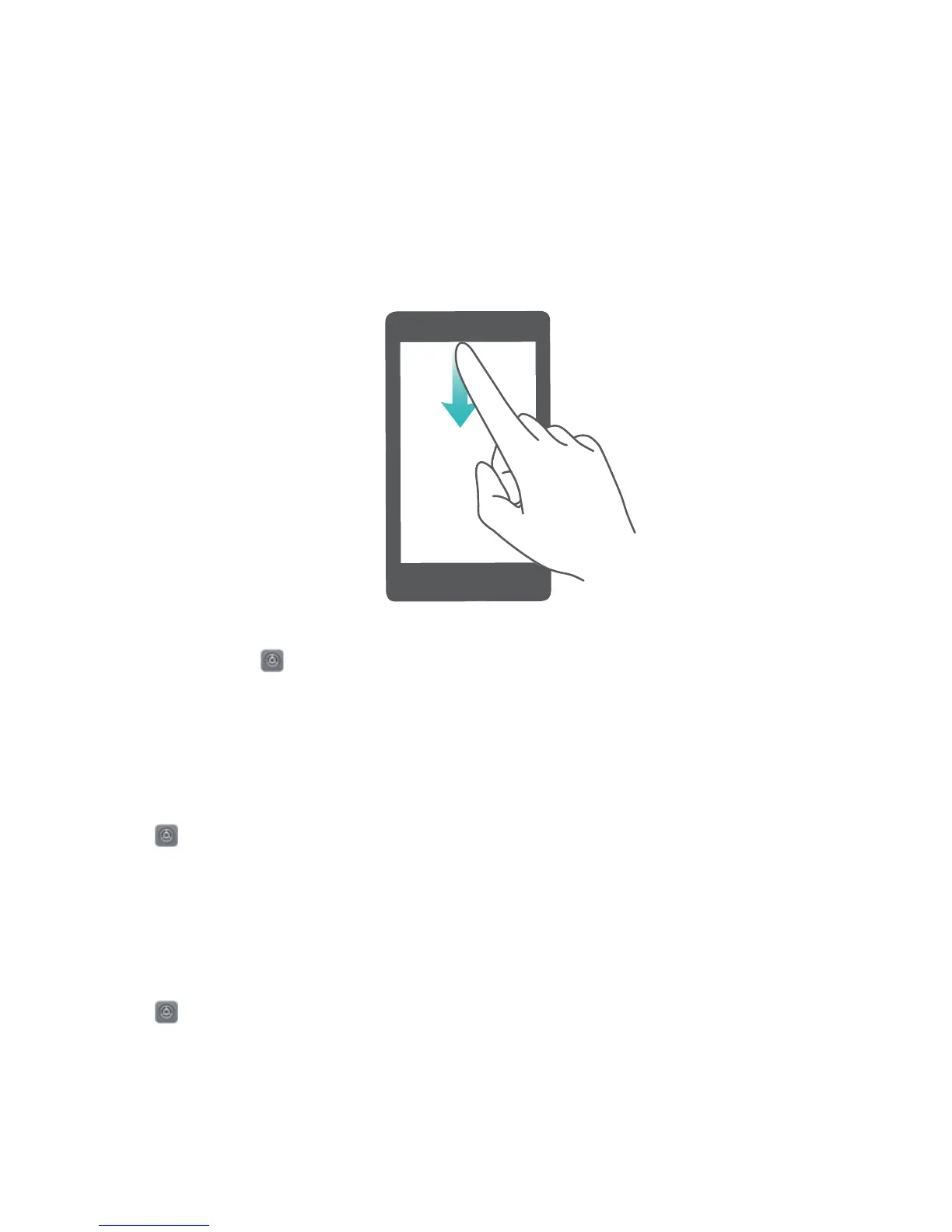
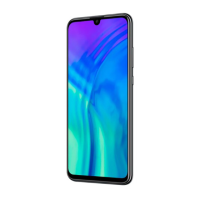
When there is a notication reminder, you can turn on the screen and swipe down from the status bar
to view the notication. You can access notication and status bar settings in the following ways:
Access notication panel when the screen is unlocked: Swipe down from the status bar to open
the notication panel. You can turn on or off shortcut switches, or touch notications to view the
details.
Want the notication and status bar to display only the number of notications or to display no
notications? Touch Settings, and go to Apps & notications > Notications & status bar >
Notication method. Then, select Numbers or None as required.
Disable Disruptive App Notications
Find it annoying to receive so many different types of app notications? You can set and disable app
notications to prevent this from happening.
Open Settings, and go to Apps & notications > Notications management. You can:
l Prevent all apps from pushing notications: Touch Batch management, and then turn off All.
Customise
Notications
Not a fan of the default notication reminders? You can customise your notication reminders so that
you get your notications the way you want them.
Open Settings, then go to Apps & notications > Notications & status bar. From here you
can:
l Enable Notications turn on screen: Enable Notications turn on screen. When your Phone
screen is off, it will turn on when a notication is received.
l Set Pulse notications light: Turn on Pulse notication light, and the notication light will ash
whenever you receive new notications.
Home Screen
16



 To Next Page