Charging Your Phone with a PC
1 Connect your phone to a PC or other device using a USB cable.
2 When the Use USB to dialog box is displayed on your phone, touch Charge only.
If another option has been set previously, the dialog box will not pop up. Swipe down
from the top middle or left of the screen to open the Center, touch
Settings, then select Charge only.
Oveiew of Batte Icons
You can check the level from the icon on the phone screen.
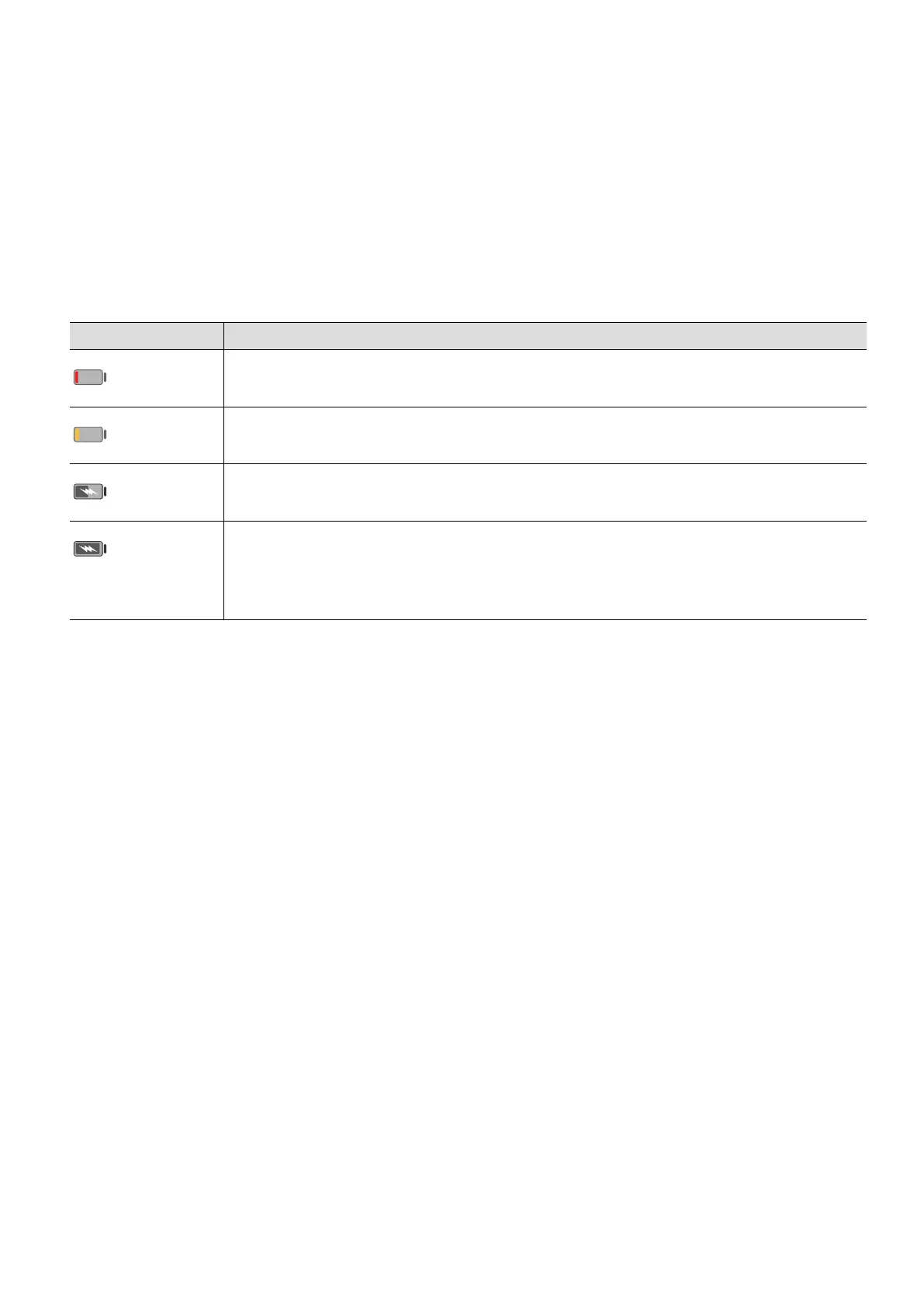
Batte Icon Batte Level
Less than or equal to 10% remaining.
11% to 20% remaining.
Charging, 20% to 90% remaining.
Charging, at least 90% remaining.
If 100% is displayed next to the icon, or a charging complete
message is displayed on the lock screen, the is fully charged.
Use Wireless Reverse Charging
Wireless reverse charging is by devices that the Wireless Charging
Standard, such as phones, tablets, watches, and bands.
Before using wireless reverse charging, ensure that the level of your phone is
higher than 20%.
1 Go to Settings > Batte, and enable Wireless reverse charging.
2 Power on the device to be charged, and place it on the center of the back of your
phone. Do not place any metal objects between your phone and the device to be
charged.
3 If the device does not charging within 5 seconds, adjust its position and again.
4 If the device to be charged is removed from the phone for more than 2 minutes during
charging, Wireless reverse charging will automatically be disabled.
Get Familiar
23



 To Next Page