Swipe down from the top right of the screen to open the Control Center. Swipe down from
the top middle or left of the screen to open the Center. Swipe left or right on
the blank space to switch between them.
Use Shocut Switches
Tap the switch to enable or disable its function. Tap & hold on the switch
to quickly enter the setting page of the function (if there is a setting page). For example,
tap & hold on Wi-Fi, you can directly enter “Settings > Wi-Fi” setting page.
Slide down the bottom icon of the switch panel to show more switches.
Learn about Common Icons
Learn About Common Notications and Icons
network status icon may depending on your region or network provider.
products functions. following icons may not appear on your
phone. Please refer to the actual situation.
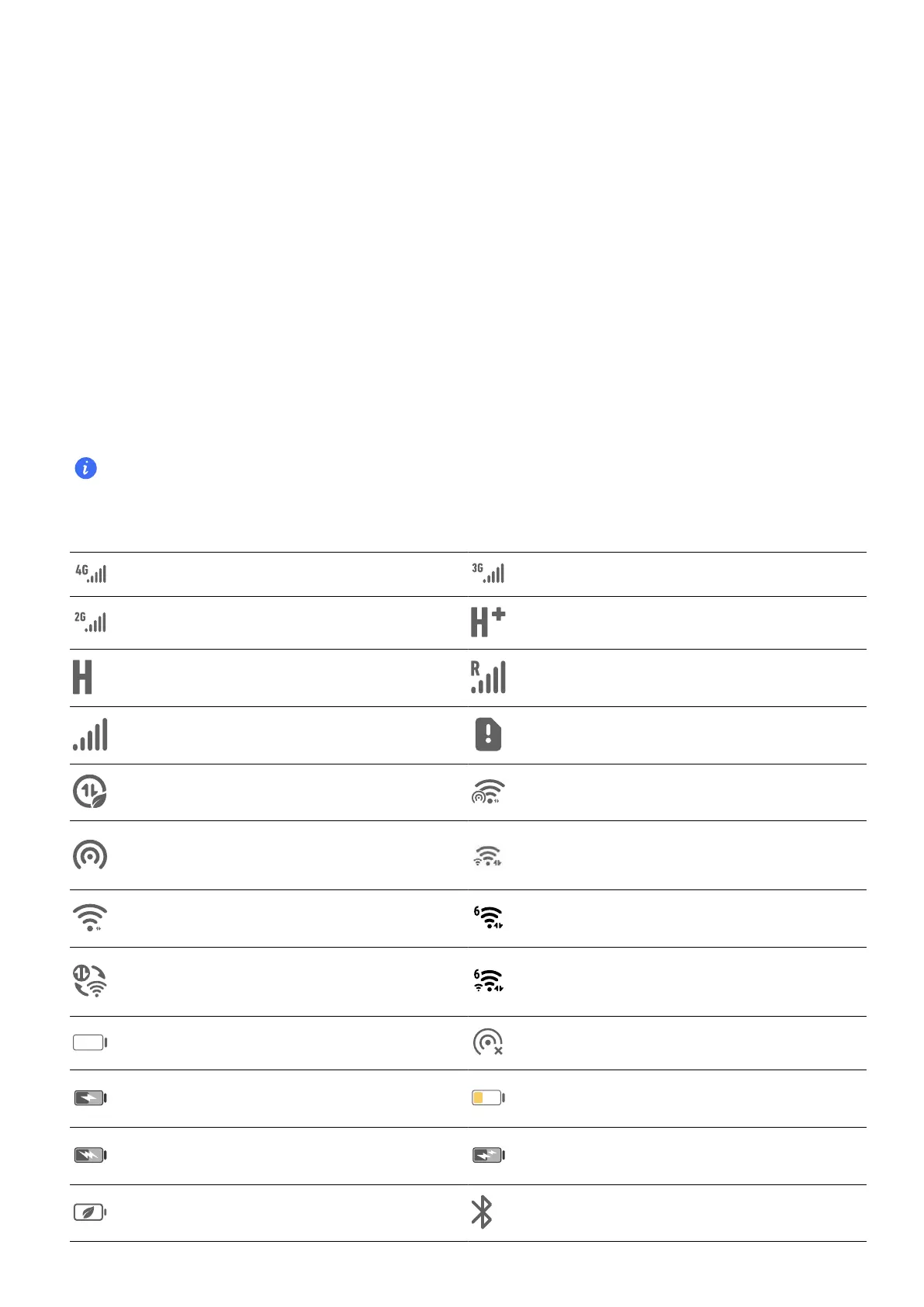
Connected to 4G network Connected to 3G network
Connected to 2G network HSPA+ connected
HSPA connected Roaming
Full signal No SIM card
Data saver enabled Connected to hotspot
Hotspot enabled
Connected to both 2.4 GHz and
5 GHz Wi-Fi networks
Connected to Wi-Fi network Connected to Wi-Fi 6 network
Automatic network switching
through Wi-Fi+
Connected to both 2.4 GHz and
5 GHz Wi-Fi 6 networks
No Hotspot disconnected
Charging low
SuperCharge Quick charge
Power Saving mode enabled Bluetooth enabled
Get Familiar
8



 To Next Page