GB
* Certain Models Only ** May vary according to model
9
is displayed. Press the OK conrmation button to conrm.
4. The minute display will ash. Press the up and down arrow on the remote control until the correct
minute is displayed. Press the OK conrmation button to conrm.
5. Day and time are now set.
With Wi-Fi Application*
Following the instruction in the Wi-Fi Application*.
NOTE: The date will be automatically updated according to your smartphone once you connect
to your Robo.com³ with the APP in your smartphone.
CLEANING PROGRAMS
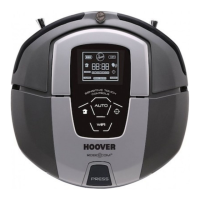
Robo.com³ use AAI™ Infrared Navigation, an advanced navigation system that uses the algorithmic
calculation to dene the best path to efciently clean your room.
With the dust sensor, on dust detection the Robo.com³ will automatically initiate a cleaning cycle and
will follow an elliptical pattern.
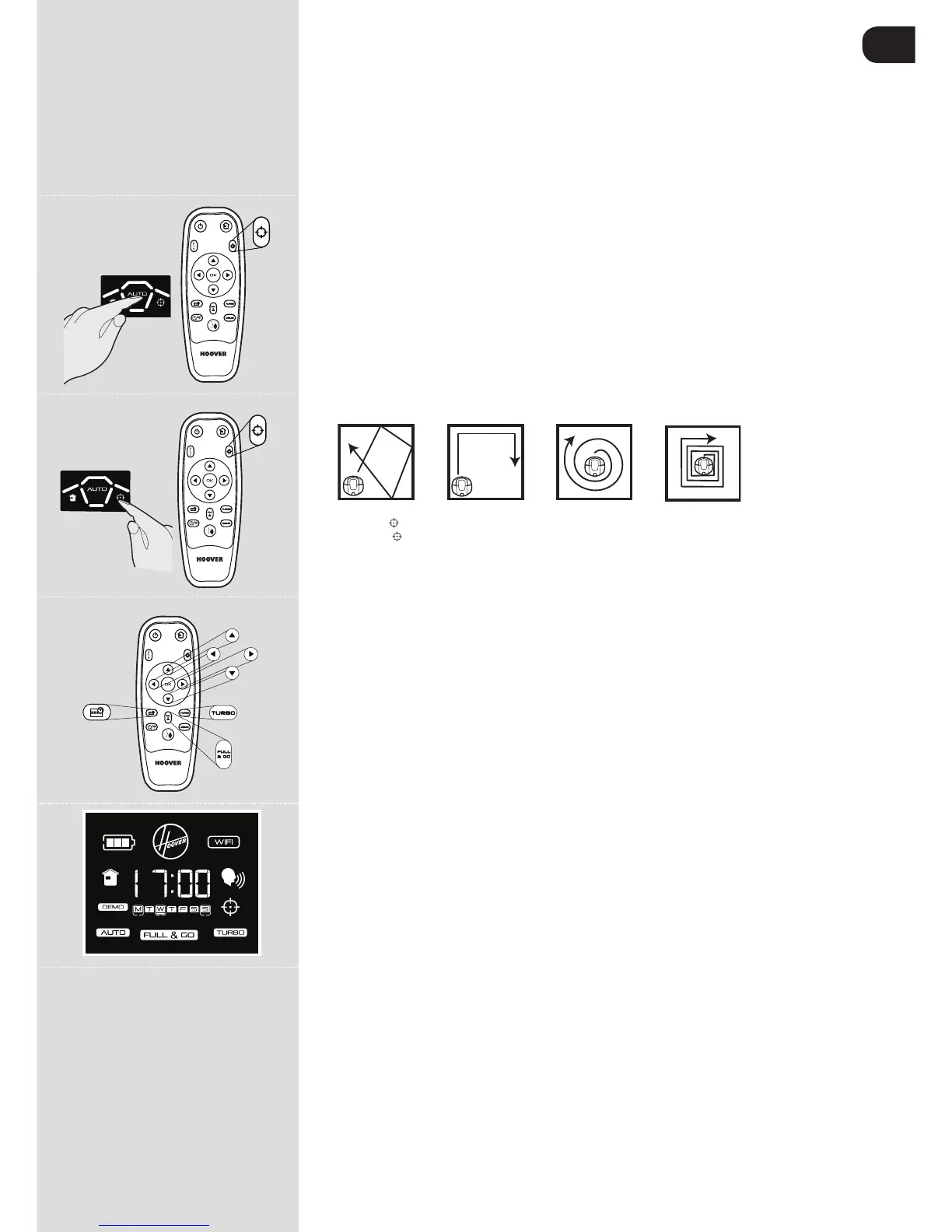
You can activate the automatic cleaning mode by: [Fig.11]
1) Press the AUTO Sensitive touch control on Robo.com³
2) Press the AUTO button on the remote control
3) Following the instruction in the Wi-Fi Application*.
Robo.com³ will automatically choose the best cleaning mode to clean your room. It will use 4 different
cleaning patterns:
NOTE: You can reset the Wi-Fi setting, by pressing the AUTO button on the main product for 4
seconds. Once reset, you can will hear a ring tone.
ZIG ZAG EDGE ELLIPTICAL SQUARE
You can activate the SPOT cleaning mode by: [Fig.12]
1) Press the
Sensitive touch control on Robo.com³
2) Press the
button on the remote control
3) Press the SPOT button on the APP menu.
Use this mode to intensively clean a conned area. Robo.com³ will move following a elliptical pattern,
where the radius will continuously increase.
With the remote control, or Wi-Fi application, you can also activate all the other cleaning programs: [Fig.13,
14]
Manual Navigation:
The Robo.com³ can be controlled manually at any time during a cleaning program. The navigation
arrow buttons in the remote control / Wi-Fi application* will move the Robo.com³ in the desired
direction with the suction activated. With the remote control, or Wi-Fi application the Robo.com³ can be
controlled up to a long distance, even behind a wall.
FULL & GO:
Press the FULL & GO button on the remote control or Wi-Fi application* to make Robot return to the
base. On the display the FULL & GO indicator will be illuminated. After being fully charged Robo.com³
will automatically start cleaning for one cycle and the FULL & GO option will be reset.
Turbo Option: ON / OFF
You can switch on or off the turbo mode by:
1) Press the TURBO button on remote control
2) Press the TURBO button on the APP menu.
The turbo option is illuminated when turbo is on, and Robo.com³ will work on turbo speed. Robo.com³ will start
to work at a faster speed, covering quicker the area to clean. Otherwise Robo.com³ will work on normal speed
Scheduled Cleaning:
You can decide what time the Robo.com³ will start cleaning, daily or weekly. To set a cleaning
schedule follow see ‘setting Up the Cleaning Schedule’.
SETTING UP THE CLEANING SCHEDULE
With remote control
The Robo.com³ can be programmed to automatically clean each day or on specic days as desired.
Once set up this will occur at the same time on each day specied. To set up a cleaning schedule over
one week complete the following:
1. Press the scheduling function button on the remote control. A ashing box will appear around M (Monday).
2. Use the up and down arrow buttons to select the desired day and then press the OK conrmation
button to conrm that day. You can also choose multiple days(up to 7days).
3. Once each day of the week has been selected, you can decide the hour of the cleaning schedule:
the hour will start ashing on the display. Use the up and down arrow keys to select the desired hour.
Press the OK conrmation button.
4. The minute display will ash, use the up and down arrow keys to select the desired minute. Press
the OK conrmation button.
5. The cleaning schedule for the days has been selected.You can easily see it, thanks to the
illuminated dash under scheduled day/days.
With Wi-Fi Application*
Following the instruction in the Wi-Fi Application*.
NOTE: With the Wi-Fi application, the cleaning hour can be scheduled differently for each day.
Fig.11
Fig.12
Fig.13
Fig.14




 To Next Page