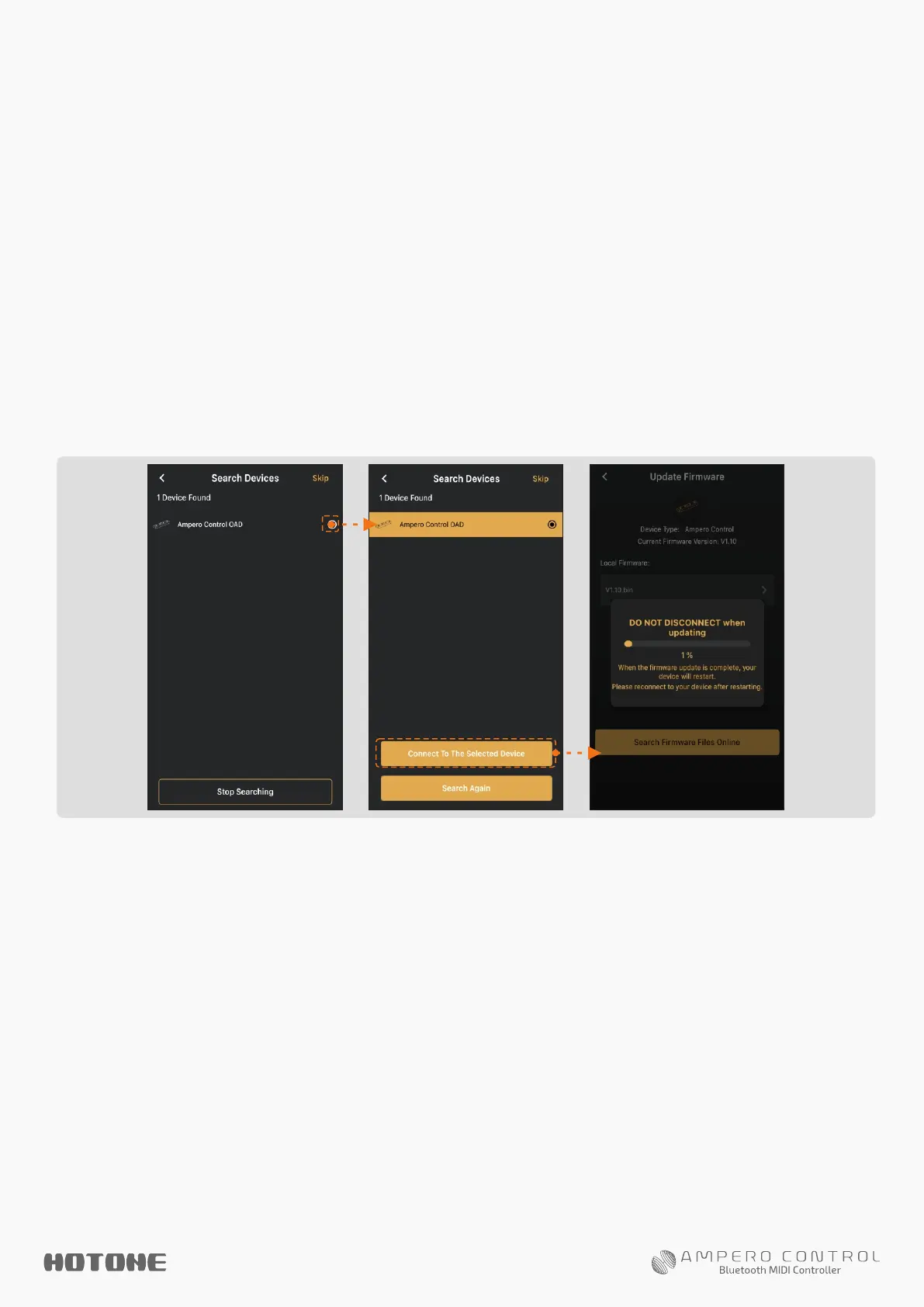
6.Tap “Update Now” button to update firmware.
You need to confirm twice. In this case, your Ampero Control
will enter OAD mode for firmware update, and your Ampero
Control will be disconnected.
The app will automatically start to search the nearby devices,
then you’ll find a device named “Ampero Control OAD”
as shown below (this indicates your device is in OAD mode).
Select and connect to this device.
Firmware update will automatically start after connection.
This may take several seconds.
When the firmware update is finished, you need to manually
hold footswitch 2+3 on your Ampero Control to reconnect.
Notes
1. The update may take several seconds. You may need to restart and reconnect your
device.
2. Please DO NOT turn off the Bluetooth switch, or unplug the power jack while the update
is in progress. Update fail may cause device malfunction.
3. While the update is in progress, please keep your Ampero Control and your smart
device within 1m of each other to avoid signal interference.


 To Next Page