13-8 Creating Customized Drawers and Folders
Creating a New Drawer
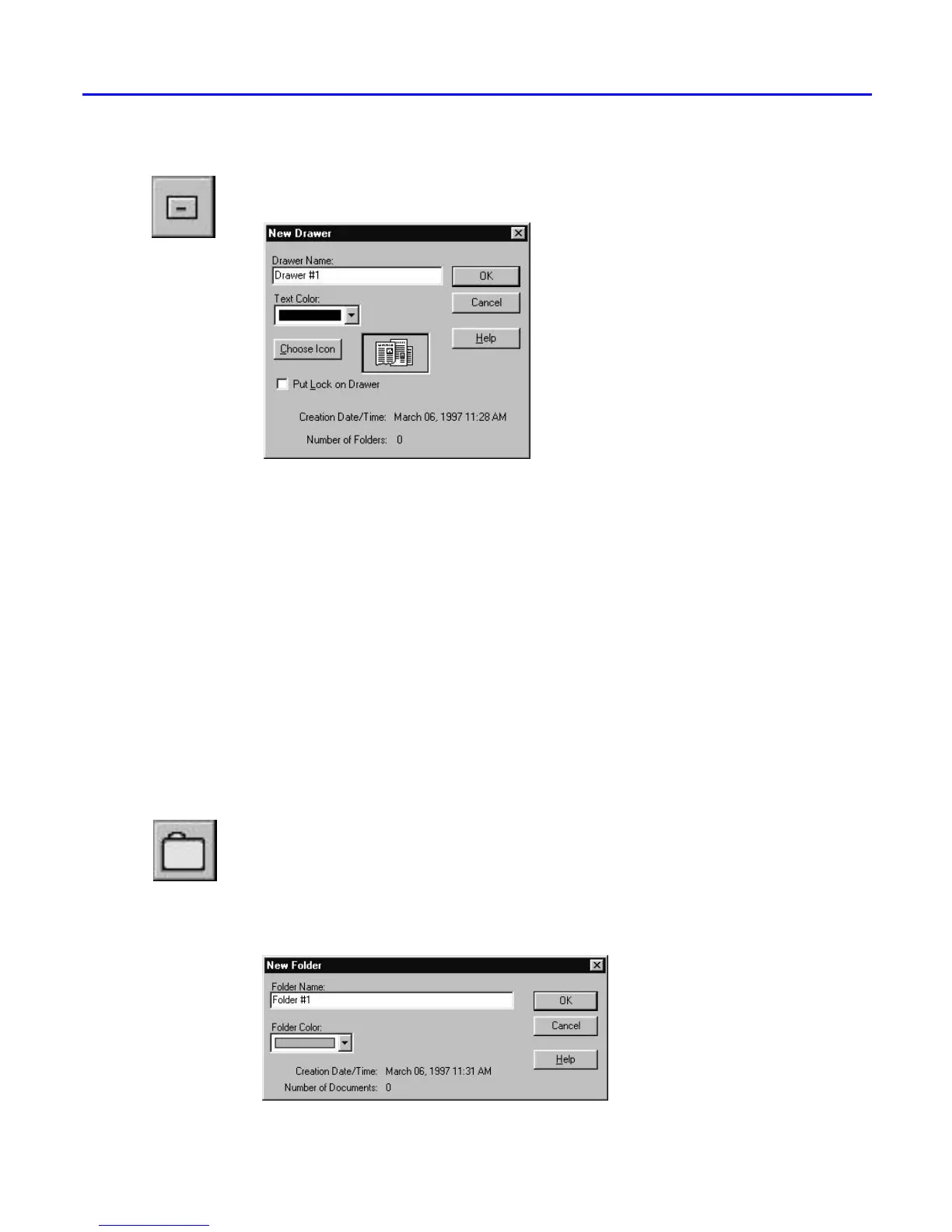
1. Create a drawer by choosing New Drawer from the cabinet window’s
File menu. This brings up the New Drawer dialog box.
2. Replace the default name “Drawer #1” in the name field with
“DocuMagix”.
3. Choose the color blue from the pull-down Text Color menu.
4. Choose a drawer icon by selecting the Choose Icon button. From the
list of Standard icons double-click on your choice.
You will now see your new drawer in the cabinet window. You can
change the drawer’s location by dragging and dropping the drawer to
another empty location.
Creating a New Folder
Open the “DocuMagix” drawer by double-clicking on it.
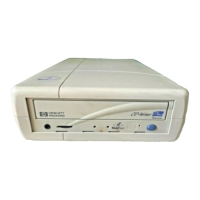
1. Create a folder by choosing the New Folder command from the drawer
window’s File menu. As with the New Drawer command, this brings
up a dialog box that allows you to choose the folder’s properties. Just as
you did with the new drawer, type in a folder name (for the purposes of
this tutorial, type in “PaperMaster Live”), select a color from the pull-
down menu, and click OK.
You’ll now see the new folder displayed in your “DocuMagix” drawer.



 To Next Page