English 7
HP Ergo 1024 User’s Guide
Using the Display
ADVANCED
GEOMETRY
The standard view is guaranteed to meet the technical specifications of the
display. The expanded view magnifies the details of the image, but the
shape of the viewable area might need adjusting.
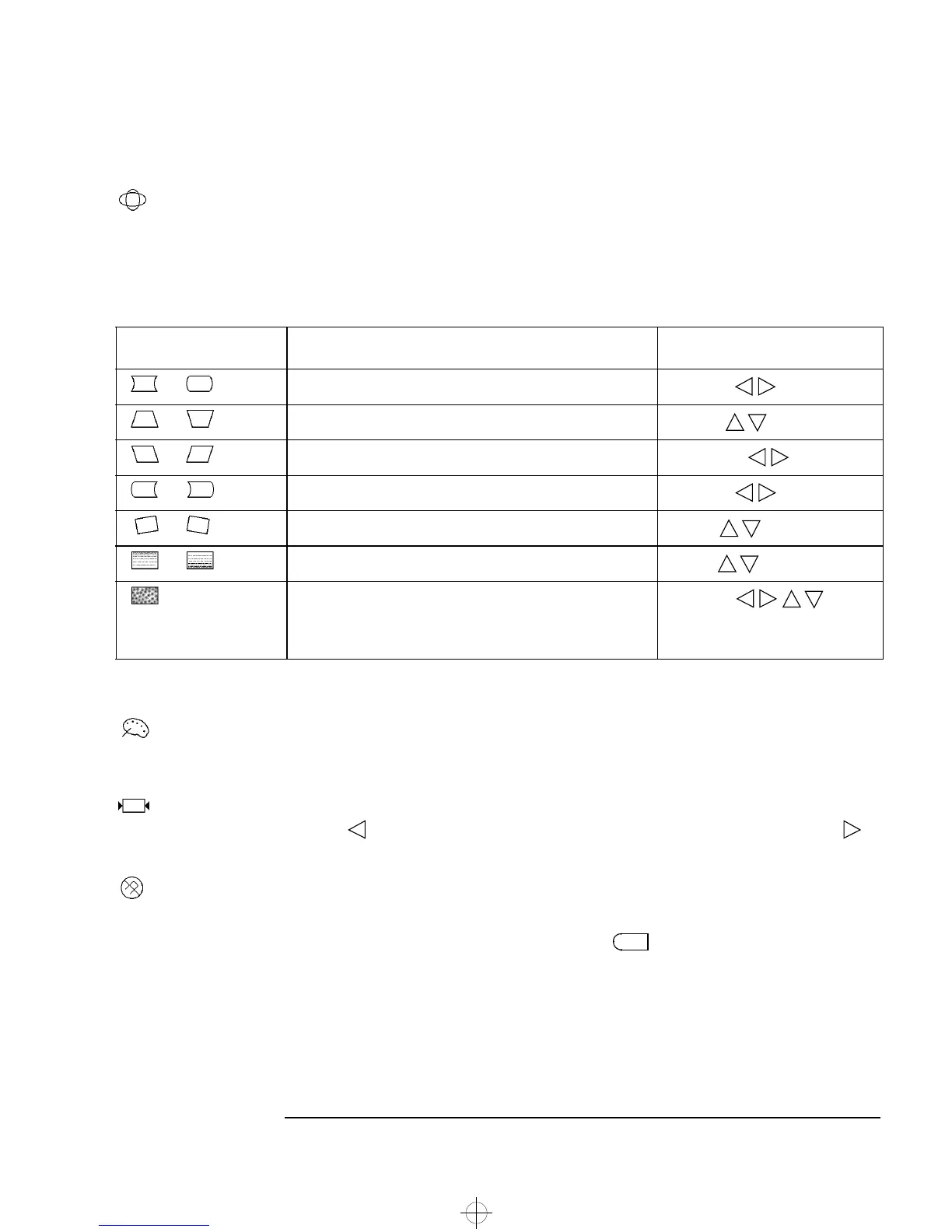
If image appears distorted, or misaligned, there are a number of adjustments
that can be performed. These are summarized in the following table.
COLOR CONTROLS
To change the warmth of the displayed image, select the Color
Temperature sub-menu. Choosing 6550 K gives a white which is close to
average daylight, choosing 9300 K gives a white with a noticeable bluish tinge.
RECALL
To revert to the factory default settings, select Recall from the main menu.
Use the button to select “yes” (revert to the default settings), and the
button to select “no” (revert back to the most recent settings).
DEGAUSS
Degaussing removes color impurity caused by magnetic fields. You should
degauss your display every few days.
Degaussing starts as soon as you press the button, to select Degauss
from the main menu, and is accompanied by brief instability of the displayed
image and a brief humming sound.
Type of distortion Description Use This Correction
or The vertical edges of the image bow in or bow out Pin-cushion
or The vertical edges of the image slope in or slope out Trapezoid
or The vertical edges of the image slope left or slope right Parallelogram
or The vertical edges of the image bow left or bow right Pin-balance
or The whole image is askew on the screen Rotation
or The image appears compressed towards the top or the bottom V-Linear
An interference effect, often most visible when the screen
background is set to a pattern of dots.
Clear Moire
(changing the background pattern
and color can also reduce moire)
1
tahit-uk.bk : english.fb4 Page 7 Tuesday, July 8, 1997 10:35 AM



 To Next Page