USB
3
1
*CB730-90016*
*CB730-90016*
XXXXX-XXXXX
© 2010 Hewlett-Packard Development Company, L.P.
DESKJET 2000 PRINTER J210 SERIES
Black Cartridge
Tri-color Cartridge
61
61
Windows: Mac:
www.hp.com/support
Information
For setup information, see the setup poster. All other product information can be found in the electronic Help and Readme.
The electronic Help is automatically installed during printer software installation. Electronic Help includes instructions on
product features and troubleshooting. It also provides product specications, legal notices, environmental, regulatory, and
support information. The Readme le contains HP support contact information, operating system requirements, and the most
recent updates to your product information. For computers without a CD/DVD drive, please go to www.hp.com/support to
download and install the printer software.
Install electronic Help
After software installation, click Start > All Programs >
HP > Deskjet 2000 Printer J210 > Help.
Find Readme
Insert software CD. On software CD locate
ReadMe.chm. Click ReadMe.chm to open and then
select ReadMe in your language.
Find Readme
Insert the software CD, and then double-click the Read
Me folder located at the top-level of the software CD.
Find electronic Help
To install the electronic Help, insert the software CD in your computer and follow the on-screen instructions.
Find electronic Help
Mac OS X v10.5 and v10.6: From Finder Help, choose
Mac Help. In the Help Viewer, click and hold the Home
button, and then choose the Help for your device.
Register your HP Deskjet
Get quicker service and support alerts by registering at http://www.register.hp.com.
English
EN
EN
EN
Printed in [Country] Printed in [Country]
Printed in [Country]
Para computadores sem uma unidade de CD/DVD, acesse www.hp.com/support para
baixar e instalar o software da impressora.
Empurre ambos os cartuchos para dentro do compartimento no carro
até eles se encaixarem.
Puxe a tira rosa e remova a fita adesiva transparente.
Feche a porta de acesso aos cartuchos.
IMPORTANTE:
Não conecte o cabo
USB até isso ser solicitado na tela.
Sur les ordinateurs non équipés d’un lecteur de CD/DVD, visitez le site www.hp.com/support
pour télécharger et installer le logiciel d’imprimante
.
Mettez les deux cartouches en place sur le chariot jusqu’à ce qu’elles s’enclenchent.
Tirez sur la languette rose pour retirer l’adhésif.
Refermez la porte d’accès aux cartouches.
IMPORTANT:
Ne branchez pas le câble
USB avant d’y avoir été invité à l’écran.
Si no dispone de una unidad de CD/DVD, visite www.hp.com/support para descargar e
instalar el software de la impresora.
Empuje los cartuchos en la guía hasta que encajen.
Tire de la pestaña rosa para quitar la cinta transparente.
Cierre la puerta del cartucho.
I
MPORTANTE:
No conecte el USB
hasta que se le solicite en la pantalla.
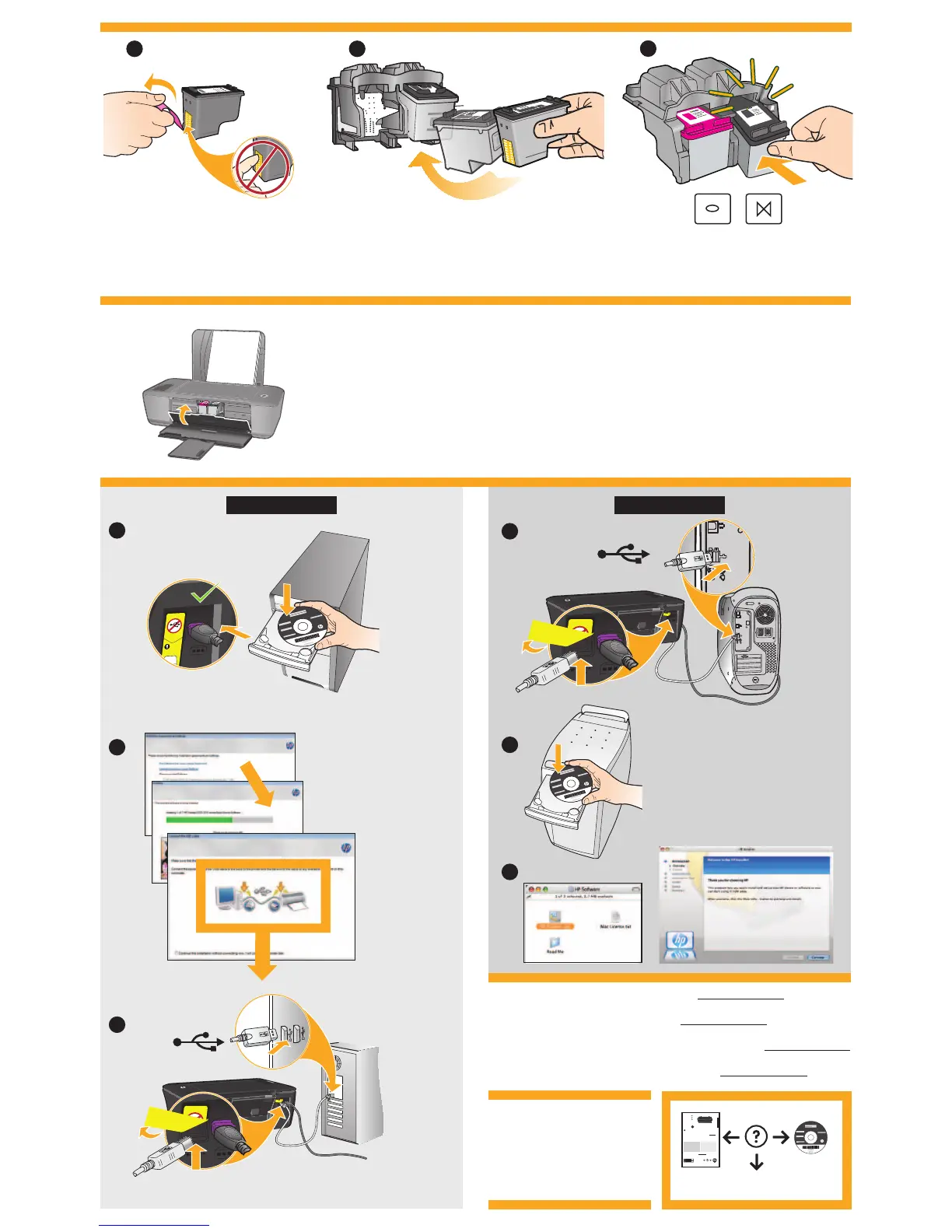
Close cartridge door.
IMPORTANT: Do not connect USB
until prompted on screen.
For computers without a CD/DVD drive, please go to www.hp.com/support to download
and install the printer software.
Pull pink tab to remove clear tape.
Push both cartridges into carriage until they snap.



 To Previous Page
 Loading...