11a
Windows: Mac:
6 • HP Deskjet F2200 All-in-One series
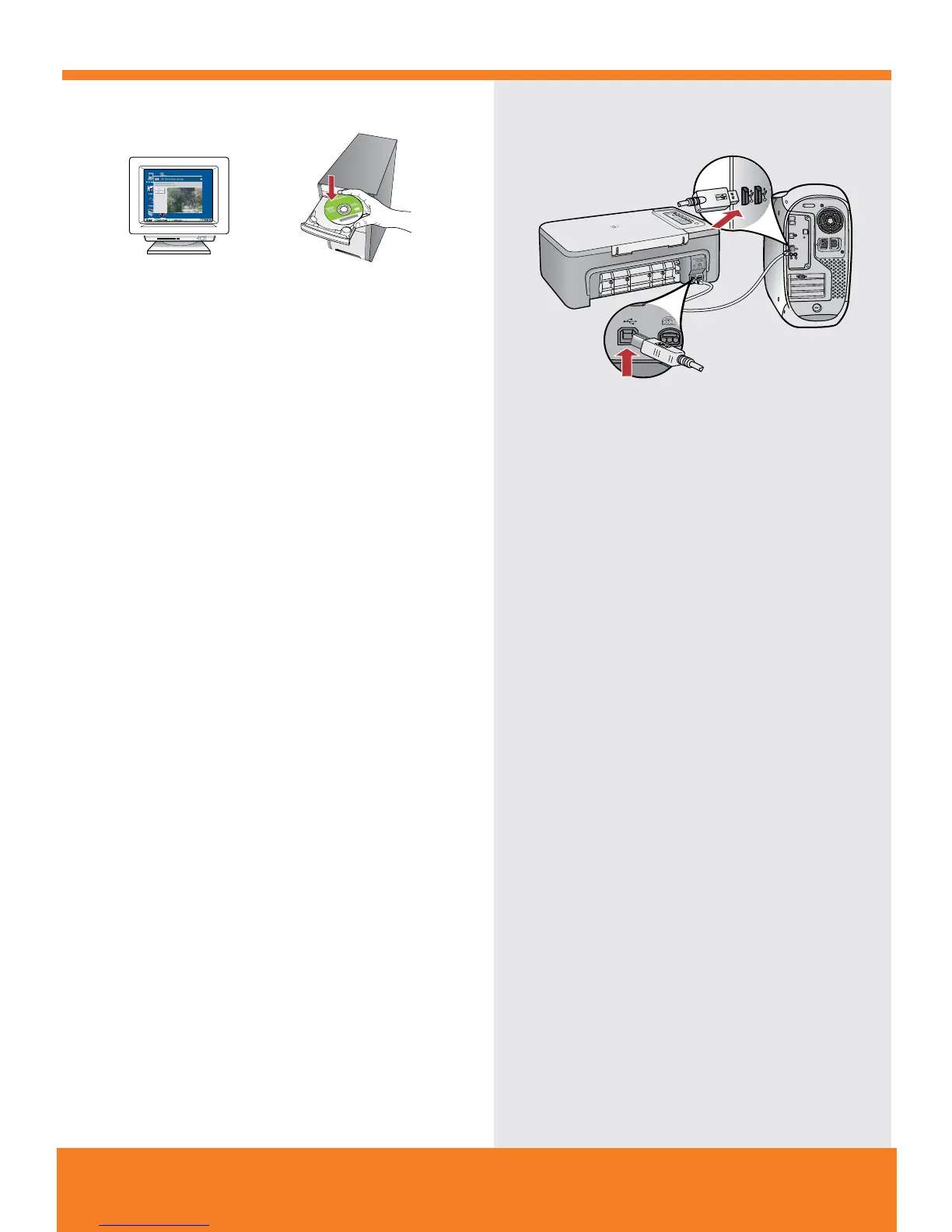
Mac: Hubungkan kabel USB ke port di bagian belakang
produk, kemudian ke port USB pada komputer.
Windows: Masukkan CD perangkat lunak produk ke dalam
komputer setelah komputer dihidupkan dan siap dijalankan.
Tunggu sampai layar pembuka muncul di komputer. Ini perlu
waktu beberapa detik.
Catatan: Jika layar pembuka tidak muncul, klik ganda
My Computer, klik ganda ikon CD-ROM dengan logo HP,
lalu klik ganda setup.
PENTING: Jangan menghubungkan kabel USB sampai
diperintahkan.
Mac: ต่อสาย USB เข้ากับพอร์ตด้านหลังของเครื่องพิมพ์
จากนั้นต่ออีกด้านเข้ากับพอร์ต USB พอร์ตใดก็ได้ของคอมพิวเตอร์
Windows: เมื่อเปิดเครื่องคอมพิวเตอร์และเริ่มการทำงานของระบบแล้ว
ให้ใส่ซีดีซอฟต์แวร์เครื่องพิมพ์เข้าไปในเครื่อง รอจนกระทั่งหน้าจอเริ่ม
ต้นปรากฏขึ้นบนคอมพิวเตอร์ของคุณ ซึ่งอาจใช้เวลาสักครู่
หมายเหตุ: หากหน้าจอเริ่มการทำงานไม่ปรากฏขึ้น ให้ดับเบิลคลิกที่
My Computer (คอมพิวเตอร์ของฉัน) แล้วดับเบิลคลิกที่ไอคอน
CD-ROM ที่มีโลโก้ HP จากนั้นดับเบิลคลิกที่ setup
ข้อควรทราบ: ห้ามต่อสาย USB จนกว่าจะมีข้อความแจ้งให้ทำได้
Windows: Insert the product software CD into the computer
after it has been turned on and started up. Wait until the
startup screen displays on your computer. This can take
several seconds.
Note: If the startup screen does not appear, double-click
My Computer, double-click the CD-ROM icon with the
HP logo, and then double-click setup.
IMPORTANT: Do not connect the USB cable until prompted.
Mac: Connect the USB cable to the port on the back of
the product, and then to any USB port on the computer.



 To Next Page