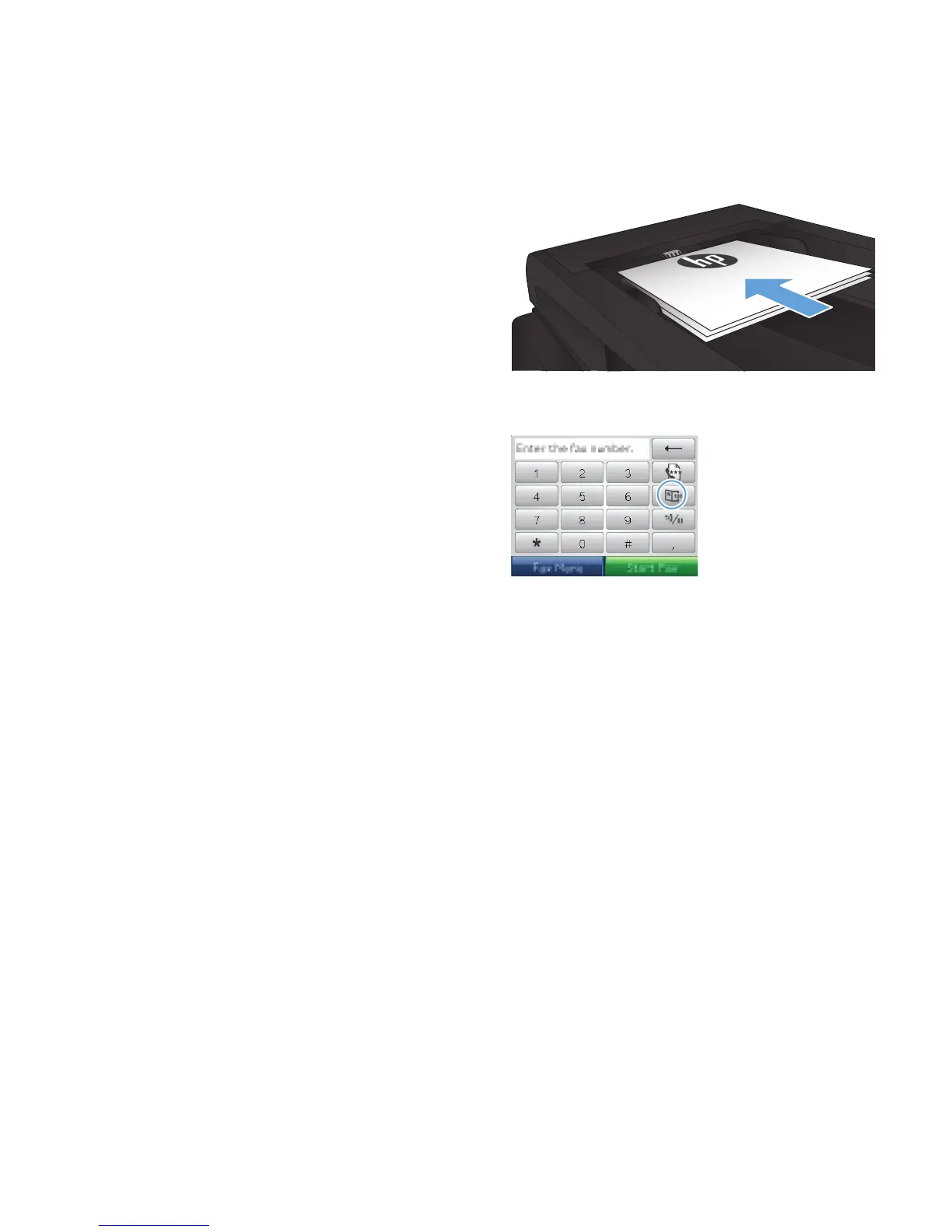
Use speed dials and group-dial entries
1. Load the document onto the scanner glass or
into the document feeder.
2. From the Home screen on the product control
panel, touch the Fax button.
3. On the keypad, touch the fax phone book
icon.
4. Touch the name of the individual or group
entry that you want to use.
5. Touch the Start Fax button.
Send a fax from the software (Windows)
The following information provides basic instructions for sending faxes by using the software that came
with the product. All other software-related topics are covered in the software Help, which can be
opened from the software-program Help menu.
You can fax electronic documents from a computer if you meet the following requirements:
●
The product is connected directly to the computer or to a network to which the computer is
connected.
●
The product software is installed on the computer.
●
The computer operating system is one that this product supports.
Send a fax from the software
The procedure to send a fax varies according to your specifications. The most typical steps follow.
1. Click Start, click Programs (or All Programs in Windows XP), and then click HP.
2. Click the product name, and then click HP Send fax. The fax software opens.
ENWW
Use fax
133



 To Next Page