7
Front components
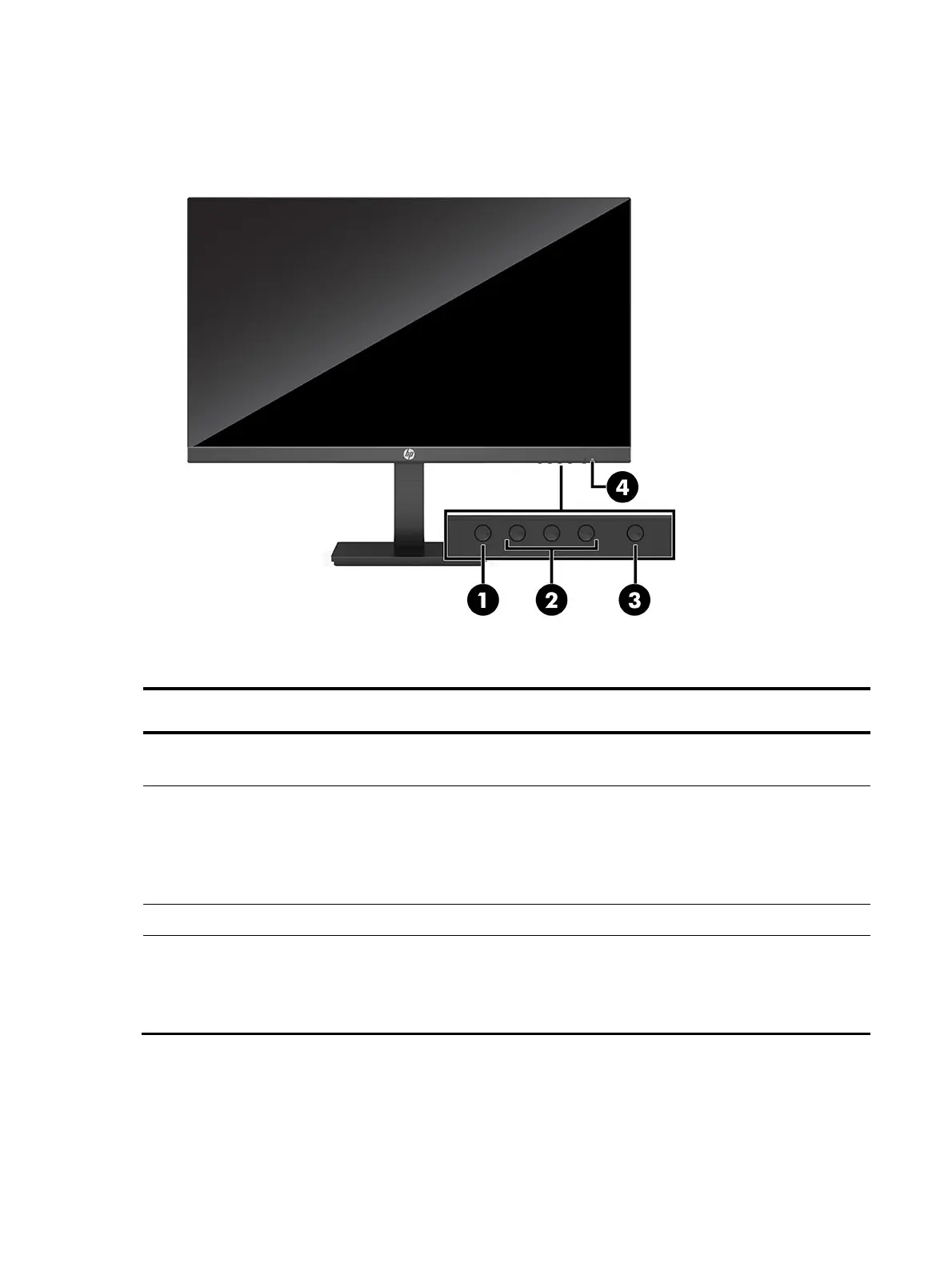
To identify the components on the front of the monitor, use this illustration and table.
<Table 2-1>
Table 2-1: Front components and their descriptions
Function
1
Press to open the OSD menu, select a menu item from the
OSD, or close the OSD menu. When the OSD menu is open, the
2
When the OSD menu is open, press the buttons to navigate
through the menu. The function light icons indicate the
default button functions. For a description of these functions,
see Using the function buttons on page 15.
You can reassign the function buttons to quickly select the
most commonly used operations. See Reassigning the
function buttons on page 16.
3
Turns the monitor on or off.
4
White: The monitor is on.
Amber: Monitor is in a reduced power state because of
inactivity. See Using Auto-Sleep Mode on page 16 for more
NOTE: You can reconfigure the Function buttons in the OSD menu to quickly select the most commonly used operations.
Press the Menu button to open the OSD, and then select Menu Control. Select Assign buttons, and then select
one of the available options for the button you want to assign.


 To Next Page
 Loading...