272 Parametric app
Explore the
graph
The menu button gives you access to common tools for
exploring plots:
: displays a range of zoom options. (The
+
and
w keys can also be used to zoom in and out.)
: when active, enables a tracing cursor to be
moved along the contour of the plot (with the
coordinates of the cursor displayed at the bottom of
the screen).
: specify a T value and the cursor moves to the
corresponding x and y coordinates.
: display the functions responsible for the plot.
Detailed information about these tools is provided in
“Common operations in Plot view” on page 88.
Typically you would modify a plot by changing its
definition in Symbolic view. However, you can modify
some plots by changing the Plot Setup parameters. For
example, you can plot a triangle instead of a circle simply
by changing two plot setup parameters. The definitions in
Symbolic view remain unchanged. Here is how it is done:
10. Press
S
P
(Setup).
11. Change T Step to 120.
12. Tap
.
13. F r o m t h e Method menu, select Fixed-Step
Segments.
14 . P r e s s
P
.
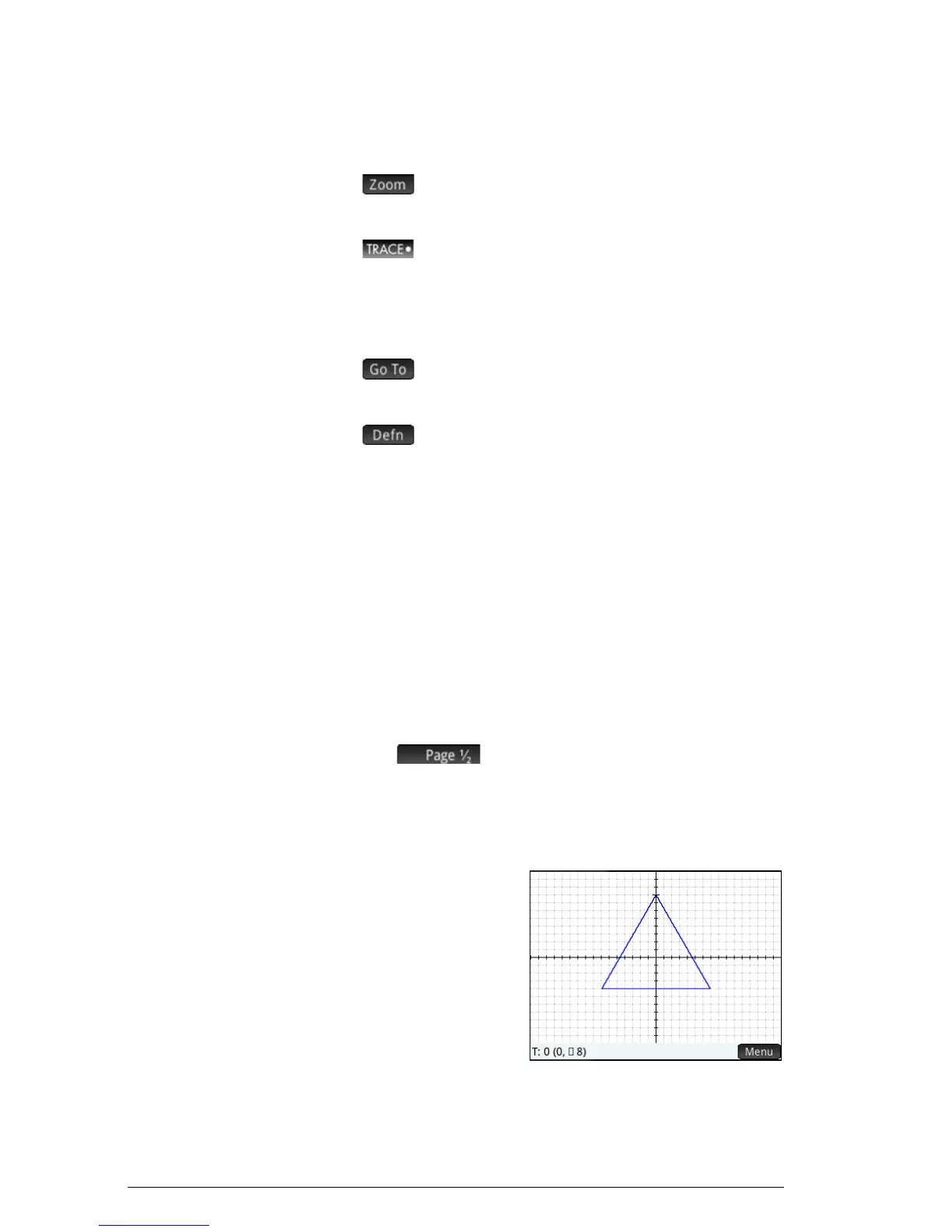
A triangle is
displayed instead
of a circle. This is
because the new
value of T Step
makes the points
being plotted 120
apart instead of the
nearly continuous 5. And by selecting Fixed-Step
Segments the points 120° apart are connected with
line segments.


 To Next Page