EasyManua.ls Logo

HP Pro 3400 - User Manual

HP Pro 3400
210 pages
Print Icon
To Next Page IconTo Next Page
Loading...
Maintenance & Service Guide
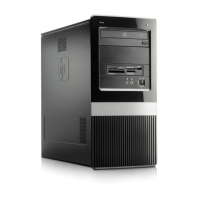
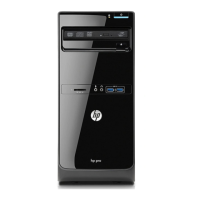
HP Pro 3400 Microtower Business PC
HP Pro 3405 Microtower Business PC
HP Pro 3410 Microtower Business PC
HP Pro 3410 Small Form Factor Business PC
HP Pro 3500 Microtower Business PC
HP Pro 3505 Microtower Business PC
HP Pro 3515 Microtower Business PC

Table of Contents

Other manuals for HP Pro 3400

Questions and Answers

  • M
    Mark AlvarezSep 5, 2025
    How to fix intermittent power supply shutdowns on my HP Desktop?
    • N
      nicholas75Sep 5, 2025
      If the power supply on your HP Desktop shuts down intermittently, it could be due to the voltage selector switch on the rear of the computer chassis (on some models) not being switched to the correct line voltage (115V or 230V). Select the proper AC voltage using the selector switch. If that does not resolve the issue, the power supply may have an internal fault. Contact an authorized service provider to replace the power supply.
  • B
    brauntravisSep 3, 2025
    How to fix incorrect date and time on my HP Pro 3400?
    • S
      Sherry ShermanSep 3, 2025
      If the date and time display is incorrect on your HP Desktop, the RTC (real-time clock) battery may need replacement. First, reset the date and time under Control Panel. If the problem persists, replace the RTC battery.
  • P
    Pamela DominguezSep 1, 2025
    Why won't my HP Pro 3400 system boot from a USB flash drive?
    • D
      Derek OsborneSep 1, 2025
      If your HP Desktop system won't boot from a USB flash drive, the boot order may not be correct, or Removable Media Boot may be disabled in the Computer Setup utility. Run the Computer Setup utility and change boot sequence in Storage > Boot Order. Run the Computer Setup utility and enable booting to removable media in Storage > Storage Options. Ensure USB is enabled in Storage > Boot Order.
  • T
    trobinsonAug 31, 2025
    Why won't my HP Pro 3400 Desktop boot from the hard drive?
    • J
      Jennifer GardnerAug 31, 2025
      If your HP Desktop won't boot from the hard drive, the device may be attached to a SATA port that has been hidden in Computer Setup, the boot order may not be correct, or the hard drive's 'Emulation Type' may be set to 'None.' Run the Computer Setup utility and ensure Device Available is selected for the device's SATA port in Security > Device Security. Run the Computer Setup utility and change boot sequence in Storage > Boot Order. Run the Computer Setup utility and change the 'Emulation Type' to 'Hard Disk' in the device's details under Storage > Device Configuration.
  • L
    Leslie SmithAug 29, 2025
    What to do if my HP Pro 3400 Desktop seems to be locked up?
    • D
      Danielle WilliamsonAug 29, 2025
      If your HP Desktop seems to be locked up, it could be that a program in use has stopped responding to commands. Attempt the normal Windows 'Shut Down' procedure. If this fails, press the power button for four or more seconds to turn off the power. To restart the computer, press the power button again.
  • J
    Jared AyersAug 27, 2025
    Why is there no sound on my HP Pro 3400 Desktop?
    • S
      Stephen BennettAug 27, 2025
      If there's no sound or the sound volume is too low on your HP Desktop, the system volume may be set low or muted. Check the F10 BIOS settings to ensure the internal system speaker is not muted. Also, verify that external speakers are properly connected, powered on, and their volume control is set correctly. Use the system volume control in the operating system to ensure the speakers aren't muted and to increase the volume.
  • A
    Alexandra WhiteAug 25, 2025
    What to do if my HP Pro 3400 Desktop computer powered off automatically and the Power LED flashes Red two times?
    • G
      garciajoshuaAug 25, 2025
      If your HP Desktop computer powered off automatically and the Power LED flashes Red two times, it indicates that the processor thermal protection has been activated. This may happen if a fan is blocked or not turning, or if the heat sink is not properly attached to the processor. Ensure that the computer air vents are not blocked and the processor cooling fan is running. Open the hood, press the power button, and see if the processor fan spins. If the processor fan is not spinning, make sure the fan's cable is plugged onto the system board header. If the fan is plugged in but not spinning, replace the heat sink/fan assembly.
  • G
    Gregory GriffinAug 22, 2025
    What to do if my HP Pro 3400 Desktop won't respond to the USB keyboard or mouse?
    • W
      William BlairAug 23, 2025
      If your HP Desktop isn't responding to your USB keyboard or mouse, it might be in standby mode. To resume, press the power button or any key. If that doesn't work, the system may have locked up, so try restarting the computer.

Summary

1 Product Features

Feature Overview

Provides a general overview of the HP Pro 3400/3500 series computer features.

3 Computer Setup (F10) Utility

Computer Setup (F10) Utilities

Details the functionalities available within the Computer Setup (F10) Utility.

Using Computer Setup (F10) Utilities

Explains how to access and navigate the Computer Setup (F10) Utility.

4 Illustrated parts catalog

Microtower Chassis Spare Parts

Lists spare parts for the Microtower chassis, including major components.

6 Routine Care and Disassembly Preparation

Electrostatic Discharge Information

Explains the risks associated with static electricity and electronic components.

Preventing Electrostatic Damage to Equipment

Details precautions to prevent damage from electrostatic discharge (ESD).

Personal Grounding Methods and Equipment

Describes essential equipment for personal grounding to prevent ESD.

Grounding the Work Area

Provides guidelines for preparing a safe, static-free work area.

Recommended Materials and Equipment

Lists recommended materials and equipment for static electricity prevention.

7 Removal and Replacement Procedures - Microtower Chassis

8 Removal and Replacement Procedures - Small Form Factor (SFF) Chassis

Preparation for Disassembly

Outlines the steps required before disassembling the SFF chassis.

Access Panel

Procedure for removing and replacing the SFF chassis access panel.

Memory

Details on memory modules for SFF, including specifications and installation.

Processor

Details on processor removal/installation for SFF systems.

System Board

Instructions for removing and replacing the SFF system board.

B POST Error Messages

POST Numeric Codes and Text Messages

Lists POST errors with numeric codes, descriptions, and recommended actions.

C Password Security and Resetting CMOS

Resetting the Password Jumper

Procedure for disabling or clearing power-on and setup passwords.

Clearing and Resetting the CMOS

Instructions for clearing CMOS settings and resetting BIOS defaults.

D Troubleshooting Without Diagnostics

Solving Power Problems

Troubleshooting steps for power supply issues and shutdowns.

Solving Hard Drive Problems

Diagnosing and resolving issues related to hard drive errors.

Solving Network Problems

Troubleshooting steps for network connectivity and driver issues.

Solving Memory Problems

Diagnosing and resolving issues related to memory modules and configuration.

E HP PC Hardware Diagnostics

Why run HP PC Hardware Diagnostics

Explains the benefits and purpose of using HP PC Hardware Diagnostics.

How to access and run HP PC Hardware Diagnostics

Guides on accessing and running the HP PC Hardware Diagnostics tool.

F Backup and Recovery

Performing a system recovery

Explains tools and methods for recovering the system after failure.

HP Pro 3400 Specifications

General IconGeneral
Form FactorMicrotower
ProcessorIntel Core i3, i5, or i7
GraphicsIntel HD Graphics
Optical DriveDVD-RW
Operating SystemWindows 7 Professional
ChipsetIntel H61
NetworkingGigabit Ethernet
PortsUSB 2.0, VGA

Related product manuals