EasyManua.ls Logo

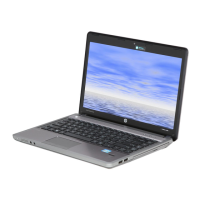
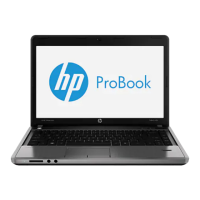
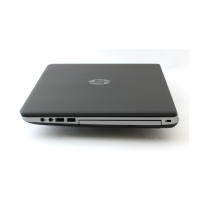
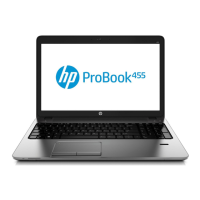
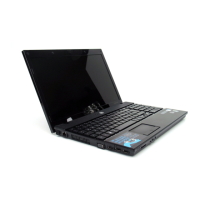
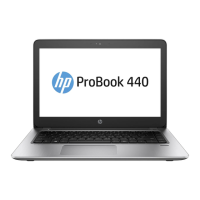
HP ProBook 4445s - User Manual

HP ProBook 4445s
100 pages
Print Icon
To Next Page IconTo Next Page
Loading...
HP Notebook
User Guide

Table of Contents

Other manuals for HP ProBook 4445s

Questions and Answers

  • R
    Raymond WrightAug 16, 2025
    What to do if my HP Laptop is on but not responding?
    • V
      Victoria WalkerAug 16, 2025
      If your HP Laptop is on but not responding, try the following: * Press and hold the power button for at least 5 seconds. * Disconnect the computer from external power and remove the battery.
  • L
    luis23Aug 18, 2025
    Why is my HP ProBook 4445s Laptop screen blank?
    • J
      johnsontheresaAug 19, 2025
      Your HP Laptop screen might be blank because the computer is in Suspend or Hibernation mode. To exit these modes, briefly press the power button. Alternatively, the computer may not be set to display the image on the computer screen; to transfer the image to the computer screen, press fn+f4.
  • A
    Alisha ClarkAug 21, 2025
    What to do if the wireless network connection is not working on my HP ProBook 4445s Laptop?
    • B
      beckerjamesAug 22, 2025
      If the wireless network connection is not working on your HP Laptop, try these steps: * To enable or disable a wireless or wired network device, right-click the Network Connection icon in the notification area, at the far right of the taskbar. * Be sure that the wireless device is turned on. * Be sure that the computer wireless antennas are free from obstructions. * Be sure that the cable or DSL modem and its power cord are properly connected and that the lights are on. * Be sure that the wireless router or access point is properly connected to its power adapter and to the cable or DSL modem, and that the lights are on. * Disconnect and then reconnect all cables, and turn the power off and then back on.
  • M
    Michael MyersAug 25, 2025
    How to fix an external device not working with my HP ProBook 4445s?
    • B
      Brian HesterAug 25, 2025
      If an external device is not working with your HP Laptop, make sure of the following: * Turn on the device according to the manufacturer's instructions. * Be sure that all device connections are secure. * Be sure that the device is receiving electrical power. * Be sure that the device, especially if it is older, is compatible with the operating system. * Be sure that the correct drivers are installed and updated.
  • S
    Shannon StewartAug 27, 2025
    Why is my HP ProBook 4445s unusually warm?
    • A
      Aaron HansonAug 28, 2025
      If your HP Laptop is unusually warm, it might be overheating because a vent is blocked. Allow the computer to cool to room temperature and ensure that all vents are free from obstructions while using the computer.
  • M
    Mr. Brent DavisAug 30, 2025
    What to do if a disc does not play on my HP Laptop?
    • C
      Cindy SteinAug 30, 2025
      If a disc does not play on your HP Laptop, try the following: * Save your work and close all open programs before playing a CD or a DVD. * Log off the Internet before playing a CD or a DVD. * Be sure that you insert the disc properly. * Be sure that the disc is clean. If necessary, clean the disc with filtered water and a lint-free cloth. * Check the disc for scratches. If you find scratches, treat the disc with an optical disc repair kit available at many electronics stores. * Disable Suspend mode before playing the disc.
  • J
    Jasmine JohnsonSep 2, 2025
    What to do if the optical disc tray does not open on my HP ProBook 4445s?
    • R
      Rebecca OrtegaSep 2, 2025
      If the optical disc tray on your HP Laptop does not open, insert the end of a paper clip into the release access in the front bezel of the drive. Press in gently on the paper clip until the disc tray is released, and then pull out the tray until it stops. Remove the disc from the tray by gently pressing down on the spindle while lifting the outer edges of the disc.
  • J
    Joseph GreenSep 5, 2025
    What to do if the process of burning a disc does not begin on my HP ProBook 4445s?
    • G
      George BranchSep 5, 2025
      If the process of burning a disc does not begin or stops before completion on your HP Laptop, ensure that all other programs are closed. Also, turn off Suspend mode and Hibernation. Be sure that you are using the right kind of disc for your drive and that the disc is inserted properly. Try selecting a slower write speed. If you are copying a disc, save the information on the source disc to your hard drive before trying to burn the contents to a new disc, and then burn from your hard drive.
  • A
    allison38Sep 8, 2025
    What to do if a movie is not visible on an external display connected to my HP ProBook 4445s Laptop?
    • R
      richard17Sep 8, 2025
      If a movie is not visible on an external display connected to your HP Laptop, and both the computer display and the external display are turned on, press fn+f4 one or more times to switch between the 2 displays. You can also configure the monitor settings to make the external display primary.
  • H
    Hannah SchneiderSep 12, 2025
    What to do if my HP ProBook 4445s Laptop does not detect the optical drive?
    • R
      roy59Sep 12, 2025
      If your HP Laptop does not detect the optical drive, click Computer and then click System Monitor. On the Hardware tab, identify the Storage Controller in the Type column. Click the triangle next to the devices until you locate your optical drive. If the drive is listed, it should be functioning correctly. The device driver software may be missing or corrupted.

Summary

3 Networking

Internet Service Provider (ISP) Setup

Guides on setting up an Internet service provider account and connecting to the internet.

Wireless Network Connection

Steps for establishing and using a wireless local area network (WLAN) connection.

Wired Network Connection

Instructions for connecting the computer to a wired local area network (LAN).

4 Keyboard and Pointing Devices

TouchPad Navigation and Gestures

Details on using the TouchPad for navigation, selection, gestures, scrolling, and zooming.

6 Power Management

System Shutdown and Power States

Covers shutting down the computer and using power-saving states like Suspend and Hibernation.

Battery Power Management

Details on managing battery power, including charging, maximizing life, and handling low battery levels.

7 Drives

Hard Drive Operations

Procedures for removing, installing, or upgrading the computer's hard drive.

9 Memory Modules

10 Security

Password Management

Details on setting and managing passwords for operating system and computer setup.

BIOS and DriveLock Security

Instructions for managing BIOS administrator and DriveLock passwords for system security.

11 Backup and Recovery

System Recovery Procedures

Steps for restoring the computer to its original factory state using recovery media or partitions.

Information Backup and Restore

Guidance on backing up important files and information to external media or network drives.

12 Computer Setup and System Diagnostics

BIOS Management and Updates

Procedures for restoring factory settings, checking BIOS version, and updating the BIOS.

13 MultiBoot

A Troubleshooting and Support

Common Computer Issues

Addresses common issues like startup failures, blank screens, unresponsiveness, and device problems.

Optical Drive Troubleshooting

Solutions for optical drive issues like tray not opening or not detecting discs.

Contacting HP Support

Information on how to get help from HP support via chat, email, or phone.

B Cleaning Your Computer

D Electrostatic Discharge (ESD)

HP ProBook 4445s Specifications

General IconGeneral
Optical DriveDVD+/-RW SuperMulti DL
BluetoothBluetooth 4.0
Card ReaderSD/MMC
Webcam720p HD
Battery6-cell Li-Ion
Display14-inch HD (1366 x 768)
RAM4GB DDR3
Storage500GB HDD
GraphicsAMD Radeon HD 7520G
Operating SystemWindows 8 Pro
Wireless802.11b/g/n
Ports2 x USB 3.0, 2 x USB 2.0, HDMI, VGA
Dimensions339 x 235 x 28.1 mm

Related product manuals