EasyManua.ls Logo

HP ProBook 4440s - User Manual

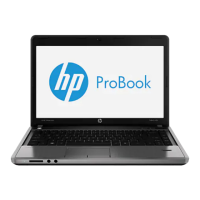
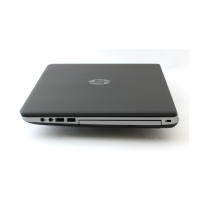
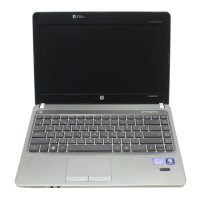
HP ProBook 4440s
110 pages
Print Icon
To Next Page IconTo Next Page
Loading...
HP Notebook
User Guide

Table of Contents

Other manuals for HP ProBook 4440s

Questions and Answers

  • R
    Ricardo DennisAug 12, 2025
    Why is my HP ProBook 4440s Laptop screen blank?
    • E
      Edward GarciaAug 13, 2025
      If your HP Laptop screen is blank, the computer might be in Suspend or Hibernation mode. To exit these modes, briefly press the power button. Also, ensure the computer is set to display the image on the screen by pressing fn+f4.
  • M
    Marcus OchoaAug 16, 2025
    What to do if HP Laptop is on but not responding?
    • M
      Mary RiversAug 16, 2025
      If your HP Laptop is on but not responding, try pressing and holding the power button for at least 5 seconds. Alternatively, disconnect the computer from external power and remove the battery.
  • M
    Michelle ReedAug 20, 2025
    How to fix wireless network connection not working on HP Laptop?
    • L
      Larry HoodAug 20, 2025
      If the wireless network connection on your HP Laptop isn't working, check the following: * Enable or disable the wireless or wired network device by right-clicking the Network Connection icon in the notification area. * Ensure the wireless device is turned on. * Make sure the computer's wireless antennas are free from obstructions. * Verify that the cable or DSL modem and its power cord are properly connected and that the lights are on. * Confirm that the wireless router or access point is properly connected to its power adapter and to the cable or DSL modem, and that the lights are on. Try disconnecting and reconnecting all cables, and power cycling the devices.
  • R
    richardgordonAug 25, 2025
    How to troubleshoot an external device not working on HP ProBook 4440s Laptop?
    • A
      Andre JohnsonAug 25, 2025
      If an external device isn't working with your HP Laptop, first turn on the device according to the manufacturer's instructions. Next, ensure all device connections are secure and that the device is receiving electrical power. Also, check that the device is compatible with the operating system and that the correct drivers are installed and updated.
  • W
    williamrobinsonAug 28, 2025
    How to fix a disc that does not play on HP ProBook 4440s Laptop?
    • X
      xhumphreyAug 28, 2025
      If a disc does not play on your HP Laptop, save your work and close all open programs before playing the CD or DVD. Also, log off the Internet, ensure the disc is inserted properly and is clean, and check the disc for scratches. Finally, disable Suspend mode before playing the disc.
  • R
    Rodney HopkinsAug 31, 2025
    What to do when burning a disc on HP ProBook 4440s fails?
    • C
      Candice SmithAug 31, 2025
      If the process of burning a disc on your HP Laptop does not begin or stops before completion, make sure all other programs are closed. Turn off Suspend mode and Hibernation. Ensure you are using the right kind of disc for your drive and that the disc is inserted properly. Try selecting a slower write speed. If copying a disc, save the information on the source disc to your hard drive before trying to burn the contents to a new disc, and then burn from your hard drive.
  • N
    nrodriguezSep 4, 2025
    How to open optical disc tray on HP ProBook 4440s Laptop?
    • A
      Anthony Brown MDSep 4, 2025
      If the optical disc tray on your HP Laptop doesn't open, insert the end of a paper clip into the release access in the front bezel of the drive. Press in gently on the paper clip until the disc tray is released, and then pull out the tray until it stops. Remove the disc from the tray by gently pressing down on the spindle while lifting the outer edges of the disc. Close the disc tray and place the disc in a protective case.
  • L
    Lori HatfieldSep 7, 2025
    How to display movie on external display from HP ProBook 4440s Laptop?
    • A
      Andrew SanchezSep 7, 2025
      If a movie is not visible on an external display connected to your HP Laptop, and both the computer display and the external display are turned on, press fn+f4 one or more times to switch between the 2 displays. You may also need to configure the monitor settings to make the external display primary.

Summary

Networking

Creating a wireless connection

Steps to establish a wireless connection using WLAN or Bluetooth devices.

Using a WLAN

Details on connecting to Wi-Fi networks, including existing and new WLAN setup.

Connecting to a wired network

Steps to connect the computer to a wired network using an Ethernet cable.

Keyboard and pointing devices

Using the keyboard

Covers keyboard functions, hot keys, numeric keypads, and special keys.

Using the TouchPad

Explains TouchPad navigation, gestures, scrolling, zooming, and customization.

Power management

Shutting down the computer

Procedures for safely shutting down the computer.

Setting power options

Configuration of power-saving states like Suspend and Hibernation.

Using battery power

Management of battery life, charging, replacement, and power conservation.

Drives

Replacing or upgrading the hard drive

Detailed instructions for removing and installing hard drives.

External cards and devices

Using a USB device

Connecting and safely removing USB devices like keyboards, mice, and storage drives.

Memory modules

To replace a memory module

Step-by-step instructions for replacing or upgrading computer memory modules.

Security

Protecting the computer

Overview of security features to protect the computer and data.

Using passwords

Information on setting and managing operating system and Computer Setup passwords.

Managing a BIOS administrator password

Procedures for setting, changing, or deleting BIOS administrator passwords.

Managing a Computer Setup DriveLock password

Details on applying DriveLock protection to hard drives using passwords.

Backup and Recovery

Performing a system recovery

Steps to repair or restore the computer to its original factory state.

Backing up your information

Guidance on backing up data and system files regularly.

Computer Setup (BIOS) and Advanced System Diagnostics

Updating the BIOS

Procedures for determining the BIOS version and downloading updates.

Using Advanced System Diagnostics

Running diagnostic tests to check hardware functionality and system health.

Troubleshooting and support

Troubleshooting

Common issues and solutions for computer startup, screen blankness, and software errors.

The computer is on but not responding

Emergency procedures for when the computer becomes unresponsive.

HP ProBook 4440s Specifications

General IconGeneral
Bus typeDMI
Tjunction105 °C
Processor cache3 MB
Processor cores2
System bus rate5 GT/s
Processor familyIntel® Core™ i3
Processor seriesIntel Core i3-3100 Mobile Series
Processor socket-
Processor threads4
Processor codenameIvy Bridge
Processor frequency2.5 GHz
Processor cache typeSmart Cache
Processor lithography22 nm
Processor manufacturerIntel
Processor front side bus- MHz
PCI Express slots version2.0
Processor operating modes64-bit
ECC supported by processorNo
PCI Express configurations1x16, 2x8, 1x8+2x4
Thermal Design Power (TDP)35 W
CPU multiplier (bus/core ratio)25
Maximum number of PCI Express lanes16
Motherboard chipsetIntel HM76 Express
Memory slots2x SO-DIMM
Internal memory4 GB
Memory clock speed1333 MHz
Internal memory typeDDR3-SDRAM
Maximum internal memory- GB
HDD size2.5 \
HDD speed7200 RPM
HDD interfaceSATA
Storage mediaHDD
Optical drive typeDVD Super Multi DL
Card reader integratedYes
Total storage capacity500 GB
Number of HDDs installed1
Panel typeTN
Pixel pitch0.227 x 0.227 mm
Display diagonal14 \
Display brightness200 cd/m²
Display resolution1366 x 768 pixels
Native aspect ratio16:9
Contrast ratio (typical)400:1
On-board graphics card ID0x166
Discrete graphics card modelNot available
On-board graphics card modelIntel® HD Graphics 4000
On-board graphics card familyIntel® HD Graphics
On-board graphics card base frequency650 MHz
On-board graphics card dynamic frequency (max)1100 MHz
Disc types supportedCD-R, CD-RW, DVD+R, DVD+R DL, DVD+RW, DVD-R, DVD-R DL, DVD-RW
Intel segment taggingEnterprise
Audio systemSRS Premium PRO
Front camera resolution1280 x 720 pixels
Data networkNot supported
Wi-Fi standards802.11b, 802.11g, Wi-Fi 4 (802.11n)
Bluetooth version4.0
Cabling technology10/100/1000Base-T(X)
Networking standardsIEEE 802.11b, IEEE 802.11g, IEEE 802.11n, IEEE 802.3, IEEE 802.3ab, IEEE 802.3u
Ethernet LAN data rates10, 100, 1000 Mbit/s
Charging port typeDC-in jack
Headphone connectivity3.5 mm
USB 2.0 ports quantityUSB 2.0 ports have a data transmission speed of 480 Mbps, and are backwards compatible with USB 1.1 ports. You can connect all kinds of peripheral devices to them.
eSATA/USB 2.0 ports quantity0
Pointing deviceTouchpad
Bundled softwareCyberlink Media Suite\\r HP Recovery Manager\\r HP Support Assistant\\r Software HP Hotkey Support\\r HP Peak Power Manager\\r HP Power Assistant\\r HP Connection Manager\\r HP Wireless Hotspot\\r HP Wireless Assistant\\r ArcSoft Total Media Suite\\r WinZip
Operating system installedWindows 7 Professional
Form factorClamshell
Product typeLaptop
Product colorSilver
Housing materialAluminium, Plastic
Country of originChina
Processor ARK ID71465
Processor package size37.5 x 37.5 (rPGA988B); 31 x 24 (BGA1023) mm
Supported instruction setsAVX
Intel Identity Protection Technology version1.00
Battery capacity47 Wh
Battery life (max)7.5 h
Number of battery cells6
AC adapter power65 W
Cables includedAC
Sustainability certificatesENERGY STAR
Storage temperature (T-T)-20 - 60 °C
Operating temperature (T-T)0 - 35 °C
Storage relative humidity (H-H)5 - 95 %
Operating relative humidity (H-H)10 - 90 %
Weight and Dimensions IconWeight and Dimensions
Depth235 mm
Width339 mm
Height28 mm
Weight2070 g

Related product manuals