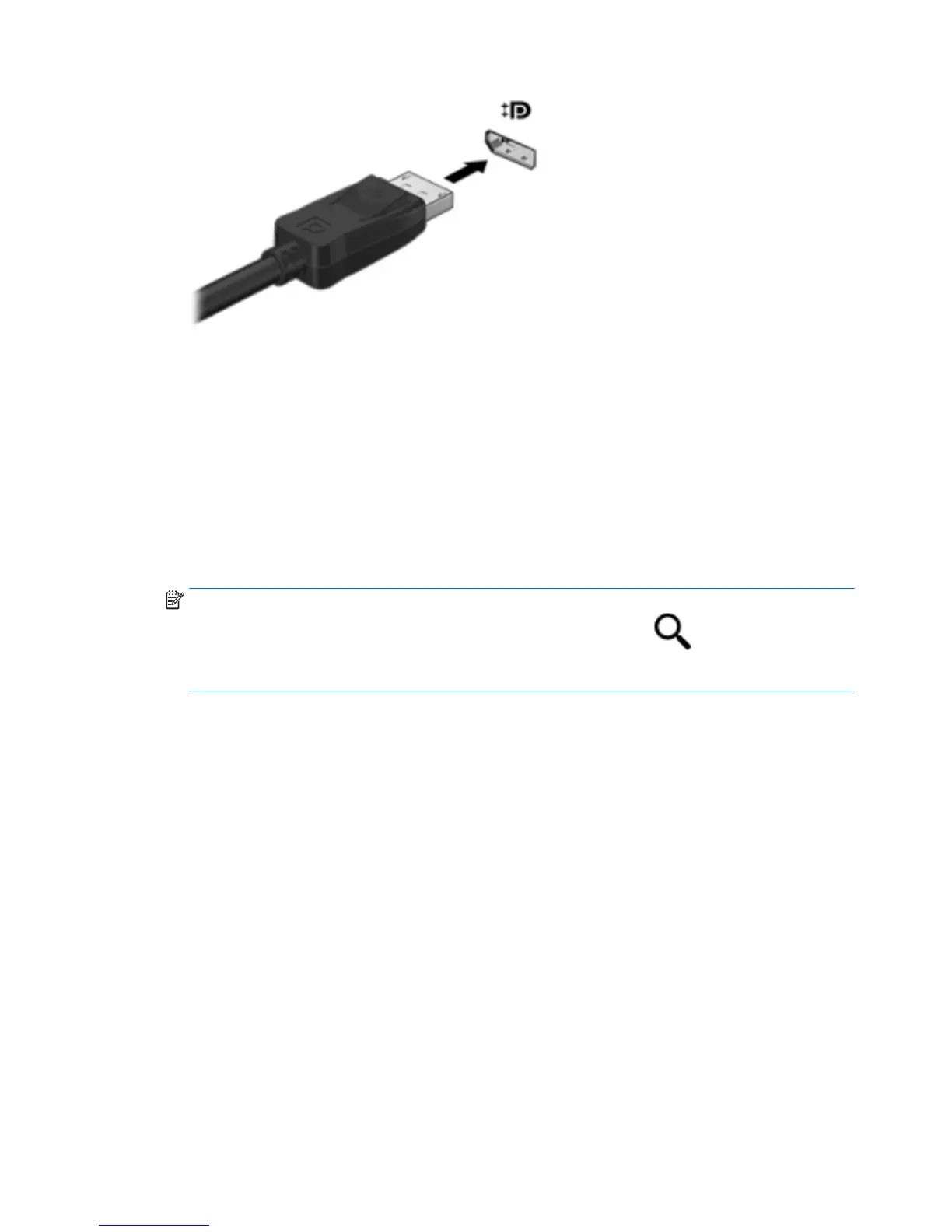
2. Connect the other end of the cable to the digital display device.
3. Press f4 on an optional external keyboard (purchased separately) to alternate the tablet screen
image between 4 display states:
●
PC screen only: View the screen image on the tablet only.
●
Duplicate: View the same screen image simultaneously on both the tablet and the external
device.
●
Extend: View the screen image extended across the tablet and the external device.
●
Second screen only: View the screen image on the external device only.
Each time you press f4, the display state changes.
NOTE: For best results, especially if you choose the "Extend" option, increase the screen
resolution of the external device, as follows. From the Start screen, , type control
panel, and then select Control Panel. Select Appearance and Personalization. Under Display,
select Adjust screen resolution.
Connecting Miracast-compatible wireless displays (select models only)
To discover and connect to Miracast-compatible wireless displays, follow the steps below.
To open Miracast:
▲
Point to the upper-right or lower-right corner of the Start screen or the Windows desktop to
display the charms, tap Devices, tap Project, and then follow the on-screen instructions.
– or –
On select tablet models, from the Start screen, tap the HP Quick Access to Miracast icon, and
then follow the on-screen instructions.
8 Chapter 3 Enjoying entertainment features


 To Next Page