4 HP Thunderbolt 3 PCIe Card Installation
Step 2
—
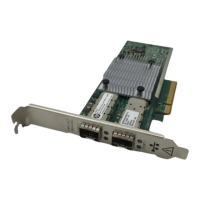
Installing the Thunderbolt 3 PCIe card
1. Ground yourself, and then remove the PCIe card from the package.
2. Place the computer on a flat, clean, static-free surface.
3. Install the PCIe card into the correct PCIe slot by sliding the bracket on the end of the card into the slot on
the back of the chassis, and then press the card firmly down into the socket on the system board.
NOTE: You must install the card into the correct PCIe slot, as follows. The slot closest to the
processor is slot 1.
• HP Z8 G4: PCIe slot 1
• HP Z6 G4: PCIe slot 6
• HP Z4 G4: PCIe slot 4



 To Next Page