5 Sensor 6 Power/Bluetooth pairing switch
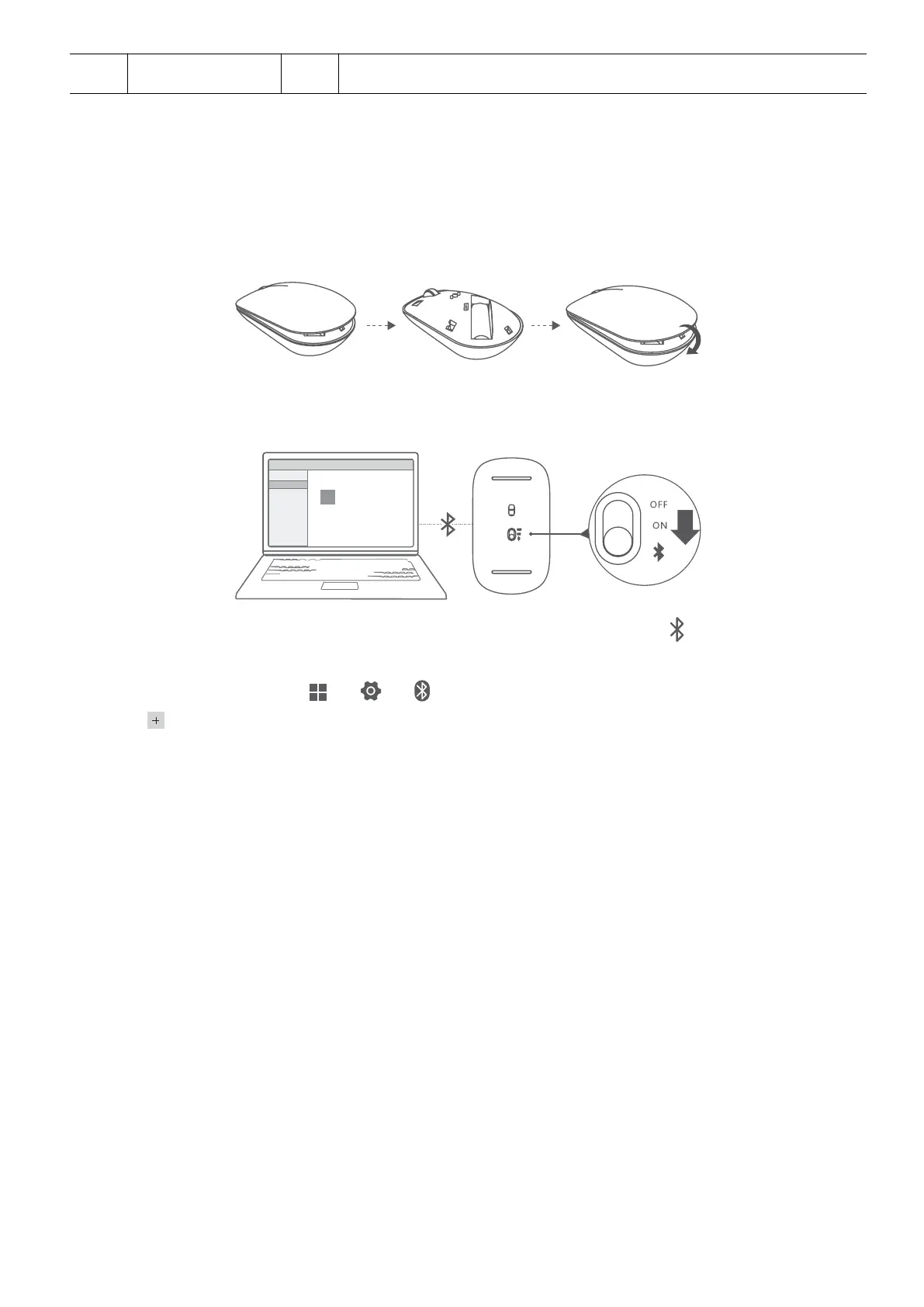
Install the battery
As illustrated below, remove the battery cover from the mark located at the bottom end of
the mouse. Insert one AA battery, making sure to match the + and - signs in the battery
compartment. Close the cover.
Pairing the Bluetooth mouse with the computer
1 Toggle the Bluetooth pairing switch at the bottom of the mouse to for approximately 3
seconds. Once the indicator starts blinking, the Bluetooth mouse is ready to pair.
2 On the computer, go to → → to enter the Bluetooth & other devices screen,
click to add a Bluetooth device, select Huawei Mouse from the list of detected
Bluetooth devices, and wait a moment until pairing is completed.
Accessories and extensions
15



 To Next Page