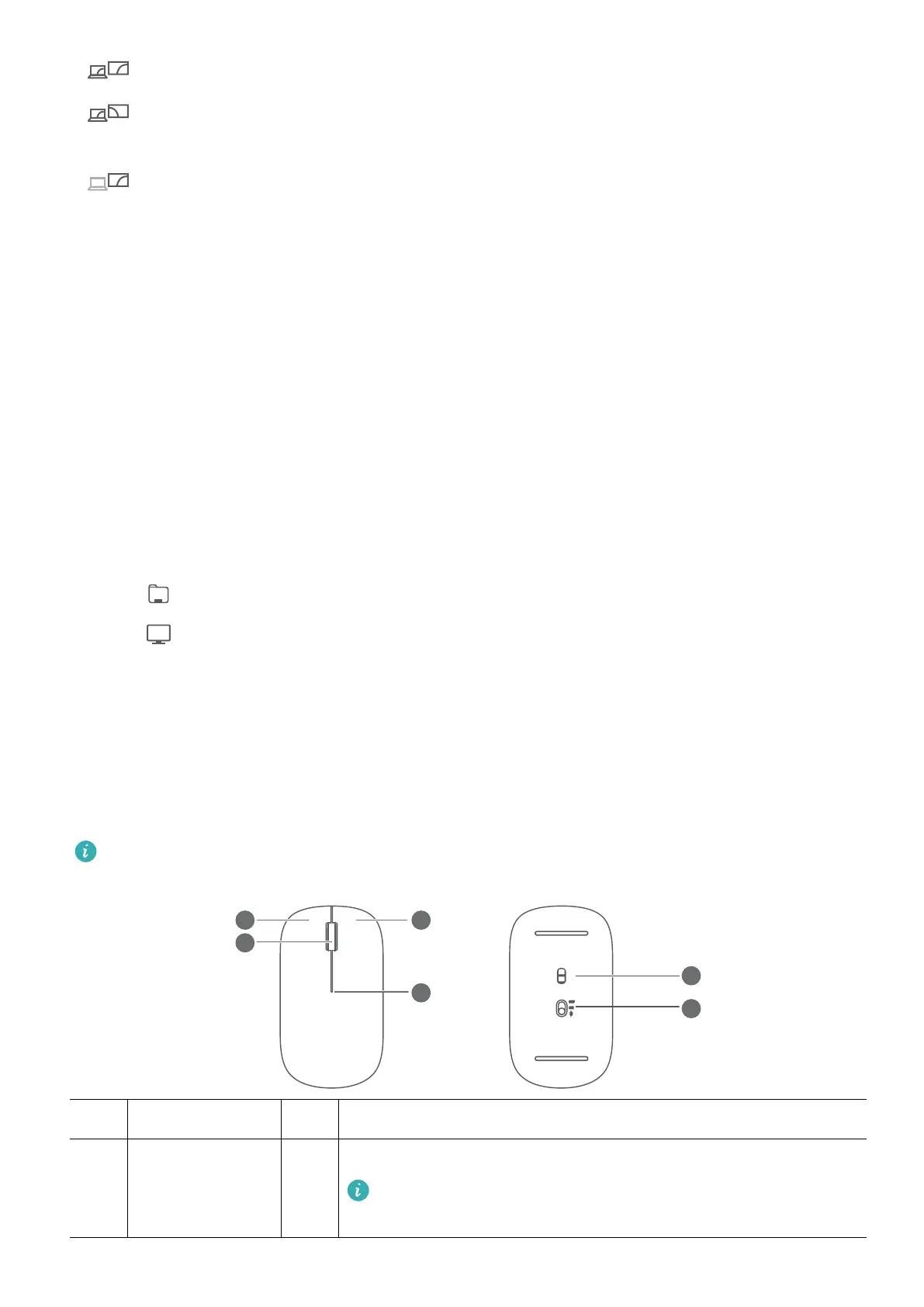
• : Both the computer's screen and external device's screen display the desktop.
• : The desktop is extended from the computer's screen to the external device's screen,
allowing you to move items between the screens.
• : The external device's screen displays the desktop, while the computer's screen does
not display any content.
Connect to a USB mouse, printer, or other devices
You can connect a USB device such as a mouse, printer, scanner, smartphone, or hard drive to
your laptop using the USB-A port on a docking station.
Connecting to USB devices
1 Connect the USB cable to the USB-A port on the docking station.
2 Connect the external device to a power supply if necessary, then power on the device.
3 When you connect the USB device for the rst time, the computer will automatically
install the required software.
Searching for the USB devices installed on the computer
1 Click on the taskbar at the bottom of the desktop to open the le manager.
2 Click to view the installed USB devices.
Bluetooth mouse (optional)
The Huawei Bluetooth mouse can be connected to your computer via Bluetooth. When you
use the Bluetooth mouse for the rst time, you will need to pair it with your computer.
Getting to know the Bluetooth mouse
The Bluetooth mouse is an optional accessory and is sold separately.
1 Left button 2 Scroll wheel + Middle button
3 Right button 4
LED indicator
If the indicator blinks red, the battery is low on power
and should be replaced.
Accessories and extensions
14



 To Next Page