EasyManua.ls Logo

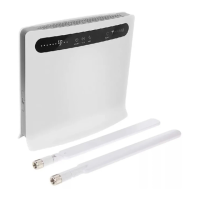
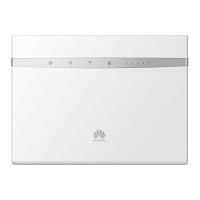
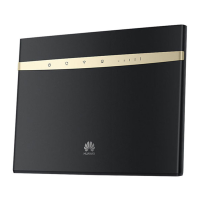
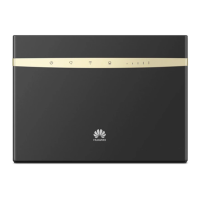
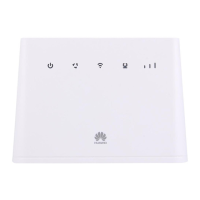
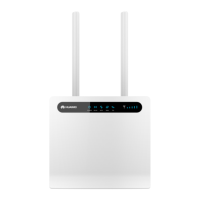
Huawei B593s-31A - User Manual

Huawei B593s-31A
21 pages
Print Icon
To Next Page IconTo Next Page
Loading...
Product Description
B593s- LTE450M CPE B593s-31A V100R001
Product Description
02
2013-08-05

Questions and Answers

  • R
    rrichSep 7, 2025
    How to adjust bright or dark local video on Huawei TE30 Conference System?
    • M
      Michael DominguezSep 7, 2025
      If the local video is too bright or too dark when the Huawei TE30 is not in a conference, it might be due to inappropriate video settings. Retain the default values for video parameters on both the TE30 and the display. If the issue persists, the camera may be faulty, and you should send the TE30 to the local distributor for maintenance.
  • B
    bcunninghamAug 22, 2025
    How to fix Huawei Conference System endpoint failing to connect to the Internet?
    • J
      Justin VargasAug 22, 2025
      If your Huawei Conference System endpoint can't connect to the internet, it might be due to outdated operating system or Internet Explorer patches. Install the latest patches for both. Also, check your Internet Explorer security settings. If the security level is too high, or your endpoint's IP address isn't on the trusted sites list, adjust the settings. To do this, go to Tools > Internet Options > Security > Trusted sites > Sites in Internet Explorer, add your TE30 IP address, and click OK.
  • J
    James KingSep 5, 2025
    Why is the local video in black and white on my Huawei TE30 Conference System?
    • C
      Chelsea BaxterSep 5, 2025
      If the local video on your Huawei TE30 Conference System is in black and white or blinking, the mode of the video output port might be set incorrectly. Ensure that the mode of the video output port and the cable in use match each other. Also, check that the cable is connected correctly and replace it if necessary.
  • W
    William McconnellSep 3, 2025
    Why can I only hear the local site during a Huawei TE30 conference?
    • B
      Bryce BentleySep 3, 2025
      If you can only hear the sound from the local site during a Huawei TE30 conference, it's possible that a loopback test is being performed at the local site. Stop all local and remote loopback tests.
  • L
    Lawrence JenkinsSep 2, 2025
    What causes Huawei TE30 to fail GK registration after startup?
    • T
      Terrence MartinezSep 2, 2025
      If your Huawei TE30 fails to register with the GK after startup, the parameters used for GK registration might be incorrect. Check the GK address, encryption password, and user name. To correct these settings, navigate to Advanced Settings > Settings > Network > IP > H.323 on the endpoint web interface and make the necessary corrections.
  • M
    Miguel MorrisSep 1, 2025
    How to fix a local VGA display not showing computer desktop connected to Huawei TE30?
    • H
      Heather LarsenSep 1, 2025
      If your local VGA display isn't showing the computer desktop when connected to the Huawei TE30, it might be due to the VGA display's limited capability. Set the resolution and refresh rate of the local output to those supported by the VGA display. The TE30 only supports certain combinations of resolutions and refresh rates, so ensure the computer's VGA input settings are compatible.
  • J
    Jeremy JonesAug 30, 2025
    Why is there no audio from the local display during a Huawei TE30 Conference System conference?
    • B
      Brittany ManningAug 30, 2025
      If there's no audio from the local display during a Huawei TE30 conference, it could be that the chair site has muted the speaker of the local site. Restore the volume to its default value. If audio is output properly when the audio test is performed, the problem exists at the remote site. The microphone at the remote site may have been muted, or no sound pickup device is connected to the audio source input port.
  • J
    Jason LeeAug 29, 2025
    Why does my Huawei TE30 Conference System show local video but not remote video during a conference?
    • L
      Laura WellsAug 29, 2025
      If your Huawei TE30 Conference System displays local video but not remote video during a conference, first check if a local or remote loopback test is in progress and stop all tests. If the video bandwidth [frame rate] is set to 0, no video will be sent from the remote site; contact the remote site administrator. If the remote video appears as a blue screen, the remote site might be hiding its video by sending a blue screen; contact the remote site administrator. Also, verify that the video output port is set to display the remote video.
  • C
    Cory TranAug 27, 2025
    What to do if Huawei TE30 Conference System display doesn't show video or UI?
    • J
      Jeffrey WilcoxAug 27, 2025
      If your Huawei TE30 Conference System display doesn't show the remote controlled UI or local video when powered on but not in a conference, first check if the display is powered on. If it is, ensure the correct video channel is selected using the remote control. Incorrect video settings on the TE30 or display, such as brightness set to 0, can also cause this; retain the default values for video parameters. Finally, verify that the video cable is securely connected between the TE30 and the display.
  • E
    Evelyn ShieldsAug 26, 2025
    Why can't local and remote sites call each other using site numbers on Huawei Conference System?
    • P
      Phillip BurkeAug 27, 2025
      If the local and remote sites cannot call each other using site numbers on your Huawei Conference System, it may be because either the local or remote site is not registered with a GK. Verify the GK registration settings. Another reason could be that the local or remote endpoint is not connected to an IP network. Ensure that the IP network cable is properly connected and verify the IP network settings.

Huawei B593s-31A Specifications

General IconGeneral
ModelB593s-31A
Device TypeWireless Router
4G LTE SupportYes
LTE CategoryCategory 4
LTE Download Speed150 Mbps
LTE Upload Speed50 Mbps
3G Download Speed42 Mbps
3G Upload Speed5.76 Mbps
Wi-Fi Standards802.11 b/g/n
Wi-Fi Frequency2.4 GHz
Wi-Fi SpeedUp to 300 Mbps
Ethernet Ports4
Phone Ports1
USB Port1
Antenna Ports2
SIM Card Slot1
SecurityWPA, WPA2
Weight500 g

Related product manuals