9
The network will show you if your connection is successful. Then you’re ready to start using
the internet, just like you would do on any other computer. To end your internet session,
just click on Disconnect.
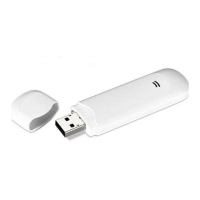
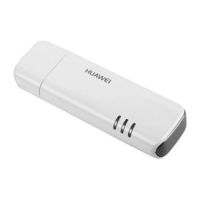
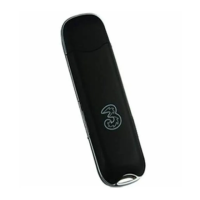
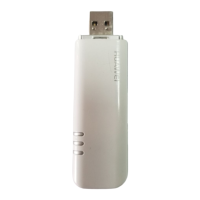
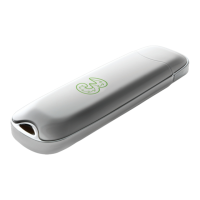
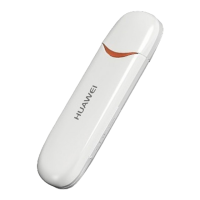
What do the different colour lights on the USB modem mean?
lGreen Light You are connected to the GPRS/EDGE network (fast)
lBlue Light You are connected to the 3G network (faster)
lCyan Light You are connected to the HSDPA network (fastest)
Keep track of your usage on My3
> My3 is a free service where you can check your usage and spending, see what’s left,
buy Top-ups or Add-ons and convert Mobile Broadband Add-ons. It’s there to help
you, so well worth a look.
> You can get straight on to My3 by going to My Account and clicking Open on your
broadband software. Or visit three.co.uk/my3 anytime – even if you’re out of
credit – and use your 3 mobile number (you’ll nd this on the My Account tab) to log
in. You’ll need to register rst, which takes a few moments.


 To Next Page