EasyManua.ls Logo

Huawei E5885Ls-93a - User Manual

Huawei E5885Ls-93a
4 pages
Print Icon
To Next Page IconTo Next Page
Loading...
Quick Start
31508529_01
Question and Answer IconNeed help?

Do you have a question about the Huawei E5885Ls-93a and is the answer not in the manual?

Summary

Device Appearance and Components

Device Components and Functions

Details the physical buttons, ports, and sensors of the device.

Initial Setup and Network

Installation Guide

Instructions for installing the SIM and microSD cards.

Network Connection Settings

Information on viewing and securing Wi-Fi network names and keys.

Using as a Router

Guidance on using the device as a router to reduce mobile data usage.

HUAWEI HiLink App Management

Overview of the HUAWEI HiLink app for managing the device.

Advanced Features and Charging

NFC Wi-Fi Connection

Steps to connect to Wi-Fi using the NFC sensor and HiLink app.

Wi-Fi Extender Function

Details on using the Wi-Fi extender feature to increase coverage.

Charging Other Devices

Instructions for charging other devices using charging strap or cable.

Device Charging Status

Visual indicators for device charging status.

Troubleshooting and Tips

Device Unresponsive Troubleshooting

Troubleshooting steps for when the device is not responding.

Wi-Fi Auto Off Feature Management

Explanation of the Wi-Fi auto off feature and how to manage it.

PIN Verification for Network

Guidance on PIN verification for network connection and its management.

Web Interface Access Issues

Troubleshooting common issues accessing the web interface at 192.168.8.1.

Power On Issues

Steps to resolve issues with the device not powering on.

Sudden Power Off Causes

Explanation of sudden power off due to overheating and ventilation.

Overview

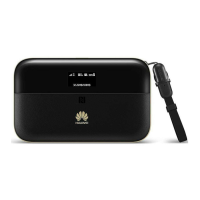
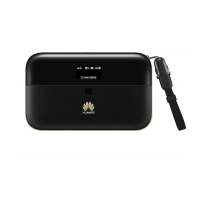
This document provides a quick start guide for the HUAWEI Mobile WiFi Pro2, a versatile device designed to offer portable internet connectivity and additional functionalities.

Function Description

The HUAWEI Mobile WiFi Pro2 serves primarily as a mobile Wi-Fi hotspot, allowing multiple devices to connect to the internet using a cellular data connection. It supports a micro-SIM card for this purpose. Beyond its core function, the device can also act as a Wi-Fi extender, boosting the coverage of an existing Wi-Fi network and potentially reducing mobile data usage. A unique feature is its ability to charge other devices, such as phones or Bluetooth headsets, making it a convenient power bank on the go. It also supports a microSD card, although its specific function is not detailed in this guide. The device can be managed through a dedicated HUAWEI HiLink app or a web interface, offering flexibility in control and configuration.

Usage Features

Connectivity:

  • Wi-Fi Hotspot: Insert a micro-SIM card to create a Wi-Fi network for your devices.
  • WPS Button: For quick and secure connections, press and hold the WPS button for more than five seconds to set up a WPS connection with WPS-enabled devices.
  • NFC Sensor (Optional): If your device (e.g., Android phone or tablet) has NFC, you can connect to the Mobile WiFi Pro2's Wi-Fi by simply touching your device against the NFC sensor. This feature requires the HUAWEI HiLink app to be installed and NFC to be enabled on your device. If the app isn't installed, touching the sensor will prompt you to download it.
  • Wi-Fi Extender (Optional): Enable this feature via the HUAWEI HiLink app to extend the range of an existing Wi-Fi network, helping to conserve mobile data.
  • Ethernet Port: The device includes an Ethernet port, allowing it to function as a router and potentially reduce mobile data usage by connecting to a wired network.
  • Output Charging Port: Use this port to charge other devices.
  • Micro USB Port: This port is likely for charging the HUAWEI Mobile WiFi Pro2 itself.

Management:

  • Screen: The device features a screen that displays important information, including the current SSID (Wi-Fi network name) and Wi-Fi network key.
  • HUAWEI HiLink App: Download this app for easy management of your Mobile WiFi Pro2. With the app, you can:
    • Change the SSID and Wi-Fi network key.
    • Check data traffic and SMS messages.
    • Monitor roaming status and signal strength.
    • Enable the Wi-Fi extender function.
    • Disable PIN verification for network connection.
  • Web Interface: Alternatively, you can manage the device through a web interface by navigating to http://192.168.8.1 (default, may change to 192.168.9.1 if there's an IP conflict). The default username and password for the web interface is "admin." The web interface also provides a "Help" section for more information.

Power and Charging:

  • Power Button: Press and hold to turn the device on or off.
  • Charging Other Devices: The Mobile WiFi Pro2 can charge other devices using either a dedicated charging strap (a standard accessory) or a standard charging cable. Ensure the charging strap is correctly inserted into the designated port. The device will not charge other devices if its own battery is low or if it is overheating.
  • Charging the Device: Use compatible chargers provided by a designated manufacturer. The charger is an optional accessory.

Maintenance Features

Security:

  • Changing Default SSID and Wi-Fi Network Key: It is strongly recommended to change the default SSID and Wi-Fi network key to enhance data security. This can be done via the HUAWEI HiLink app or the web interface.
  • PIN Verification: If enabled, you will need to enter a PIN to connect to the network. This feature can be disabled through the HUAWEI HiLink app if it becomes inconvenient.

Troubleshooting and Reset:

  • Restarting the Device: If the device is unresponsive, try restarting it by pressing and holding the power button.
  • Factory Reset: If restarting doesn't resolve an issue, or if you forget the username, password, or SSID, you can restore the device to its factory settings. Press and hold the Reset button for this purpose.
  • Wi-Fi Auto-Off Feature: To save power, the device's Wi-Fi may automatically turn off after a period of inactivity. You can reactivate Wi-Fi by pressing the POWER button. This feature can also be disabled via the web interface, though this may impact battery life.
  • Overheating Protection: If the HUAWEI Mobile WiFi Pro2 is used continuously for an extended period, it may overheat. This will trigger an automated protection system, turning off Wi-Fi and powering down the device. To prevent this, ensure the device is properly ventilated and cooled before powering it on again.
  • IP Address Conflict: If you cannot access the web interface at the default IP address (192.168.8.1), it might be due to an IP address conflict. Try 192.168.9.1. If the device has an LCD screen, the new IP address will be displayed there.

Huawei E5885Ls-93a Specifications

General IconGeneral
Device typeCellular wireless network equipment
Product typePortable router
On/off switchYes
Product colorBlack
LED indicatorsPower
Market positioningPortable
Ethernet LAN-
Networking standardsIEEE 802.11ac, IEEE 802.11n
4G standardLTE
Wi-Fi bandDual-band (2.4 GHz / 5 GHz)
Wi-Fi standardsWi-Fi 4 (802.11n), Wi-Fi 5 (802.11ac)
Top Wi-Fi standardWi-Fi 5 (802.11ac)
WLAN data transfer rate (max)300 Mbit/s
Output current2 A
Battery voltage5 V
Battery capacity6400 mAh
Power source typeBattery
Battery life (max)1600 h
Ethernet LAN (RJ-45) ports1
Weight and Dimensions IconWeight and Dimensions
Depth69.2 mm
Width112 mm
Height23 mm
Weight195 g

Related product manuals