Need help?
Do you have a question about the Huawei E589 and is the answer not in the manual?
Illustrates how Wi-Fi devices connect to the internet via the Mobile WiFi.
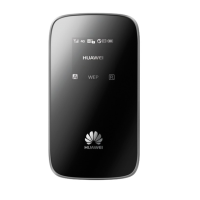
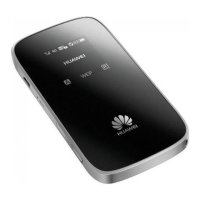
Details the external parts and features of the HUAWEI Mobile WiFi device.
Explains the meaning of various icons and data shown on the device's screen.
Provides information on the SSID and wireless network key required for Wi-Fi connections.
Guides on how to correctly insert a SIM card into the Mobile WiFi device.
Instructions for inserting an optional microSD card into the Mobile WiFi device.
Details methods for charging the Mobile WiFi battery using a charger or PC.
Explains how to charge the device by connecting it to a computer via a data cable.
Step-by-step guide on how to power on the HUAWEI Mobile WiFi device.
Instructions for establishing a Wi-Fi connection from a client device, using Windows XP as an example.
Explains the 'Auto' and 'Manual' modes for accessing the internet via the Mobile WiFi.
Guides on how to access the web-based management interface of the Mobile WiFi.
Information on how the device enters power saving mode and how to wake it up.
Steps for entering the correct PIN code to unlock the device if PIN protection is enabled.
Procedure for establishing a secure Wi-Fi connection using the WPS function.
Instructions on how to reset the Mobile WiFi to its original factory settings.
Detailed steps to connect a Sony PSP game machine to the Mobile WiFi.
Step-by-step guide for connecting an iPhone to the Mobile WiFi.
Provides advice on common issues like overheating and general troubleshooting steps.
This document describes the HUAWEI Mobile WiFi, a portable device designed to provide Internet access to Wi-Fi-enabled devices. It functions as a mobile hotspot, allowing multiple devices to connect to the Internet through a cellular network. The device is designed for ease of use and portability, offering various features for connection, power management, and maintenance.
The primary function of the HUAWEI Mobile WiFi is to enable Wi-Fi devices to connect to the Internet via a cellular network. It acts as an intermediary, converting a cellular data connection into a Wi-Fi signal that other devices can use. This allows users to access the Internet on laptops, smartphones, tablets, and other Wi-Fi-enabled gadgets even when a traditional Wi-Fi network is unavailable.
The device supports various network types, indicated by the "Network" icon on its screen, and displays signal strength to inform the user about the quality of the cellular connection. It also shows the number of devices currently connected, providing an overview of its usage. For communication, the device can display new messages and the number of unread messages, suggesting it has some messaging capabilities, likely related to network notifications or service provider communications.
Power management is a key aspect of its functionality, with a battery level indicator on the screen. The device can operate in international roaming states, which is also indicated on the screen, allowing users to stay connected while traveling abroad. It tracks traffic data and connection duration, providing users with information about their data usage. The device supports both "Auto mode" and "Manual mode" for Internet connection, giving users flexibility in how they manage their data consumption, especially relevant for those with time-based network subscriptions.
The HUAWEI Mobile WiFi features a WPS (Wi-Fi Protected Setup) button, which simplifies the process of connecting Wi-Fi clients. By pressing this button, a wireless network key can be automatically generated, eliminating the need for manual input on the client device. This feature enhances convenience and security for establishing connections.
The HUAWEI Mobile WiFi is designed for straightforward operation. To get started, users need to install a SIM card into the designated slot. The manual emphasizes the importance of using a standard and compatible SIM card to prevent damage to the device. The SIM card should be inserted in the correct orientation. Additionally, the device supports a microSD card, which is an optional accessory, for storage purposes. Users are advised against removing the microSD or SIM card while in use to avoid data corruption or device damage.
Charging the device is essential before its first use or after a long period of inactivity. Two methods are provided: using a dedicated charger or connecting it to a PC via a compatible data cable. The manual cautions against using incompatible chargers to prevent malfunction, failure, or fire, and to ensure warranty validity.
Powering on the Mobile WiFi involves pressing and holding the Power/Wi-Fi button until the screen lights up. Similarly, pressing and holding the same button powers off the device.
Accessing the Internet via Wi-Fi connection is a core usage feature. The device comes with preset management parameters, allowing for quick Internet access. Users can find the default SSID (Service Set Identifier) and wireless network key in the gift box or by pressing the WPS button twice consecutively to display them on the screen. Connecting a Wi-Fi device, such as a computer running Windows XP or a smartphone like an iPhone, involves enabling Wi-Fi on the client device, scanning for available networks, selecting the Mobile WiFi's SSID, and entering the wireless network key if required. The manual provides detailed steps for establishing a Wi-Fi connection with examples for a Sony PSP and an iPhone.
For Internet access, users can choose between "Auto mode" and "Manual mode." In Auto mode, the device automatically connects to the Internet upon power-on and may terminate the connection if there's no data transmission for a period. Manual mode requires users to launch the web management page to initiate or terminate the connection, offering more control over data usage, particularly beneficial for time-based network services.
The web management page is a crucial interface for configuring the device. Users can access it by connecting their client device to the Mobile WiFi, opening an Internet browser, and entering the default IP address (http://192.168.1.1). The default password for logging in is "admin." Through this page, users can select the Internet access mode and configure whether the Mobile WiFi automatically connects to the Internet while roaming.
The device also incorporates a power-saving mode. If no operation is performed within a preset period, the screen turns off. Pressing any key will light up the screen again. When operating on battery power, users can enable a feature that automatically turns off Wi-Fi if no Wi-Fi devices are connected for a preset period, further conserving battery life.
PIN code protection is another usage feature. If enabled, users must log in to the web management page and enter the correct PIN code. The PIN and PUK (PIN Unblocking Key) codes are typically provided with the SIM card.
The HUAWEI Mobile WiFi includes several features and recommendations for maintenance and troubleshooting.
One important maintenance aspect is addressing overheating. If the device is used for extended periods in an environment with poor ventilation, it may overheat. In such cases, the Mobile WiFi is designed to automatically switch off and disconnect from the network to protect itself. The recommended action is to place the device in a well-ventilated location and then restart it.
For general troubleshooting, the manual suggests several steps if users encounter difficulties:
The device's physical design also contributes to its maintainability, with clearly labeled slots for SIM and microSD cards, and a USB port for charging and data transfer. The presence of a Reset button provides a direct way to restore the device to a known good state. The screen itself provides visual feedback on the device's status, including signal strength, network type, battery level, and connection status, which aids in diagnosing problems.
 Network and Connectivity
| downlink LTE packet data service speed | 100 Mbit/s |
|---|---|
| uplink LTE packet data service speed | 50 Mbit/s |
| downlink LTE to Wi-Fi packet data service speed | 35 Mbit/s |
| downlink DC-HSPA+ packet data service speed | 43.2 Mbit/s |
| downlink HSPA+ packet data service speed | 21.6 Mbit/s |
| downlink HSDPA packet data service speed | 14.4 Mbit/s |
| uplink DC-HSPA+/HSPA+/HSUPA packet data service speed | 5.76 Mbit/s |
| concurrent wireless connections | 10 users |
 Battery
| battery capacity | 3000 mAh |
|---|---|
| operating time | 10 hours |
| standby time with WiFi off | 360 hours |

 To Next Page