EasyManua.ls Logo

Huawei E8238 - User Manual

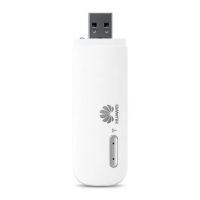
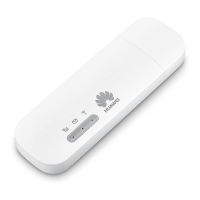
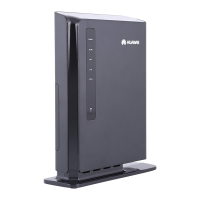
Huawei E8238
2 pages
Print Icon
To Next Page IconTo Next Page
Loading...
How to set up your
Huawei E8238
Router
Use this step-by-step guide to power
up and enter a world of reliable,
multiple-user Internet access.
Need help? Call 082 155
Vodacom
Power to you
Slide the back cover of the router open. Make
a note of the Wi-Fi password.
Replace the back cover and plug the router
into the wall socket.
A blue light will come on indicating that your
router has power.
Switch on the Wi-Fi settings on the devices
you want to activate (cellphones, tablets,
laptops or computers).
Go to the Wi-Fi settings on the cellphones,
tablets, laptops or computers you are
activating and select the Huawei device.
Connect to your Huawei device.
Type in the Wi-Fi password you made a note
of earlier and click on “OK.”
Once connected, a blue light will ash.
Open the Internet browser and type in
www.vodacom.co.za
You will now see the registration page which
means you are ready to power up and access
a world of connectivity.
Congratulations and welcome to
Vodacom At Home
Rete Wi-Fi(SSID):
123A4B5C
Password Wi-Fi:
Huawei E8238-630F
Not connected
Connections are available
Open Network and Sharing Centre
Connections 1
Connections 2
Huawei E8238-6313
Connections 3
Connections 4
Type the network security key
Connect to a Network
Security key:
123A4B5C
Hide characters
x
Not connected
Connections are available
Open Network and Sharing Centre
Connections 1
Connections 2
Connections automatically
Huawei E8238-6313
Connections 3
Connections 4
Connect
Rete Wi-Fi(SSID):
123A4B5C
Password Wi-Fi:
Mode: E8285Ws-2
ME: 79457456856
Mac: 79457456856
Ser: 79457456856
Huawei E8238-630F
Huawei Wireless Gateway
16
8
Welcome to Vodacom At Home
You are connected to the internet!
Vodacom at Home allows you and your family to browse from all
your Wi-Fi enabled devices. If this is your rst visit, you will need
to register in order to get the full use of your product.
Buy data and airtime
A registered user can Log in to:
If you would like to recharge your Vodacom At Home airtime balance using a recharge voucher, click here
Manage your account online
Receive SMS notications on your account balance
Login Register
Question and Answer IconNeed help?

Do you have a question about the Huawei E8238 and is the answer not in the manual?

Summary

Huawei E8238 Router Setup Guide

Initial Router Setup and Wi-Fi Connection

Guide on physically setting up the router, connecting it to power, and establishing a Wi-Fi connection with your devices.

Device Registration and Account Creation

Steps for registering your device and creating a Vodacom At Home account, including entering SIM and cellphone details.

Troubleshooting and Support Information

Contact details for customer care and data support for any issues encountered during setup or usage.

Overview

This document provides a step-by-step guide for setting up the Huawei E8238 Router for Vodacom At Home, designed to offer reliable, multiple-user internet access. The router's primary function is to provide Wi-Fi connectivity, enabling various devices such as cellphones, tablets, laptops, and computers to access the internet.

Technical Specifications (derived from visual information):

  • Model: Huawei E8238 Router
  • Wi-Fi SSID (example): Huawei E8238-630F, Huawei E8238-6313
  • Wi-Fi Password (example): 123A4B5C
  • Power Indicator: Blue light
  • Connectivity: Wireless (Wi-Fi)
  • Network Provider: Vodacom
  • Device Number (example): +27761284397
  • SIM Card: Requires a SIM card for network access.

Usage Features:

Initial Setup and Connection:

  1. Access Wi-Fi Password: The first step involves sliding open the back cover of the router to reveal and note down the Wi-Fi password (SSID and password). This information is crucial for connecting devices to the router. An example SSID provided is "Huawei E8238-630F" and a password "123A4B5C".
  2. Powering On: After noting the Wi-Fi details, replace the back cover and plug the router into a wall socket. A blue light will illuminate, indicating that the router is receiving power and is operational.
  3. Activating Wi-Fi on Devices: On the devices intended for internet access (cellphones, tablets, laptops, or computers), switch on the Wi-Fi settings.
  4. Selecting the Network: Navigate to the Wi-Fi settings on your device and select the Huawei device's network from the list of available connections. Examples include "Huawei E8238-6313".
  5. Entering Password: Once the network is selected, a prompt will appear to enter the Wi-Fi password. Type in the password noted from the router's back cover (e.g., "123A4B5C") and click "OK." There's an option to "Hide characters" for security.
  6. Connection Confirmation: Upon successful password entry, a blue light on the router will flash, confirming a successful connection.
  7. Accessing the Internet: Open an internet browser on your connected device and type "www.vodacom.co.za" to access the Vodacom At Home registration page.

Registration Process:

  1. Registration Page: The browser will display a registration page, indicating that you are connected to the internet and ready to set up your Vodacom At Home account. This page welcomes you to Vodacom At Home and explains that registration is required for full product use, including buying data, managing your account, and receiving SMS notifications.
  2. Initiating Registration: Click on the "Register" button on the welcome page.
  3. SIM Card Serial Number: You may be directed to a page requesting the last five digits of the primary account holder's SIM card serial number. This is a security measure to verify the account holder.
  4. Cellphone Number Input: The next step involves entering a cellphone number. This number is used by Vodacom to send account balance information and other notifications. After entering the number, click "Next."
  5. Completing Registration: Follow the prompts to complete any remaining information requested on the registration page.
  6. Confirmation: Upon successful registration, a "Thank you!" message will appear, confirming that your Vodacom At Home account has been created.
  7. Bundle Allocation: The system automatically allocates a 1GB recurring data bundle with the Vodacom At Home device. Users have the flexibility to change their bundle options at any time or top up with once-off bundles if data runs out before the next allocation.

Support and Assistance:

  • Customer Care: For general inquiries, users can dial 111 from a Vodacom handset or call 082 111 from any phone within RSA.
  • Data Support: For data-related issues, users can call 082 155.

Maintenance Features:

  • Password Management: The Wi-Fi password is physically accessible on the device, simplifying retrieval if forgotten.
  • Data Bundle Management: Users can manage their data bundles online, allowing for adjustments to recurring bundles or purchasing once-off top-ups as needed.
  • Account Notifications: The system is designed to send SMS notifications regarding account balance, helping users monitor their data usage and avoid unexpected disconnections.

The Huawei E8238 Router is presented as a user-friendly device, emphasizing ease of setup and reliable internet access for multiple users within a home environment. Its design prioritizes straightforward connectivity and account management through the Vodacom At Home platform.

Huawei E8238 Specifications

General IconGeneral
BrandHuawei
ModelE8238
CategoryWireless Router
LanguageEnglish

Related product manuals