
 Need help?
Do you have a question about the Huawei EchoLife HG8141 Series and is the answer not in the manual?
Precautions to prevent fire hazards from the device.
Guidelines for operating the device in potentially explosive environments.
General safety measures for device operation and handling.
Guidelines for proper installation and usage of the device.
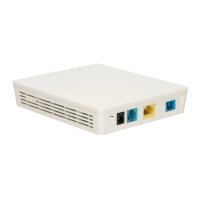
Instructions for placing the GPON terminal horizontally on a desk.
Guidance for mounting the terminal vertically using a base or support.
This document provides a comprehensive guide for the EchoLife Gateway PON Terminal, covering safety information, product overview, installation instructions, cable connections, Wi-Fi configuration, indicator descriptions, and disposal/recycling information.
Fire-proof Precautions: To ensure safe operation, keep the device away from all fire and heat sources, such as electric heaters, ovens, stoves, and candles. Exposure to such heat can cause the device's shell to become hot, melt, or even lead to a fire. It is crucial to regularly inspect power supply lines and components near the device for any signs of deterioration. Promptly replacing damaged cables or power socket components will mitigate potential safety risks.
Potentially Explosive Area: Never place or operate the device in environments containing flammable or explosive gases or smoke. Such conditions pose a severe risk of ignition. Additionally, avoid placing flammable or explosive materials directly below or above the meter cabinet to prevent accidental exposure to heat or sparks.
General Safety Precautions: To prevent damage to the device and ensure personal safety, especially during thunderstorms, do not route the strength member of optical fibers or other metal parts indoors. Similarly, avoid installing telephone lines, network cables, power adapters, or power adapter cables outdoors. If the power adapter is damaged due to human factors and its internal circuit is exposed, do not touch the exposed parts, as this presents a significant electrical hazard. Keep the device out of reach of children, as its small components and accessories could pose a choking risk. Direct exposure to the optical port can cause eye injury, so avoid looking into it. Only use power adapters that are part of the standard configuration; using non-standard adapters may lead to abnormal device behavior or unsafe conditions. If a backup power unit (BBU) is included, do not disassemble, refit, or expose it to fire, as this could create a safety risk.
Environmental Conditions: Operate the device in a clean, well-ventilated indoor environment, away from direct sunlight. For storage, devices and accessories should be kept within a temperature range of -10°C to +35°C and a relative humidity of 30%–85% RH for a maximum of nine months. Operating or storing the device in conditions with excessively high or low ambient temperature or humidity can lead to malfunctions.
Installation Guidelines: Install the device strictly according to the supplier's requirements. Ensure there is at least 10 cm of clear space around the device to allow for proper heat dissipation. During installation, keep the device away from flammable objects and electrical appliances that generate strong magnetic or electric fields, such as microwave ovens, refrigerators, and mobile phones. The input voltage range of the device must comply with the local power grid specifications (e.g., 200–240 V AC for the European Union; 100–130 V AC for the United States of America). Always verify that the power adapter is undamaged before use.
Cable Handling and Maintenance: Use dry hands when connecting or disconnecting cables. If an abnormality occurs, such as liquid entering the device, smoke emission, unusual sounds, or odors, immediately stop using the device, switch off its power, and disconnect all cables, including the power, optical, and network cables. Before cleaning or maintaining the device, ensure it is switched off, all applications are closed, and all cables are disconnected. Do not use strong chemicals, detergents, or other chemical agents for cleaning; instead, use a clean, dry, soft cloth to wipe the device shell and accessories. Keep the device dry during storage, transport, and use. Prevent the device from colliding with other objects, as this can damage the device and its accessories, leading to malfunctions.
Device Integrity and Disposal: Unauthorized disassembly or modification of the device or its accessories is strictly prohibited. The device should be installed and operated with a minimum distance of 20 cm between the radiator and your body to ensure safety. Dispose of packing materials, expired batteries, and old or abandoned devices in accordance with local laws and regulations. Recycling these items is strongly recommended. Prevent objects from entering the device through heat dissipation holes and avoid exposing the device to water or other liquids.
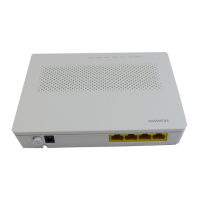
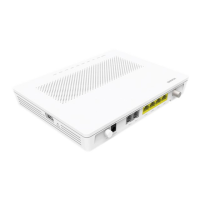
The EchoLife Gateway PON Terminal series offers various models with distinct functionalities tailored to different user needs.
Function Description:
Devices supporting Wi-Fi access may be equipped with either external or internal antennas. For specific device types not listed, further information can be found on the Huawei website.
Installation Precautions:
Mounting a GPON Terminal on the Desk: For horizontal placement, simply place the ONT on a desk as shown in the provided figure. For vertical placement (supported by some models), if the ONT has a base, place it vertically on the desk. If it has a support, install the support to the ONT and then place it vertically on the desk.
Mounting a GPON Terminal onto the Wall (Only supported by some product models):
Note: XG-PON terminals like the HN8245 series cannot be horizontally placed on a desk or mounted onto the wall. When installing ONTs horizontally against the wall, leave screw heads 3 mm over the wall. For vertical installation, leave screw heads 8 mm over the wall. This terminal is primarily designed for horizontal desk placement. If mounted on a wall, the indicator silkscreen will be reversed. For specific silkscreen requirements, a different terminal may need to be purchased.
The ports on GPON terminals vary by type. Connect cables according to the specific ports supported by your device. If your external device differs from those shown in the figures, refer to its documentation for connection details. This document illustrates connections for typical devices.
Important Notes for Cable Connection:
Typical Connections (e.g., HG8247H5):
HN8255Ws Specifics: To remove the protective cover of an optical fiber, place two fingers at the arrows, press down slightly, and slide outwards. The HN8255Ws includes multiple LAN ports, two USB ports, and dedicated TEL ports, offering extensive connectivity options for various devices.
HN8245Q Specifics: The HN8245Q features multiple LAN ports, two USB ports, and two POTS ports, along with Wi-Fi capabilities, catering to comprehensive networking and communication needs.
Caution for Optical Fiber Connection: After connecting the optical fiber to the ONT's optical port, route the fiber out through the hole on the fiber port cover before installing the cover. Failure to do so may damage the fiber and the ONT.
Step 1: Set PC IP Address: Configure your PC's IP address to be in the same subnet as the PON terminal's management IP address. The default management IP address can usually be found on the device's nameplate.
Step 2: Access Login Window: Open Internet Explorer, enter the PON terminal's management IP address in the address bar, and press Enter. The login window will appear.
Step 3: Log In: In the login window, select your preferred language. Enter the user name and password (typically printed on the device's nameplate). Click "Login." Once authenticated, the web configuration window will be displayed.
Notes for Login:
192.168.100.1 as the IP address, root as the user name, and adminHW as the password.Step 1: Navigate to WLAN Basic Configuration: Choose the "WLAN" tab and then select "WLAN Basic Configuration." For the HN8245Q, navigate to "Advanced Configuration > WLAN" tab and select "2.4G Basic Network Settings" (or "5G Basic Network Settings" for 5G Wi-Fi).
Step 2: Set Wi-Fi Parameters: In the pane, select the "Enable WLAN" option box. In the displayed dialog box, configure the basic Wi-Fi parameters:
Step 3: Apply Settings: Click "Apply" to save your Wi-Fi configuration.
Notes for Wi-Fi Configuration: The coverage of a wireless network from an ONT supporting Wi-Fi is affected by the number, thickness, and positions of walls, materials, ceilings, and other objects that radio signals must traverse. Material type and background radio frequency (RF) noise also impact coverage. To maximize wireless network coverage:
The device's indicators provide visual feedback on its status and functionality.
CATV Indicator:
WPS Indicator:
WLAN Indicator:
USB Indicator:
TEL1-TEL2 Indicators:
LAN1-LAN4/10G LAN Indicators:
LOS/PON Indicator:
POWER Indicator:
| Status No. | PON Status | LOS Status | Description
 General
| WAN Interface | GPON |
|---|---|
| Operating Temperature | 0°C to 40°C |
| Storage Temperature | -40°C to 70°C |
| Humidity | 5% to 95% (non-condensing) |
| Product Type | ONT |




 To Next Page