EasyManua.ls Logo

Huawei EchoLife HS8245W1 - User Manual

Huawei EchoLife HS8245W1
20 pages
Print Icon
To Next Page IconTo Next Page
Loading...
HUAWEI TECHNOLOGIES CO., LTD.
EchoLife HS8245W
V300R017C10
Installation Guide
Issue: 01
Date: 2017-01-11
Question and Answer IconNeed help?

Do you have a question about the Huawei EchoLife HS8245W1 and is the answer not in the manual?

Overview

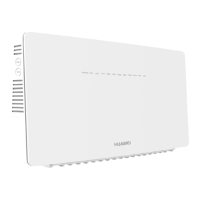
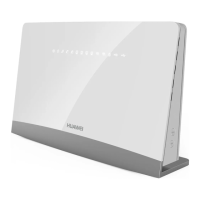
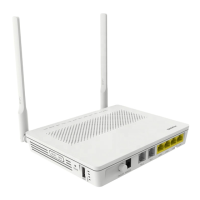
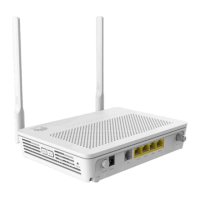
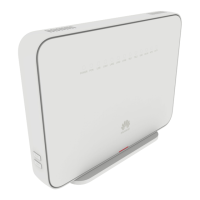
The EchoLife HS8245W is a GPON terminal designed for installation in various environments, including network cabinets or walls, with wall mounting being the most common. This device serves as a comprehensive solution for home networking, offering multiple connectivity options and Wi-Fi capabilities.

Function Description:

The HS8245W integrates several key functions to provide a versatile home gateway experience:

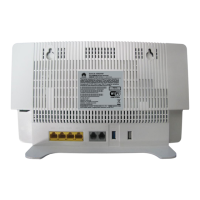
  • Ethernet Ports: It features 4 Ethernet ports, allowing for wired connections to devices such as PCs, IP STBs, and other network-enabled equipment.
  • POTS Ports: Equipped with 2 POTS (Plain Old Telephone Service) ports, the device supports traditional phone or fax machine connections.
  • USB Ports: Two USB ports (one USB 2.0 and one USB 3.0) are available for connecting USB storage devices, enabling file sharing or other USB-dependent functionalities.
  • Wi-Fi Connectivity: The device offers dual-band Wi-Fi, supporting 2.4 GHz (3x3 MIMO) and 5 GHz (4x4 MIMO) standards. This allows for high-speed wireless access for multiple devices.
  • Optical Port: An optical port is present for connecting to the ONT (Optical Network Terminal) and the optical port on the wall, facilitating fiber optic network access.

Important Technical Specifications:

  • Dimensions (L x W x H): 295 mm x 180 mm x 82 mm, indicating a relatively compact design suitable for wall mounting.
  • Weight (including the power adapter): ≤ 1.5 kg, making it lightweight and easy to handle during installation.
  • System Power Supply: Operates on 11 V DC to 20 V DC, 3 A.
  • Power Adapter Input: Compatible with 100 V AC to 240 V AC, 50/60 Hz, ensuring broad compatibility with different power grids.
  • Operating Temperature: Designed to function within a temperature range of 0°C to 40°C.
  • Operating Humidity: Supports 5% RH to 95% RH (non-condensing), indicating resilience in various environmental conditions.
  • Wi-Fi Standard: Adheres to IEEE 802.11b/g/n (2.4G) and IEEE 802.11a/n/ac (5G) standards, providing modern wireless capabilities.
  • Max Altitude: Can operate effectively up to 2000 m altitude.

Usage Features:

  • Easy Installation: The device comes with a drilling template for marking wall positions, and expansion sleeves and bolts for secure mounting. It is recommended that only one operator is needed for installation, wearing ESD gloves.
  • Connectivity:
    • Optical Fiber Connection: Connects to the optical port on the ONT and the wall using an optical fiber. A crucial safety note emphasizes maintaining a fiber bend radius larger than 30 mm to ensure normal use.
    • Wired Network Connection: LAN ports connect to PCs or IP STBs using network cables.
    • Telephone Connection: TEL ports connect to phones or fax machines using phone lines.
    • Power Connection: The POWER port connects to a power socket via a power adapter.
    • USB Storage: USB ports allow for connecting USB storage devices with a USB data cable.
  • Wi-Fi Configuration: Users can configure Wi-Fi parameters through a web interface, selecting WLAN tabs for 2.4G or 5G Basic Network Settings. This includes enabling WLAN, setting SSID (network name), authentication mode, and encryption mode (WPA PreSharedKey). The SSID and WPA PreSharedKey are typically found on the device's nameplate.
  • Indicator Lights: Various LED indicators provide status information:
    • POWER: Steady on when powered, off when power is cut.
    • PON: Indicates the status of the Passive Optical Network connection. Steady on means a connection is established with the upper-layer device. Blinking twice a second indicates an attempt to set up a connection. Blinking abnormally or being prohibited by the upper-layer device requires contacting the service provider.
    • LOS: Indicates Loss of Signal. Blinking once every two seconds suggests an issue with the pigtail fiber connection or cleanliness. Blinking twice a second indicates a problem requiring service provider contact.
    • TEL1/TEL2: Steady on when registered with the softswitch (no service flows), blinking when service flows are transmitted, and off if not powered or failed to register.
    • USB: Steady on when connected and in host mode (no data), blinking twice a second when data is transmitted, and off if not powered or connected.
    • LAN1-LAN4: Steady on for normal Ethernet connection, blinking when data is transmitted, and off if not set up.
    • WLAN: Steady on when enabled, blinking when data is transmitted, and off when disabled.
    • WPS: Steady on when enabled, blinking when a Wi-Fi terminal is accessing the system, and off when disabled.
  • Reset Functionality: A reset button allows for resetting the GPON terminal or restoring factory defaults by pressing it for longer than 10 seconds.

Maintenance Features:

  • Safety Precautions: Emphasizes reading instructions, complying with local safety regulations, and ensuring operations are performed by qualified personnel. It warns against disassembling the device and highlights the importance of eye protection when handling fiber optics.
  • Device Safety: Stresses wearing ESD gloves during installation to prevent damage from static electricity. Prohibits installation or removal of live lines and advises turning off the power switch before handling power cables.
  • Laser Safety: Provides detailed instructions for handling optical ports, including keeping them clean, capping them when not in use, and exercising caution to prevent damage to ceramic sockets. It also warns against looking into fiber end faces without eye protection or ensuring the laser output is disabled. The maximum optical output average power is specified as 8.0dBm under normal conditions and less than 11 dBm in abnormal cases.
  • Cable Management: Recommends attaching labels or tags to signal cables for ease of maintenance and neatly cutting off excess cable tie parts to prevent injury.
  • Troubleshooting (FAQs): Addresses common issues:
    • LOS indicator blinks: Check pigtail fiber connection and cleanliness; contact service provider if blinking twice a second.
    • PON indicator is off: Verify optical port and fiber connection; contact service provider if registration fails.
    • Phone not ringing: Check if the phone's ringing current voltage is higher than the GPON terminal's maximum (60 V AC) and replace the phone if necessary.
    • Resetting GPON terminal: Use a needle-type object to press the reset button.
    • Restoring factory defaults: Press the reset button for longer than 10 seconds.
  • Wi-Fi Coverage Optimization: Provides guidelines to maximize wireless network coverage, including minimizing walls/ceilings between devices, observing the straight-line rule for signal traversal, considering the impact of building materials (metal, concrete weaken signals), and keeping the ONT away from devices that produce RF noise (e.g., microwave ovens, 2.4 GHz cordless phones). It also recommends a minimum distance of 30 cm between the ONT and nearby walls for horizontal placement.

Huawei EchoLife HS8245W1 Specifications

General IconGeneral
BrandHuawei
ModelEchoLife HS8245W1
CategoryNetwork Hardware
LanguageEnglish

Related product manuals