This document describes the EchoLife Bridge GPON Terminal, a device designed for optical network access. It provides a quick start guide for installation, configuration, and basic troubleshooting. The terminal functions as a bridge in a GPON (Gigabit Passive Optical Network) setup, connecting end-user devices to the optical network.
Function Description
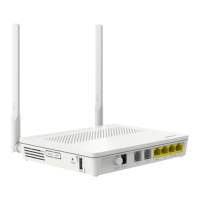
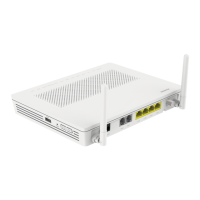
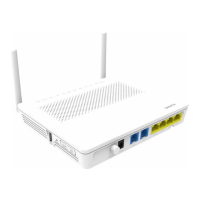
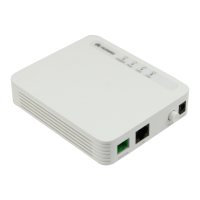
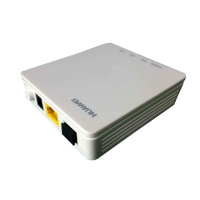
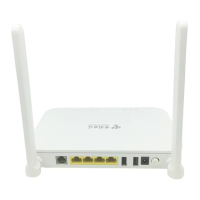
The EchoLife Bridge GPON Terminal serves as an Optical Network Terminal (ONT) in a GPON architecture. It facilitates high-speed data transmission over optical fiber, enabling various services such as internet access, voice (POTS), and video (CATV). Different models within the EchoLife Bridge GPON Terminal series offer varying port configurations to cater to diverse user needs:
- HG8010 series: Equipped with 1 Ethernet port, primarily for basic internet connectivity.
- HG8110 series: Features 1 Ethernet port and 1 POTS (Plain Old Telephone Service) port, supporting both data and voice services.
- HG8012 series: Includes 1 Ethernet port and 1 CATV (Cable Television) port, providing data and video services.
- HG8120 series: Offers 2 Ethernet ports and 1 POTS port, allowing for multiple wired connections and voice services.
- HG8242 series: A more comprehensive model with 4 Ethernet ports, 2 POTS ports, and 1 CATV port, suitable for users requiring extensive connectivity options.
- HG8040 series: Provides 4 Ethernet ports, focusing on multiple wired data connections.
- HG8240 series: Features 4 Ethernet ports and 2 POTS ports, combining extensive data connectivity with voice services.
The terminal acts as a bridge, forwarding data packets between the optical network and connected devices. It does not typically perform routing functions, relying on other network devices for that purpose. The device is designed for indoor use in a clean and well-ventilated environment, away from direct sunlight.
Important Technical Specifications
The EchoLife Bridge GPON Terminal operates within specific environmental and power parameters:
- Power adapter input: 100–240 V AC, 50/60 Hz. This wide input range ensures compatibility with various regional power grids.
- System power supply: Specifics are detailed on the nameplate of each device.
- Ambient temperature: 0°C to +40°C. This defines the safe operating temperature range for the device.
- Ambient humidity: 5%-95% (non-condensing). This indicates the acceptable humidity levels for optimal performance.
Weight and maximum system power consumption vary by model:
- HG8010 series: Approximately 270 g (including power adapter), with a maximum system power consumption of 3.6 W.
- HG8110 series: Approximately 300 g, with a maximum system power consumption of 5.5 W.
- HG8012 series: Approximately 350 g, with a maximum system power consumption of 6 W.
- HG8120 series: Approximately 350 g, with a maximum system power consumption of 5.5 W.
- HG8242 series: Approximately 400 g, with a maximum system power consumption of 14 W. This model has the highest power consumption due to its extensive port configuration.
- HG8040 series: Approximately 400 g, with a maximum system power consumption of 7.5 W.
- HG8240 series: Approximately 400 g, with a maximum system power consumption of 7.8 W.
These specifications highlight the relatively low power consumption and compact design of these terminals, making them suitable for residential and small office environments.
Usage Features
The EchoLife Bridge GPON Terminal offers flexible installation and straightforward connectivity:
- Installation: The device can be mounted onto a wall or placed horizontally on a workbench. It is crucial not to install GPON terminals outdoors, in outdoor cabinets, or on ceilings. A minimum of 10 cm space around the device is recommended for proper heat dissipation.
- Connectivity:
- Optical Port: Connects to the optical port on the wall using an optical fiber. For HG8242, HG8240, and HG8040 series, the optical port is at the back. For other ONTs like the HG8110F, the OPTICAL port is directly connected. Ensure the optical connector is SC/APC type and the fiber bend radius is greater than 30 mm to prevent damage.
- LAN Port: Connects to a PC or IP STB (Set-Top Box) using a network cable.
- TEL Port: Connects to a phone or fax machine using a phone line.
- Power Port: Connects to a power socket using the provided power adapter.
- Power Switch: An ON/OFF switch controls the device's power.
- Web Configuration: The device can be configured via a web interface.
- To access, set the PC's IP address in the same subnet as the GPON terminal's management IP address (found on the nameplate).
- Enter the management IP address in a web browser.
- Log in using the user name and password from the nameplate. Default credentials (192.168.100.1 or 192.168.1.1, user: root, password: adminHW) may apply if not printed on the nameplate.
- It is recommended to change the initial password after the first login. The system will lock after three consecutive incorrect login attempts and will automatically log out after five minutes of inactivity.
- Indicator Lights: Various LED indicators provide status information:
- CATV: Steady on indicates CATV function enabled and signals received; Off indicates disabled or no signals.
- TEL1-TEL2: Steady on indicates ONT registered with softswitch but no service flows; Blinking indicates service flows transmitted; Off indicates not powered on or failed registration.
- LAN1-LAN4: Steady on indicates normal Ethernet connection; Blinking indicates data transmission; Off indicates no Ethernet connection.
- LOS/PON: This combined indicator provides critical network status (see Maintenance Features for details).
- POWER: Steady green indicates terminal powered on; Off indicates power supply cut off.
Maintenance Features
The device includes features for basic maintenance and troubleshooting:
- Safety Precautions: Emphasizes keeping the device away from fire/heat, replacing deteriorated cables, avoiding flammable/explosive environments, and preventing exposure to moisture or strong chemicals. It also warns against unauthorized disassembly and direct viewing of the optical port.
- Disposal and Recycling: The device is marked with a crossed-out wheeled-bin symbol, indicating it should not be disposed of with household waste. Users are responsible for taking it to designated collection points for proper recycling of WEEE (Waste Electrical and Electronic Equipment) in accordance with local laws and regulations (WEEE Directive Recast 2012/19/EU). This ensures valuable materials are conserved and environmental/health risks from hazardous substances are minimized.
- Hazardous Substances Reduction: Compliant with REACH Regulation (EC) No 1907/2006 and RoHS Directive Recast (Directive 2011/65/EU).
- Troubleshooting (FAQs):
- LOS indicator blinks:
- Blinks once every two seconds: Check if the pigtail fiber is properly connected and the connector is clean.
- Blinks twice a second: Contact the service provider.
- PON indicator is off:
- Check if the OPTICAL port and optical fiber are properly connected.
- If the GPON terminal fails to register with the upper-layer device, contact the service provider.
- Phone does not ring but communication is normal off-hook: The GPON terminal provides a maximum of 60 V AC ringing current. Check if the phone's ringing current voltage is higher than 60 V AC; if so, replace the phone.
- Resetting the GPON terminal: Press the "Reset" button using a needle-type object.
- Restoring factory defaults: Press the "Reset" button for longer than 10 seconds. The system restarts successfully if the indicator turns off and then lights up again.
- LOS/PON Indicator Status (Detailed):
- PON Off, LOS Off: The GPON terminal is prohibited by the upper-layer device; contact the service provider.
- PON Blinks twice a second, LOS Off: The GPON terminal attempts to set up a connection with its upper-layer device.
- PON Steady on, LOS Off: A connection is established between the GPON terminal and its upper-layer device.
- PON Off, LOS Blinks once every two seconds: The GPON terminal is not connected to optical fibers or does not receive optical signals.
- PON Blinks twice a second, LOS Blinks twice a second: The GPON terminal is a rogue terminal; contact the service provider.
- PON Blinks once every two seconds, LOS Blinks once every two seconds: The hardware is faulty.
This comprehensive set of features and guidelines ensures reliable operation, easy setup, and effective maintenance of the EchoLife Bridge GPON Terminal.

 Need help?
 General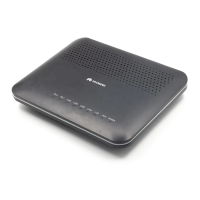




 To Next Page