To view the received les, open Files, search for and access the Huawei Share folder, then
you can view received les.
You can also view the received images or videos by going to Gallery > Albums > Huawei
Share.
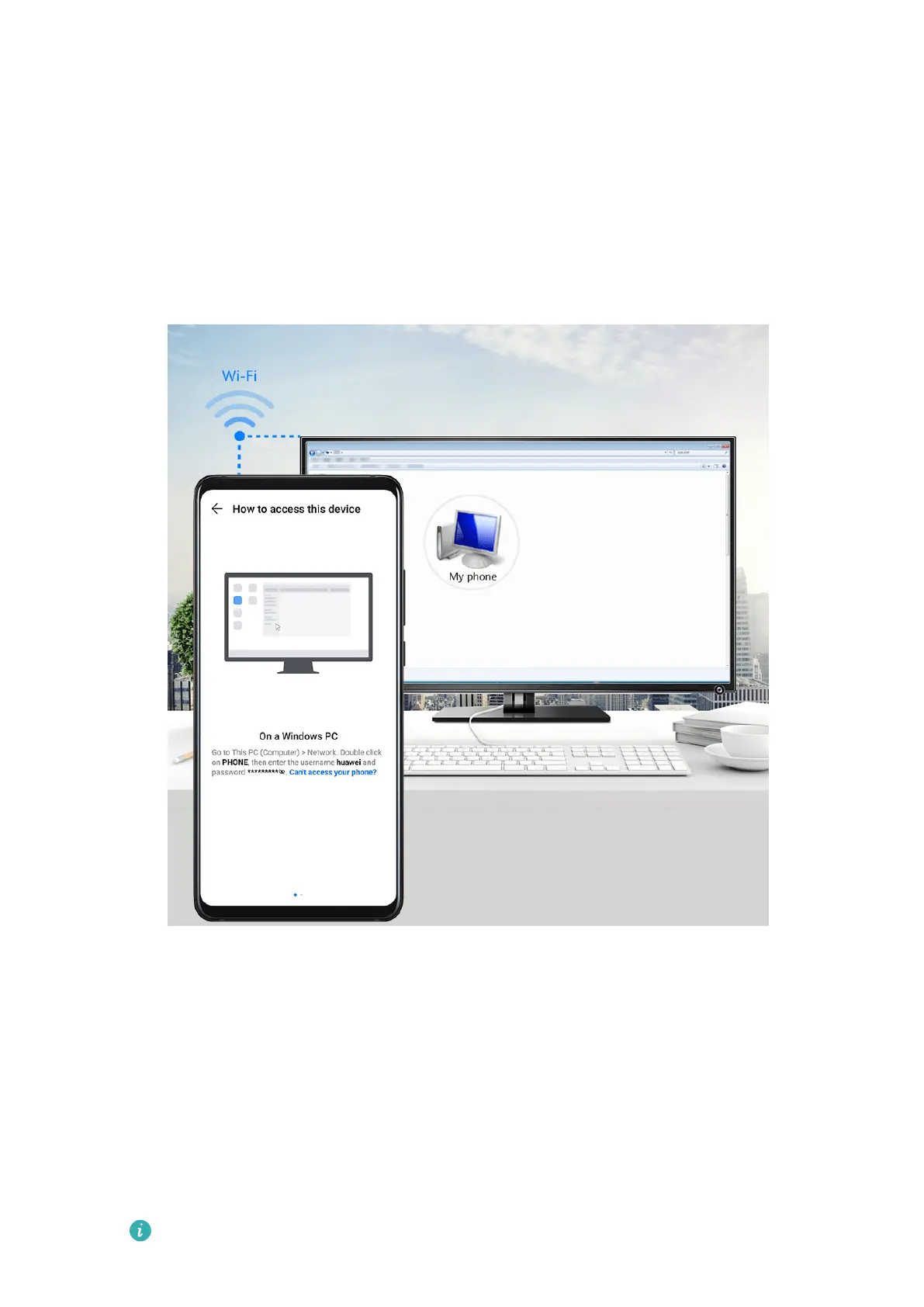
Share Files Between Your Phone and Computer with Huawei Share
You can use Huawei Share to easily share les wirelessly between your phone and a
computer (Windows or macOS).
1 Make sure your phone and computer are connected to the same Wi-Fi network.
2 On your phone, enter the Huawei Share settings and enable Huawei Share and
Computer share.
3 Make a note of the name displayed next to Name shown on computers, as well as the
user name and password under
Verication on computers.
4 Perform the following operations on a Windows-based computer (desktop or laptop) or a
macOS-based computer (laptop):
• Windows: Go to This PC (Computer) > Network on the computer.
• macOS: Go to Finder > Go > Network on the computer.
Currently, this feature is only available on Macs running macOS 10.8 to 10.14.
Settings
117



 To Next Page