Some system notications and notications from apps running in the foreground cannot
be cleared.
Do Not Disturb Settings for Notications
If you wish not to be disturbed by a notication, swipe left on it, touch , and choose from
options including Disable notications, Use gentle notications, and DELAY.
Some system notications and notications from apps running in the foreground cannot
be disabled or delayed.
multi-window
Enable Split-screen Mode
Multi-Window allows you to open apps in split screen for multitasking.
Enable split-screen mode:
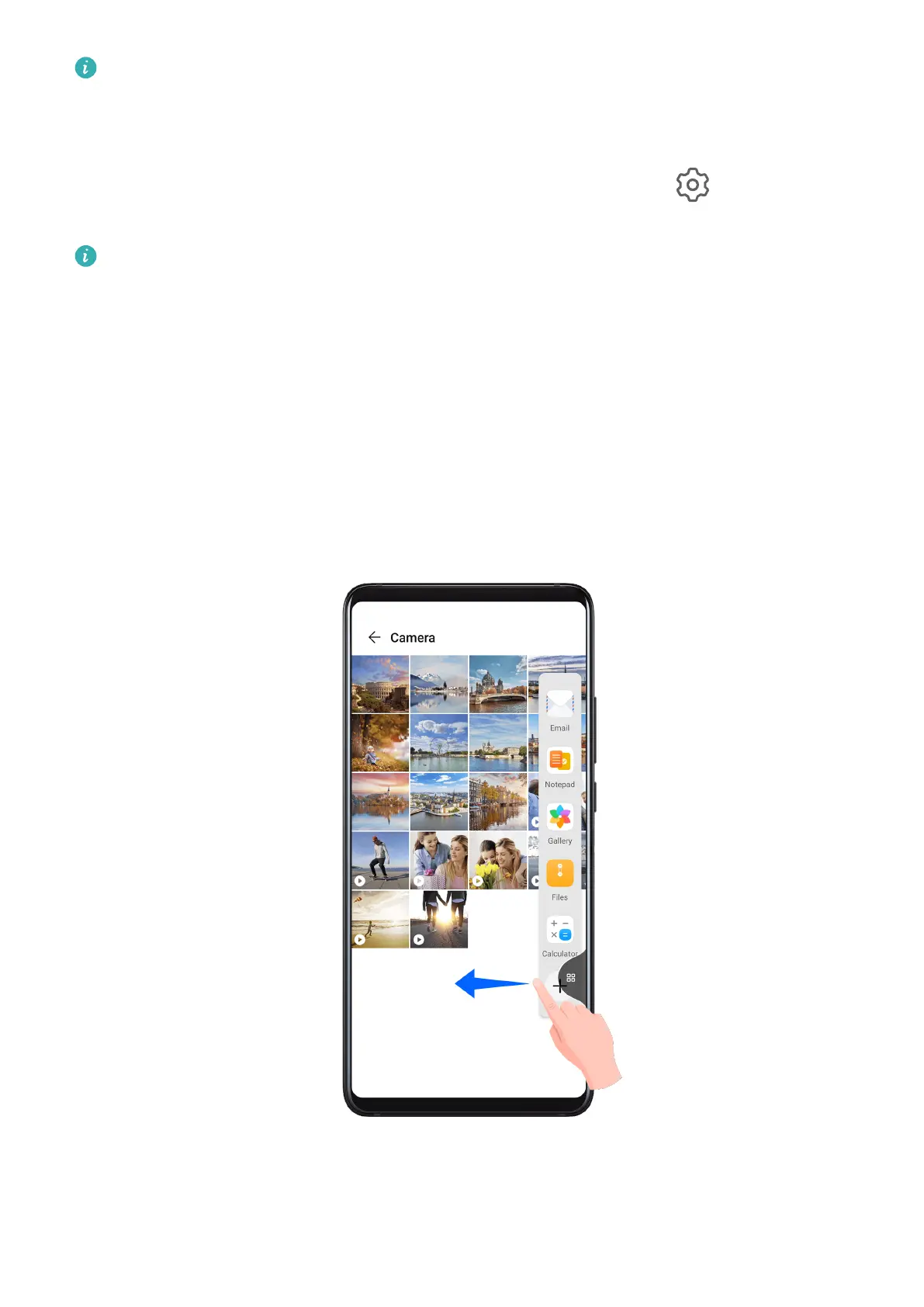
1 Open an app and swipe inward from the left or right edge and hold to bring up the Multi-
Window dock.
2 Drag an app icon out of the Multi-Window dock.
Switch the split-screen panes:
Essentials
20



 To Next Page