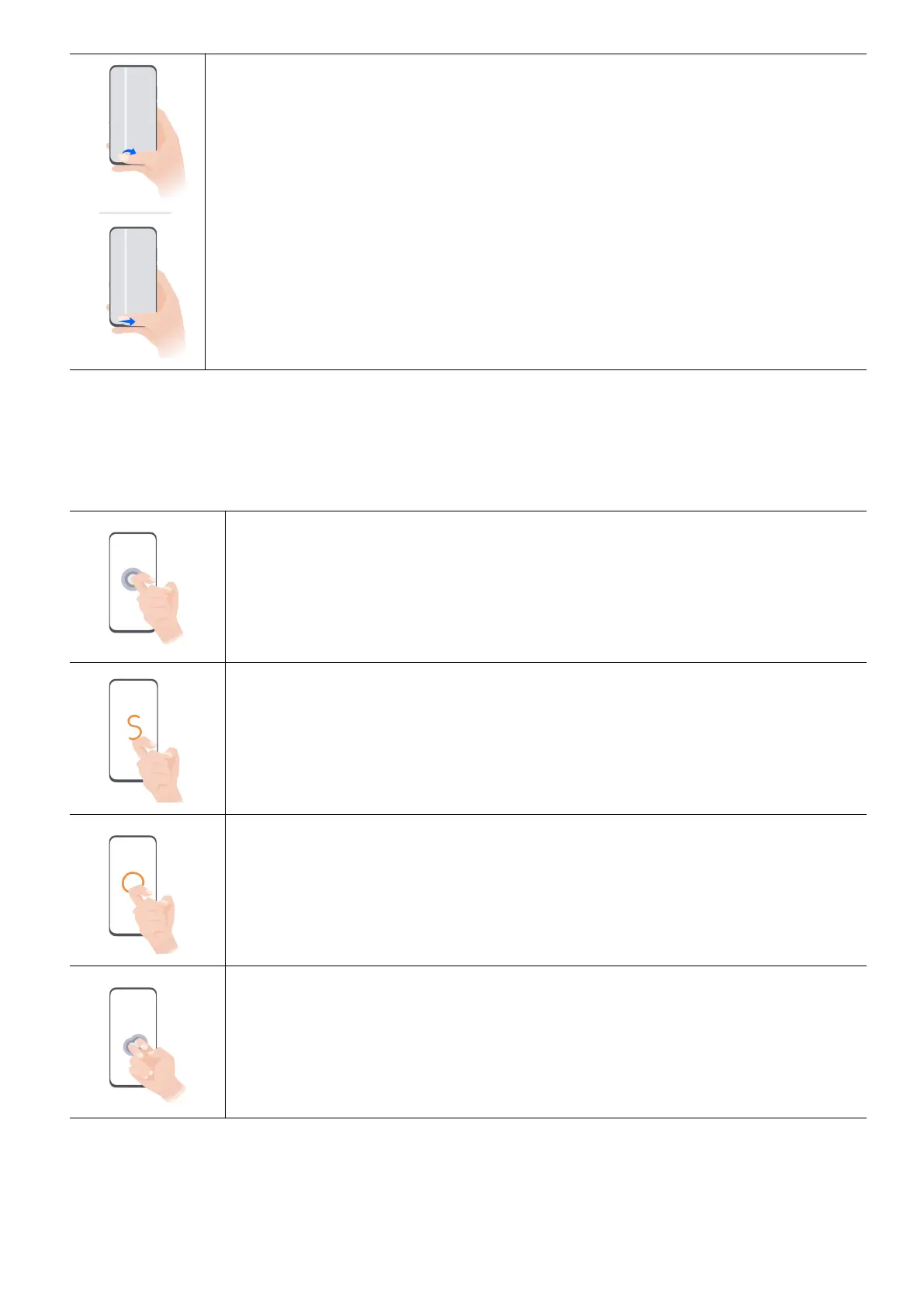
Switch apps
• Slide along the bottom edge of the screen.
Before using this gesture, go to System navigation > Settings and
conrm that Slide across bottom to switch apps is enabled.
• Swipe across the bottom of the screen in an arc.
Knuckle Gestures
Go to Settings > Accessibility features > Motion control > Take screenshot, and enable
Smart screenshot.
Take screenshots
Knock twice on the screen with a knuckle to take a screenshot.
Take a scrolling screenshot
Knock on the screen with a knuckle and draw an "S" to take a scrolling
screenshot.
Capture part of the screen
Knock and draw an enclosed area with a knuckle to capture part of the
screen.
Screen recording
Knock twice on the screen with two knuckles to start or end a screen
recording.
Essentials
2



 To Next Page