Keyboard
• The actual functions may vary depending on the keyboard used.
• When inserting the battery, you can press and hold the Bluetooth pairing button for
three seconds to restore the keyboard to its factory settings.
Functions of Shortcut Keys
By default, the F1 and F2 keys of some versions of keyboards are in shortcut key (hot key)
mode, which can be used to perform common tasks easily.
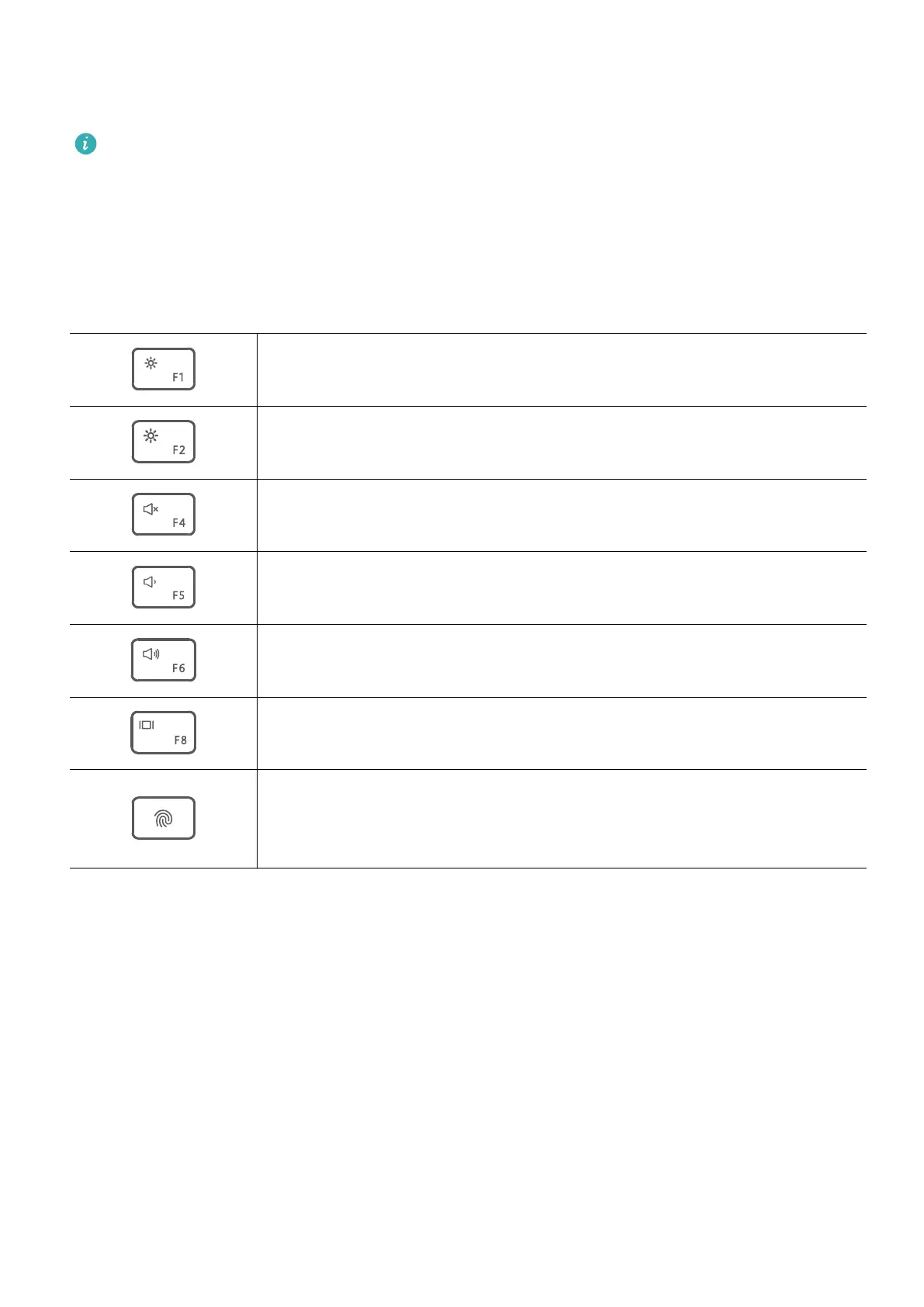
Reduces screen brightness
Increases screen brightness
Mutes or unmutes
Reduces volume
Increases volume
Switches screen projection mode
After enrolling a ngerprint, simply press the power button with the
enrolled nger to power on and unlock the computer without having
to enter a password.
Switching Between Shortcut Keys and Function Keys
Once this feature is enabled, keys such as F1 and F2 have dierent functions when used with
dierent software.
You can use the F keys as function keys by performing the following method:
Press the Fn key and the indicator will light up. The F keys will then work as function keys. To
return to shortcut key (hotkey) mode, press the Fn key then the indicator will turn o.
Get to know your computer
3



 To Next Page