Getting started
Step 1: Connecting to a network
With Computer Feature enabled, this device supports touch control operations.
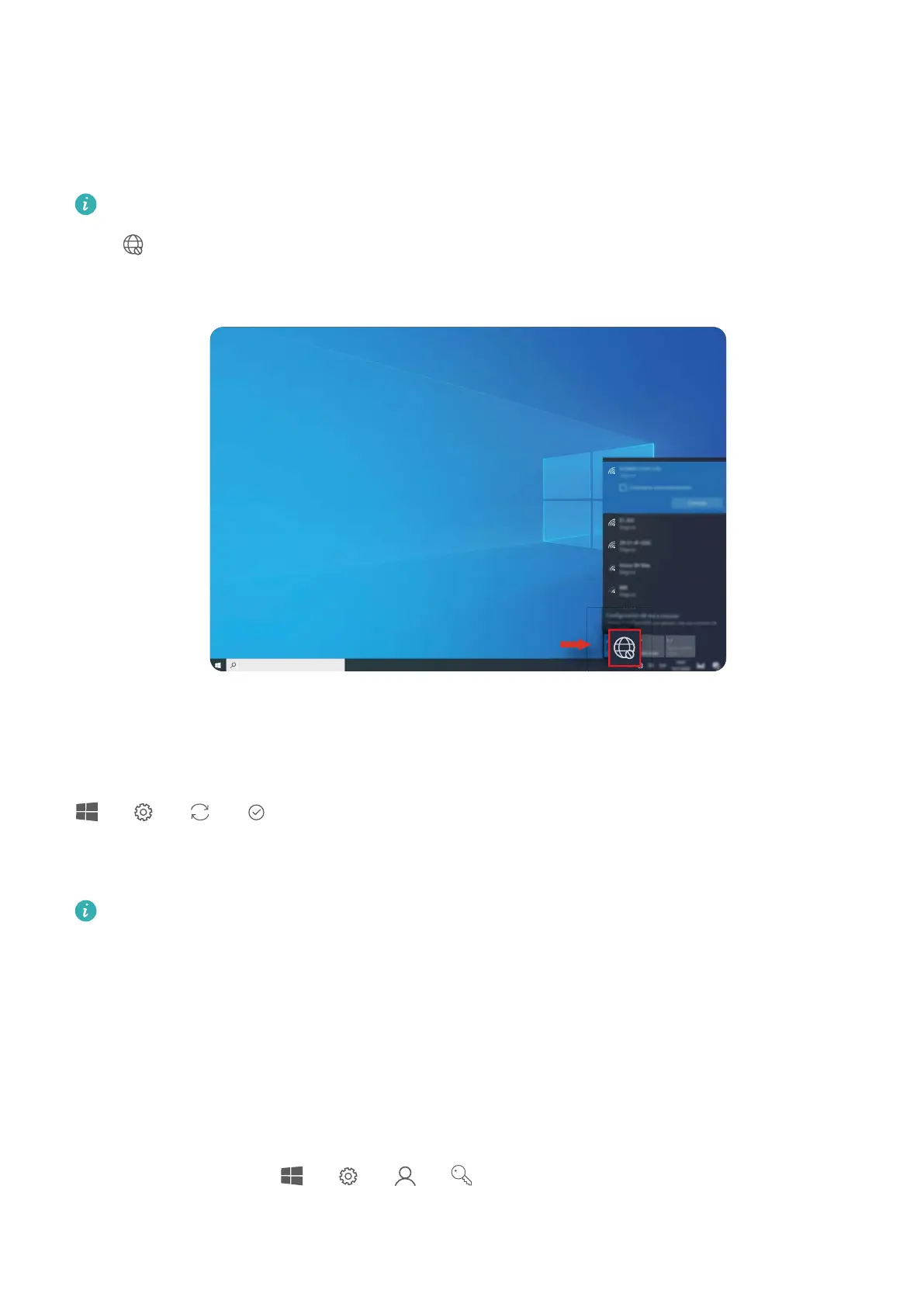
Click in the lower right corner of the desktop. Select a Wi-Fi network and follow the
instructions to establish a connection.
Step 2: Activating Windows
Windows will activate automatically when you connect to the Internet for the rst time. Click
> > > to check if Windows has been activated.
If Windows cannot be activated, restart the computer, connect to the network, and try again.
If the issue persists, connect to a dierent network or wait a while before trying again.
If Windows is not activated, some features on your computer may be restricted.
Step 3: Enrolling ngerprints (only supported with
some keyboards)
You can press the Power button to power on and unlock your computer quickly and securely
after your ngerprint has been enrolled using the keyboard that comes with the computer.
Enrolling a ngerprint
On the computer, go to > > > , set the login password and PIN, and follow
the onscreen instructions to enroll your ngerprints.
6



 To Next Page