EasyManua.ls Logo

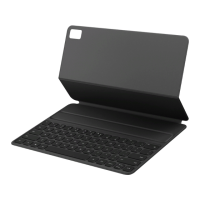
Huawei Smart Magnetic Keyboard - User Manual

Huawei Smart Magnetic Keyboard
29 pages
Print Icon
To Next Page IconTo Next Page
Loading...
Quick Start Guide
Quick Start Guide
Guide de démarrage rapide
Kurzanleitung
Guida rapida
Guía de inicio rápido
Snabbstartsguide
Hurtigstartguide
Hurtigstartveiledning
Pika-aloitusopas
Hızlı Başlangıç Kılavuzu
Краткое руководство пользователя
Короткий посібник користувача
Gyors útmutató
Stručná úvodní příručka
クイックスタートガイド


Question and Answer IconNeed help?

Do you have a question about the Huawei Smart Magnetic Keyboard and is the answer not in the manual?

Summary

Installation and Pairing

Keyboard Installation and Pairing Process

Follow onscreen instructions to pair the keyboard after physical installation. Successful pairing enables input.

Bluetooth Pairing Status Indicator

Details the Caps button indicator light for Bluetooth discoverability and pairing status.

Multi-Screen Collaboration

NFC Collaboration Setup

Place phone's NFC sensor against the keyboard's NFC icon for seamless collaboration.

Summary

Installation and Pairing

Keyboard Installation and Pairing Process

Follow onscreen instructions to pair the keyboard after physical installation. Successful pairing enables input.

Bluetooth Pairing Status Indicator

Details the Caps button indicator light for Bluetooth discoverability and pairing status.

Multi-Screen Collaboration

NFC Collaboration Setup

Place phone's NFC sensor against the keyboard's NFC icon for seamless collaboration.

Huawei Smart Magnetic Keyboard Specifications

General IconGeneral
BacklightNo
ConnectionMagnetic
KeysFull-size
MaterialPU Leather
CompatibilityHuawei MatePad Pro

Related product manuals