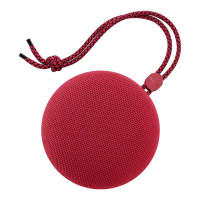
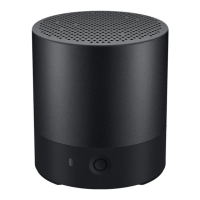
This document provides a comprehensive guide to using a portable speaker, covering its appearance, various functions, audio playback options, stereo grouping, and maintenance instructions.
Device Appearance and Basic Functions
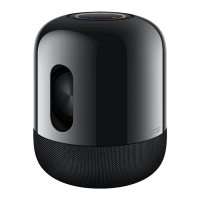
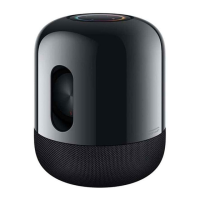
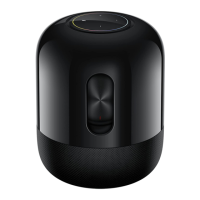
The speaker features a sleek design with clearly labeled buttons and ports for easy interaction. Key controls include:
- Power button: Used for various power-related actions. A 9-second press forces a restart, a 1-second press powers off, a short press powers on, and a single press (less than 1 second) checks the battery level when the speaker is on.
- Voice control button: Activates the voice assistant on a connected phone.
- Play/Pause button: Controls media playback (play/pause), answers or ends calls, and rejects calls with a press and hold. Pressing and holding this button simultaneously with the Volume - button for 5 seconds restores the speaker to factory settings.
- Bluetooth button: Toggles Bluetooth on/off.
- Stereo button: Used to set up or cancel a stereo group by pressing it twice.
- Battery level indicator: Displays the current battery charge.
- Charging port: Connects to a charger via a cable.
- Volume +/- buttons: Adjusts the speaker's volume.
- Ring indicator: Shows different light effects to indicate various functions and statuses.
Speaker Light Effects
The ring indicator provides visual feedback on the speaker's status through different colors and patterns:
- White:
- Turns on: Powering on (Power button constant on).
- Voice button on: Waking up the voice assistant on the phone.
- Turns on for 1s then turns off (Bluetooth button flashes): Bluetooth connection in progress.
- Bluetooth button constant on: Bluetooth connected.
- Changes in stages (/): Increasing/Decreasing volume.
- Diffuses, spins, turns on, and turns off (Bluetooth button flashes): OneHop Audio Sharing connection in progress.
- Bluetooth button constant on: OneHop Audio Sharing connected.
- Spins (Stereo button flashes): Setting up a stereo group.
- Stereo button constant on: Stereo group set up.
- Turns on and off in stages, flashes once at current battery level then turns off (Power button constant on): Checking battery level.
- Green:
- Turns on (/): Incoming call/Answering a call.
- Constant on: Call in progress.
- Off: Call ended.
- Increases in stages: Updating firmware.
- Yellow:
- Increases in stages (/): Being restored to factory settings.
- Multi-colour:
- Spins (/): Media playback (requires enabling "Sync with music" in the AI Life app or pressing and holding the Play/Pause button for 3 seconds during playback).
- Battery Indicator:
- Turns white: Battery level ≥ 20%.
- Turns yellow: Battery level ≥ 10%.
- Turns red: Battery level < 10%.
It's important to note that ring indicator colors may vary slightly due to the production process, so users should refer to the actual light effect. The Power button is steady white when the speaker is powered on, while other buttons' colors depend on the speaker's status.
Connecting the Speaker to a PC
To connect the speaker to a PC:
- Bring the speaker close to the PC.
- Press the Bluetooth button briefly on the speaker to enable Bluetooth.
- A connection card will appear on the PC. Click "CONNECT" to establish the Bluetooth connection.
This feature is supported by specific Huawei MateBook models (D 16, 13 2021, 14 2021, and X Pro 2021) and requires updating PC Manager to the latest version. For other Huawei PCs or non-Huawei PCs, Bluetooth must be enabled manually on both the speaker and the computer.
Waking Up the Voice Assistant on Your Phone
The speaker can be used to activate your phone's voice assistant:
- On your phone, go to Settings > HUAWEI Assistant > AI Voice > Voice wakeup, and follow the instructions to enable AI Voice.
- Press the Bluetooth button on the speaker to turn on Bluetooth and connect it to your phone.
- For the first-time connection, press the voice button on the speaker. A dialog box will appear on your phone, prompting you to select the voice assistant. Choose AI Voice > ALWAYS ALLOW. Subsequent uses only require maintaining the Bluetooth connection and pressing the voice button.
Playing Audio from a Phone
There are two primary ways to play audio from your phone:
Connect via Bluetooth:
- Press the Bluetooth button on the speaker to turn on Bluetooth.
- On your phone, go to Settings > Bluetooth, enable Bluetooth, search for available devices, and select the speaker to connect.
- Once connected, the speaker can be used for Bluetooth calls or playing audio.
To disable Bluetooth on the speaker, press the Bluetooth button again.
OneHop Audio Sharing:
This feature allows seamless audio transfer by tapping your phone against the speaker, providing enhanced audio quality.
- Enable NFC on your phone, ensure the screen is unlocked and on. It's recommended to enable Bluetooth on both the phone and the speaker.
- Tap the NFC area on your phone against the OneHop icon on the speaker and confirm the connection on your phone. The speaker can then be used for calls or audio playback.
Disconnecting OneHop Audio Sharing:
- Cancel the Bluetooth connection: Go to your phone's Bluetooth settings, touch the connected speaker's name, and disconnect.
- Disable Bluetooth on your phone: Access your phone's Bluetooth settings and disable Bluetooth.
This feature is only supported by NFC-compatible phones running Android 5.1.1 or later.
Stereo Group
If you have two speakers of the same model, you can create a stereo group for simultaneous audio playback and enhanced stereo sound effects.
- Placement: Place the two speakers in the same room, ideally 1 to 3 meters apart.
- Double-press the Stereo button on one speaker to initiate stereo group setup.
- Double-press the Stereo button on either speaker. The ring indicator on both speakers will turn white and spin.
- Double-press the Stereo button on the other speaker, and wait for the stereo group to be established.
Method 2: Shaking the Speakers
- Shake both speakers simultaneously for 1 to 3 seconds.
- The ring indicator on both speakers will turn white and spin.
- Wait for the stereo group to be set up, after which the ring indicators will turn steady white.
Shaking to set up a stereo group is only available when each speaker is idle (no ongoing operation or playback).
Canceling a Stereo Group:
Double-press the Stereo button on either speaker in the stereo group to ungroup them.
More Instructions (Maintenance Features)
Schedule Off Time:
This feature allows the speaker to automatically power off after a specified period of inactivity (no ongoing operation or playback).
- Open the AI Life app.
- Touch the speaker card on the Home screen.
- Select "Schedule off time" and set a time period.
- To disable, select "Never."
By default, this feature is enabled with a 15-minute off time.
Low Power Consumption Mode:
When the speaker is idle, enabling this mode conserves power and extends usage time.
- Press and hold the voice button for 5 seconds to enter low power consumption mode.
- To exit, press any button, use NFC tapping, shake the speaker, or play audio over Bluetooth.
Restore to Factory Settings:
To restore the speaker to its original settings:
- Ensure the speaker is connected to a power source.
- Press and hold the Play/Pause button and the Volume - button simultaneously for about 5 seconds.
Update:
Regularly updating the speaker ensures a better user experience.
- Updates typically take 5 to 10 minutes.
- During an update, ensure your phone is connected to the speaker via Bluetooth and has a stable network connection.
- Do not exit the update screen, as the speaker will be unusable during this process.
Charging:
- It is recommended to use a 5 V/2 A, 9 V/2 A, or 10 V/4 A charger.
- Remove the charger once the speaker is fully charged to prolong battery life.
- Using a charger that does not support SCP2.0 or PD3.0 with a standard charging cable will affect charging speed. Huawei chargers and charging cables are recommended.
Set the Speaker Name and Location:
- Open the AI Life app.
- On the Home screen, touch the speaker card.
- Touch the "..." icon in the upper right corner, then select "Device settings."
- On the device settings screen, you can change the "Device name" and "Location."

 Need help?
 General
 Weight and Dimensions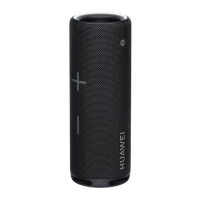

 To Next Page