8
Basic Operation of Eclipse+
5. If registration fails or connection cannot be completed during 180 s,
connection mode will be turned off. Pairing LED Indicator will turn red.
6. If registration fails, please try again by going through steps 1 to 4.
7. Full control and full feat
ures can be accessed with HubbleClub App.
4. Basic Operation of Eclipse+
4.1 Control Night Light
• Tap Night Light icon at the front of Eclipse+ will change the colour of
night light. The colour changes in cycle.
• The brightness of night light can be adjusted by tapping the brightness
up
and brightness down icons.
4.2 Control Soothing Sound
• Tapping the Soothing Sound icon on the front of Eclipse+ will change
the soothing sound.
• The volume of the soothing sound can be adjusted by tapping the
volume up
and volume down icons
4.3 Use Eclipse+ as a BT Speaker
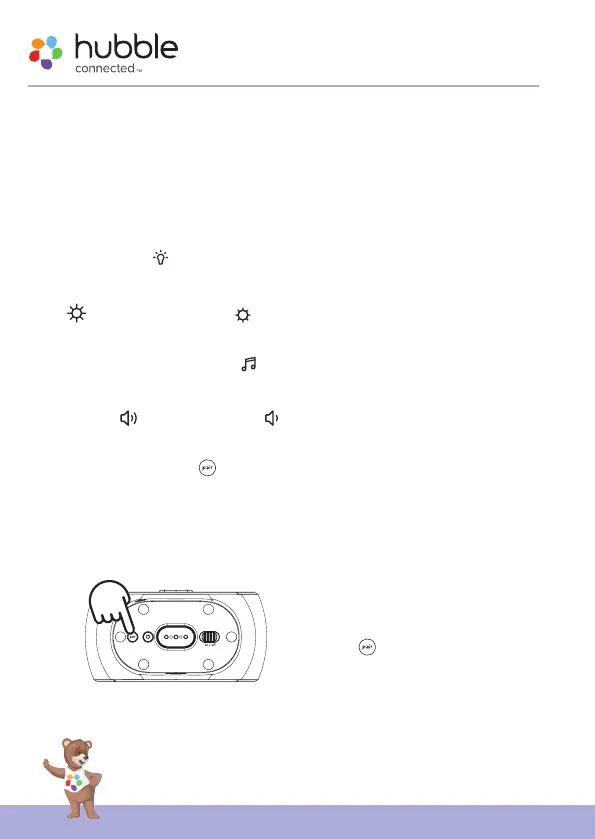
• Press and hold BT Pair button at the bottom of Eclipse+ to enter into
pairing mode. The LED will blink in blue.
• Go to the Set-Up menu of your mobile phone. Then go to BT Connection.
• Find the Device name “Hubble Eclipse+” and connect.
• If the connection fails, please try again by going through the first 3 steps.
• Stream the audio from your mobile phone and listen to it in Eclipse+.
Note:
Once BT is disconnected,
reactive BT by long pressing BT
Pair
button, and reconnect
Eclipse+ on your mobile phone.


 To Next Page