Calibrate your camera
Before recording, you’ll need to calibrate your
camera to the eld. Tap Calibrate Camera on the
Record tab in the Hudl Focus app.
Match the arrows to the eld corners
Follow the steps in the Focus app to calibrate the
camera. Make sure the top of the arrow aligns with
each corner of the eld, use two ngers to zoom in
and rene the placement.
Start a new recording
Tap Start Recording, select whether it’s a game
or practice, and give it a title. Hudl Focus Flex
will automatically record for the time you select,
anywhere from ve to 180 minutes.
No need to keep the Focus App open when a
recording is in-progress. If the camera’s front light
is green, it’s recording.
Extend or stop a recording
Tap Extend and select an amount of time to
extend a recording by, or tap Stop to save and end
a recording.
Check the Camera Status tab for camera
connection, battery life and more details on the
status of your device.
06
07
08
09
For safety, if you need to move the camera to a different
position, please lower the tripod before moving.
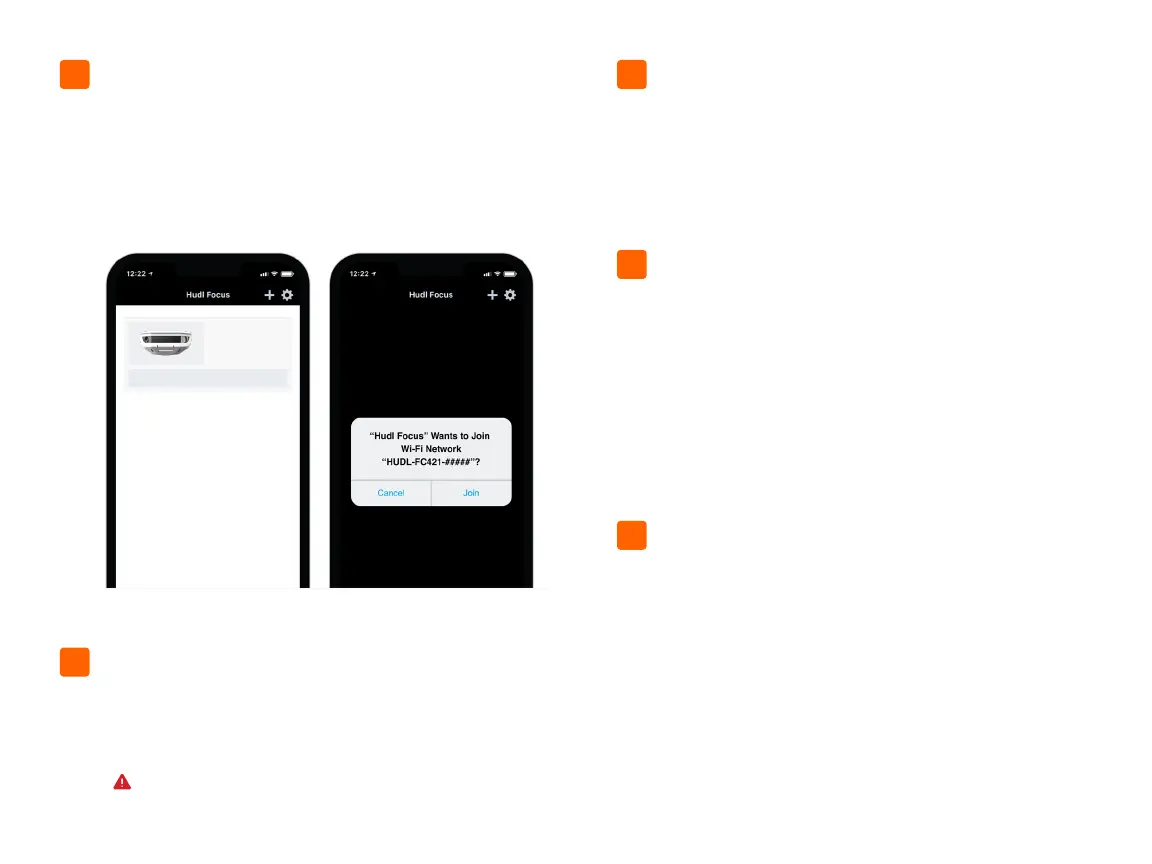
Connect to your camera
Tap Connect next to your camera, then when
asked to join the “HUDL-Focus” Wi-Fi network,
tap Join. You’ll need to connect to your camera’s
Wi-Fi to calibrate the camera to the eld and start
your rst recording.
05
10
FC421-#####
Focus Flex
Connect


 To Next Page
 Loading...