Chapter 4 • Pointing the antenna by using a wireless device
1039429-0001 Revision D
3. Access the wireless router’s built-in web server by entering 10.0.0.1 in the
URL field of an Internet browser on your laptop.
4. Log in to the Netgear router with the following credentials:
Username: admin
Password: password
Note: Other routers may use different values.
5. Click Wireless Settings on the left side of screen.
6. Change SSID to HughesOasis.
7. Click Apply. The router may ask you to enter your username and password
again. Use the same as above and click OK.
8. Disconnect the Ethernet cable from the laptop.
Point and activate terminal with wireless device
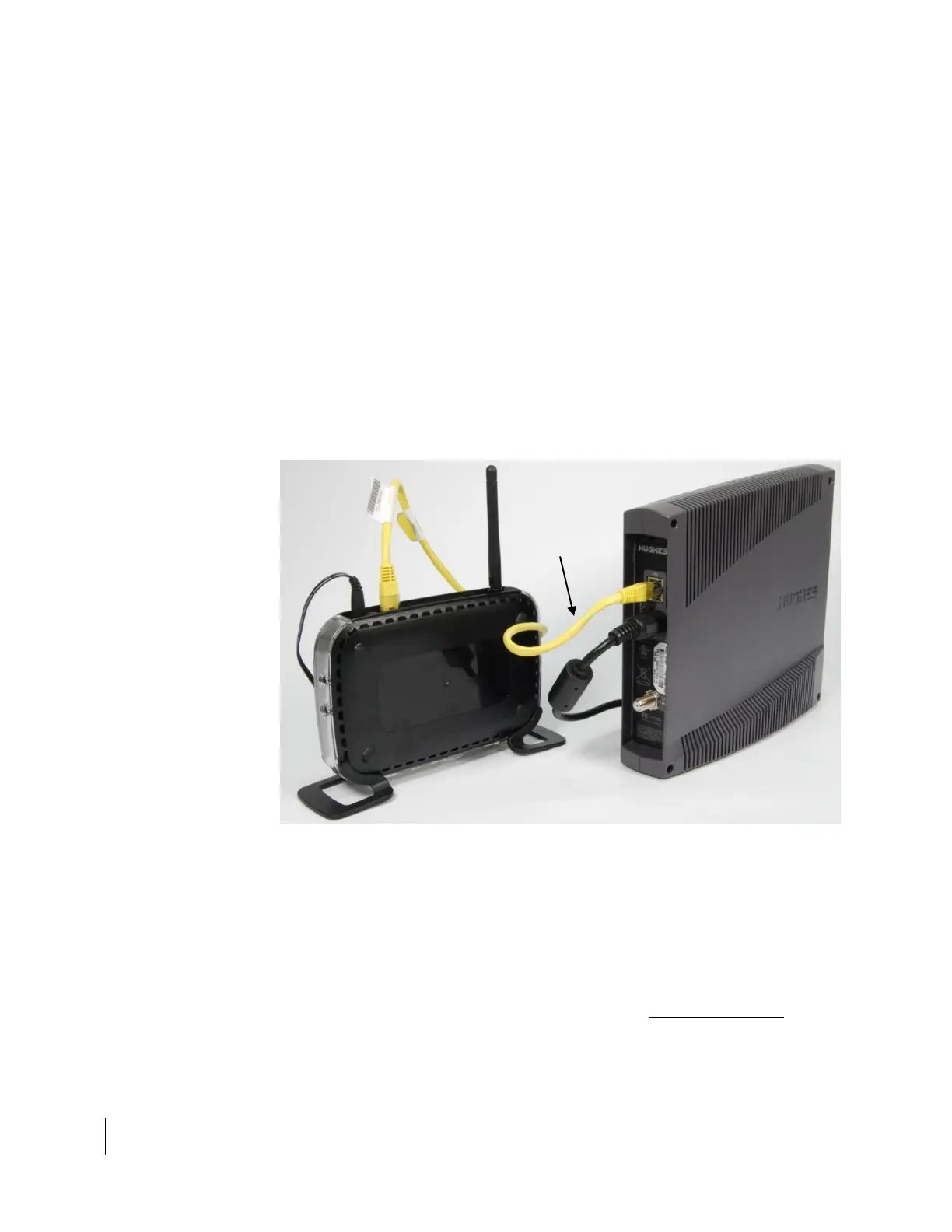
1. Plug the Ethernet cable from the satellite modem into the WAN port on
wireless router, as shown in Figure 22.
Figure 22: Connecting the satellite modem and Wi-Fi router
2. Plug in the power cord of the Wi-Fi router.
3. On your wireless device, search for available Wi-Fi signals.
4. Continue with Chapter 3 or Chapter 4, depending on the DAPT version being
used.
5. Launch an Internet browser on the wireless device and enter 192.168.0.1 in
URL field. The System Control Center (SCC) should now be displayed, as shown
in Figure 23 on page 41.
6. Click the Information icon on the right side of the System Information link.



 To Next Page