EasyManua.ls Logo

Huion INSPIROY G10T - User Manual

Huion INSPIROY G10T
21 pages
Print Icon
To Next Page IconTo Next Page
Loading...
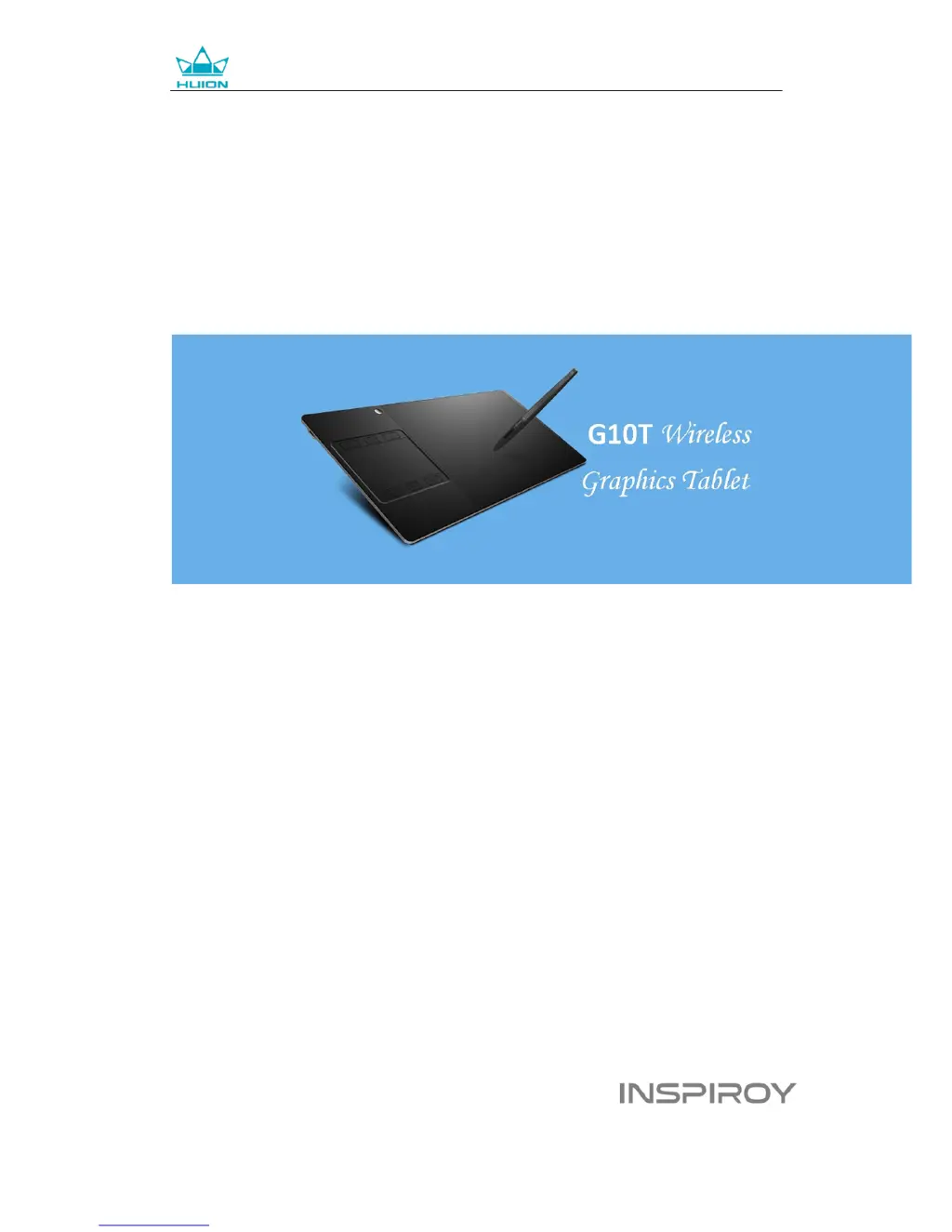
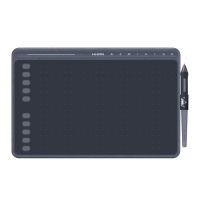
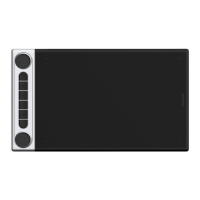
G10T Wireless Graphics Tablet
User Manual
For Windows and Macintosh OS

Questions and Answers

  • M
    Mary OdonnellAug 15, 2025
    What to do if my Huion INSPIROY G10T pen does not work?
    • D
      David MillerAug 15, 2025
      If your Huion Graphics Tablet pen isn't working, try these steps: 1. Ensure the tablet is powered on. 2. Use the pen that originally came with your tablet. 3. Charge the pen if it has low power. 4. Verify that you've installed the driver correctly.
  • J
    John BurnsAug 18, 2025
    How to fix no pen pressure on Huion INSPIROY G10T Graphics Tablet?
    • M
      Matthew ReynoldsAug 18, 2025
      If there's no pressure in your graphics software but the cursor moves when using your Huion Graphics Tablet, it could be due to conflicting tablet drivers or the drawing software being open during driver installation. To resolve this, uninstall all tablet drivers and close the drawing software. Then, reinstall the Huion driver. Restarting your computer after installation is recommended.
  • D
    Deborah KingAug 21, 2025
    Why doesn't the side button of the pen work on my Huion Graphics Tablet?
    • R
      Raymond SmithAug 21, 2025
      If the side button on your Huion Graphics Tablet pen isn't working, make sure the pen nib isn't touching the tablet surface when pressing the side button. The distance between the nib and the surface should be within 10mm.
  • S
    Sharon BaileyAug 25, 2025
    Why is the battery indicator flashing red on my Huion INSPIROY G10T Graphics Tablet?
    • S
      Steven MooreAug 25, 2025
      If your Huion Graphics Tablet's battery indicator is flashing red, it means the battery voltage is low. Please recharge the tablet as soon as possible.
  • Z
    zharveyAug 27, 2025
    What to do if computer doesn’t recognize Huion Graphics Tablet?
    • V
      Victor WellsAug 27, 2025
      If the computer can’t recognize your Huion Graphics Tablet or the wireless receiver, ensure the USB port you're using is functional. If it's not, try a different USB port.
  • I
    ibakerAug 30, 2025
    Why is the touch pad not working on my Huion INSPIROY G10T Graphics Tablet?
    • E
      Erik TaylorAug 31, 2025
      If the touch pad on your Huion Graphics Tablet isn't working, here are a few things to check: 1. Ensure the touch function is enabled in the driver settings. 2. Make sure you're using the correct gesture. 3. Be aware that gestures may only work with certain software.
  • L
    Laura WalkerSep 2, 2025
    Why are press keys not working on my Huion INSPIROY G10T Graphics Tablet?
    • R
      Russell CampbellSep 3, 2025
      If the press keys on your Huion Graphics Tablet aren't working, check the following: 1. Make sure the Press Keys function is enabled in the driver. 2. Verify that you have correctly defined the functions for the Press Keys.
  • T
    Tommy SextonSep 5, 2025
    What to do if cursor is unstable on Huion Graphics Tablet?
    • J
      Jordan PetersonSep 5, 2025
      If the cursor is unstable or the drawing line isn't straight when using wireless mode on your Huion Graphics Tablet, try these steps: 1. Ensure there are no other 2.4G devices nearby, as they may interfere with the tablet's function. 2. Make sure there are no obstructions between the tablet and the receiver.
  • J
    Jessica JordanSep 8, 2025
    Why won’t my computer enter sleep mode with Huion INSPIROY G10T?
    • J
      Jesse RodriguezSep 8, 2025
      If your computer isn't entering sleep mode when using the Huion Graphics Tablet, avoid placing the pen on the tablet surface when not in use, as this can prevent the computer from sleeping.
  • V
    vfrederickSep 12, 2025
    Why does Huion INSPIROY G10T Graphics Tablet charging stop when computer sleeps?
    • C
      coryfreemanSep 12, 2025
      If the tablet charging progress seems to stop whenever the computer enters sleep mode, it might be because the system stops powering the USB port. Adjust your system power or energy saver settings to prevent the computer from entering sleep mode while the tablet is charging.

Summary

Precautions

General Safety and Usage Guidelines

Provides essential safety instructions and guidelines for the proper use and handling of the graphics tablet.

Product Overview

Tablet Introduction

Introduces the HUION INSPIROY G10T wireless graphics tablet and its capabilities.

Graphics Tablet Components

Details the physical components and ports of the graphics tablet.

Stylus Pen Description

Describes the features and specifications of the rechargeable stylus pen.

Wireless Receiver Function

Explains the function and usage of the wireless receiver for connectivity.

Other Included Accessories

Lists and illustrates additional accessories provided with the graphics tablet.

Tablet Connection

Wired Mode Connection

Step-by-step guide on connecting the tablet to a computer using a USB cable.

Wireless Mode Connection

Instructions for establishing a wireless connection between the tablet and the computer.

Driver Installation

OS Support

Specifies the operating systems compatible with the tablet driver.

Install via CD

Guidance on installing the driver using the provided installation CD.

Install via Download

Instructions for downloading and installing the driver from the official website.

Pen Nib Replacement

Charging the Pen

Product Basic Operation

Using The Pen

Basic guide on how to hold and operate the stylus pen effectively.

Hold the pen

Proper grip technique for the stylus pen to ensure comfortable and accurate use.

Position the cursor

How to move the cursor on the screen using the pen's proximity to the tablet.

Click Action

Moving Objects

Using Pen Side Buttons

Using the Tablet

Tablet Power and LED Indicators

Information on the tablet's power switch, sleep mode, and LED indicator meanings.

Tablet Press Keys

Overview of the tablet's press keys and their customizable functions.

Charging the Tablet Battery

Instructions for charging the tablet's battery and its wired functionality.

Tablet Touch Pad Gestures

Function Setting

Device Connection Status

Visual indicators showing the tablet's connection status to the computer.

Working Area Configuration

Configuration of the tablet's active area mapping to the computer screen.

Multi-Monitor Setup

Setting up the tablet's mapping across multiple displays.

Customized Working Area

Rotate Working Area Orientation

Press Keys Function Customization

Pen Buttons Function Customization

Pressure Sensitivity Adjustment

Pen Pressure Testing Procedure

Windows Ink Feature Integration

Driver Settings Export and Import

Technical Specifications

Troubleshooting Guide

Tablet Malfunction Solutions

Solutions for common issues and malfunctions encountered with the graphics tablet.

System Interaction Issues

Troubleshooting guide for problems related to the tablet's interaction with the computer system.

Regulatory Compliance Notices

After-service and Support Contact

Huion INSPIROY G10T Specifications

General IconGeneral
BrandHuion
ModelINSPIROY G10T
CategoryGraphics Tablet
LanguageEnglish

Related product manuals