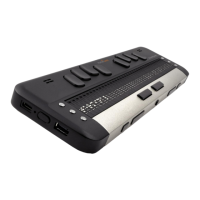
1. Download the Brailliant 14 upgrade file and make sure you remember its location on your
disk.
2. Install the Brailliant BI 14 Updater on your PC from your Brailliant 14 CD or from our
website at www.humanware.com/Brailliant_support
3. Run the Brailliant BI 14 Updater on your PC.
4. Connect your Brailliant 14 to your computer with a USB cable. Your computer should now
recognize your Brailliant.
5. Turn on your Brailliant 14.
6. Make sure you are in Application mode – the switch in the rear of your device should be in
the left position (the position closest to the edge of your Brailliant). Switch to Application
mode now if you are in Terminal mode.
7. Scroll to the About menu of your Brailliant and press Enter.
8. In the About menu, scroll to the Upgrade item and press Enter.
9. On your PC, click the Choose… button in the bottom left portion of the Brailliant 14
Updater window.
10. A file explorer window will open. Find and open the firmware upgrade file you downloaded
at step 1. This file should be a .dfu file.
11. Click the Upgrade button in the bottom right portion of the Brailliant 14 Updater window.
12. Wait until the upgrade process is completed. This may take several minutes.
13. Once the upgrade process is complete, press and hold the Power button for 15 seconds. Your
Brailliant will close.
Your Brailliant 14’s firmware is now up-to-date.


 To Next Page