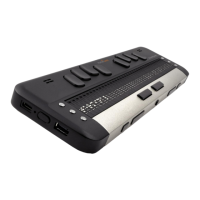
Physical Description
The BI 14 model has a 14-cell Braille display, 8-dot Perkins-type Braille keyboard, along with a
joystick and a number of additional keys for navigation. It includes the following elements:
Top surface
Braille display
The Braille display with 14 cells is located on the top surface, near the middle of the device. Behind
each Braille cell is a small sensor known as the cursor routing sensor (Active Touch Sensor).
Braille Keyboard
The Braille Keyboard’s 8 keys are located above the Braille display. The left-most key is called
BACKSPACE, or sometimes dot 7, and the right-most key is called ENTER, or dot 8. The Space
bar is located in the middle, just below the Braille display. The Braille keyboard can be used to type
Braille or perform commands (in combination with other keys – like with space). The commands
depend on the screen reader used. Internal Brailliant applications have shortcuts described in the
Application Mode section.
Joystick
The joystick is located on the top surface, near the rear edge of the device. The joystick has 5
functions: left, right, up, down and action. The action is performed by pressing the joystick cap into
the unit.
Front Edge
Thumb keys
The four keys facing you are normally operated by your thumbs so we call them "Thumb keys" to
differentiate them from the main keyboard keys. These thumb keys are used in conjunction with the
Braille display when reading and navigating. They can be operated using your thumbs without
moving your fingers from the Braille display.
The thumb keys are named as follows: PREVIOUS, LEFT, RIGHT and NEXT.
Left Edge
Power button
The Power button has a tactile dot in the middle and is slightly raised. It is located towards the back
of the device on the left edge. To turn the device on or off, press and hold this button for
approximately 3 seconds. The Brailliant 14 will confirm with a beep that it is powering on or off.
The word “Starting” will be written on the Braille display during the booting process.
The Power button is also used to reset the Brailliant (when kept pressed for about 15 seconds) and
to open the menu (a short press).
Micro USB port
In the middle of the left edge, next to the Power button, you will find a rectangular USB port. Use
the cable that came with your Braille display to connect your Brailliant to a PC. You can also charge
the Brailliant's battery through USB.
Rear Edge
Application/Terminal mode switch
On the rear to your left is an App/Terminal switch. Turn it to your right to use the unit with any
screen reader (mobile or PC). Turn it to your left (closer to the edge of the device) to use the
applications included in your Brailliant 14.


 To Next Page