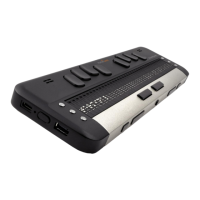
Charging the Battery
IMPORTANT: Prior to first use, you must charge the device for a minimum of 8 hours without
using it. After its first use, it will take up to 5 hours to fully charge the battery.
The Brailliant has a built-in rechargeable Lithium Ion Polymer battery. To charge the battery,
connect the Brailliant via USB to your PC or a power outlet using a USB AC adapter. Battery life of
your Notebook will not be affected significantly as the current used is very low. The Brailliant will
display “charging” on the Braille display when connected to power. You can use the Brailliant while
charging, and you can view the battery status in the internal menu. Once fully charged, the
Brailliant is ready for 10 hours or more of continuous operation on Bluetooth.
You can use any universal USB AC adapter to charge the Brailliant. Just insert the USB cable’s
rectangular connector into the adaptor’s USB port, insert the micro USB connector into the micro
USB port on the left side of your Brailliant, then plug in the adapter into an AC outlet.
Connecting the AC adapter or the USB cable attached to your computer while the device is turned
off will wake it up and "charging" will be displayed. It will change to “battery full” when charged
completely.
Please fully charge your Braille display before the first use.
The Brailliant's battery management system includes a battery protection circuitry that prevents it
from being damaged by total discharge. If the battery is low, the Brailliant will warn you with a
beep before switching off automatically.
Never try to replace the battery yourself. This will likely damage the device and void the warranty.
If your device is in need of repair, please contact your local dealer or HumanWare.
Powering On/Off
Holding the Power button for approximately 3 seconds will turn on/off the device. A beep will be
heard, and “starting” will be written on the Braille display.
When holding the Power button for approximately 15 seconds the device will reset.
If there is no action on the device (no communication with the PC and no user action on the
buttons) the device will turn off after the "auto-power-off" period expires. This counter/period will
reset every time data is received from the PC or a user action occurs.
Installation and Connectivity
Interface Ports
Depending on the operating system, you can connect your Brailliant via various interfaces to your
PC. Use the USB port to communicate with PCs or Notebooks or the built-in Bluetooth interface for
your mobile devices. If you use USB to connect to a Notebook or PC, the Brailliant battery will be
recharged in the process.


 To Next Page