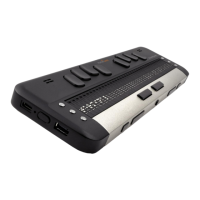
USB Port
USB connectivity is supported by Windows computers (32 and 64 bits).
Plug the rectangular USB Connector into your PC. Plug the small Micro USB Connector at the
other end of the USB cable into the Brailliant micro USB port. This is the small rectangular socket
on the left side.
Please install the Brailliant device drivers prior to connecting the Braille display to your PC. You
will find the drivers on the installation CD.
Then, when you connect your Brailliant for the first time, it will be recognized automatically.
Once the Brailliant 14 has been connected to the USB port and the driver installed from the
supplied CD, the Braille display will be connected as if it was connected to a serial port; the driver
is simulating what is known as a virtual serial port. This has the advantage that the Brailliant can be
used with screen readers that can only support serial Braille displays.
Installing this driver means that one USB port on the computer will be perceived as a serial port,
e.g. as COM3. To ascertain which virtual COM-port has been created, go to the Start menu on the
PC, select Settings > Control Panel > System; on the 'Hardware' tab select 'Device manager' and
look through the list of ports.
If using JAWS, install the JAWS driver.
Bluetooth Interface
Bluetooth is a wireless connection. Similar to USB, Bluetooth simulates a virtual COM port.
Wireless technology, along with the Brailliant's long battery life, provides total freedom and
independence from wires within the range of a Bluetooth connection. Bluetooth is now a common
interface for mobile phones, PDAs and Notebook PCs. PCs can be upgraded with Bluetooth using a
Bluetooth USB Dongle which automatically installs itself on Windows 7, Windows 8, Windows 10
(and above) when plugged in.
When two Bluetooth devices are connected for the first time, they have to be "paired". This is for
security reasons. Later, the devices will recognize each other automatically, if allowed by the user.
In the Bluetooth environment of a PC you will find the Brailliant as:
Brailliant BI 14 650014XXXXXX
where XXXXXX is the serial number of your unit.
Connecting to a PC or Notebook (in Terminal Mode)
Your Brailliant can be used as a Braille display with popular PC screen readers such as JAWS,
Supernova, etc. The PC or Notebook must provide either USB or a wireless Bluetooth interface
(built-in or by using a USB Bluetooth dongle). We recommend Windows 7, Windows 8 or Windows
10 for Bluetooth.
How to find out which virtual serial port is provided by a Bluetooth or USB interface in Windows:
1. Open the Control Panel (Start/Settings/Control Panel).


 To Next Page